| User Roles |  Admin Admin |  Staff contributor Staff contributor | ✗External contributor | ✗Pulse user |
If you are moving from automatic synchronisation to manual upload, there is no need to worry: the process is quick and straightforward. This article walks you through each step, so you can make the switch without losing any of your existing financial data.
Table of contents
Transitioning from automatic synchronisation to manual upload
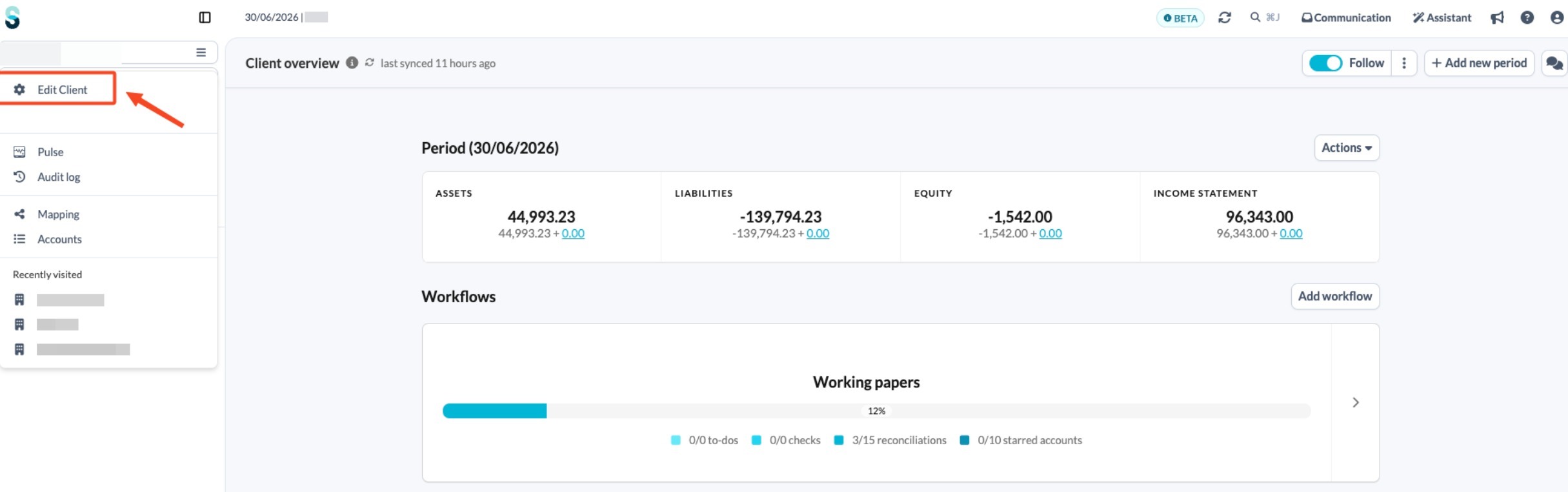
- On the client overview page, open the left-hand navigation panel and click Edit client.
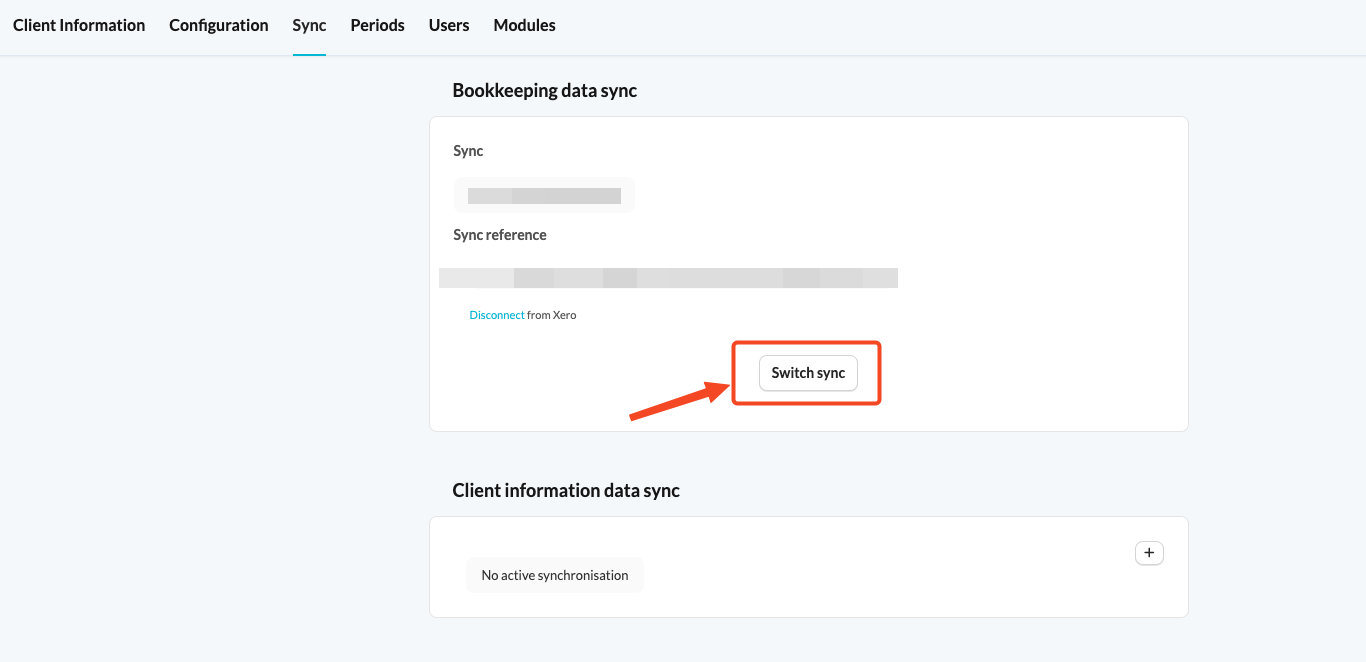
- Select the Sync tab and click Switch sync.
- On the next page, select the second option provided.
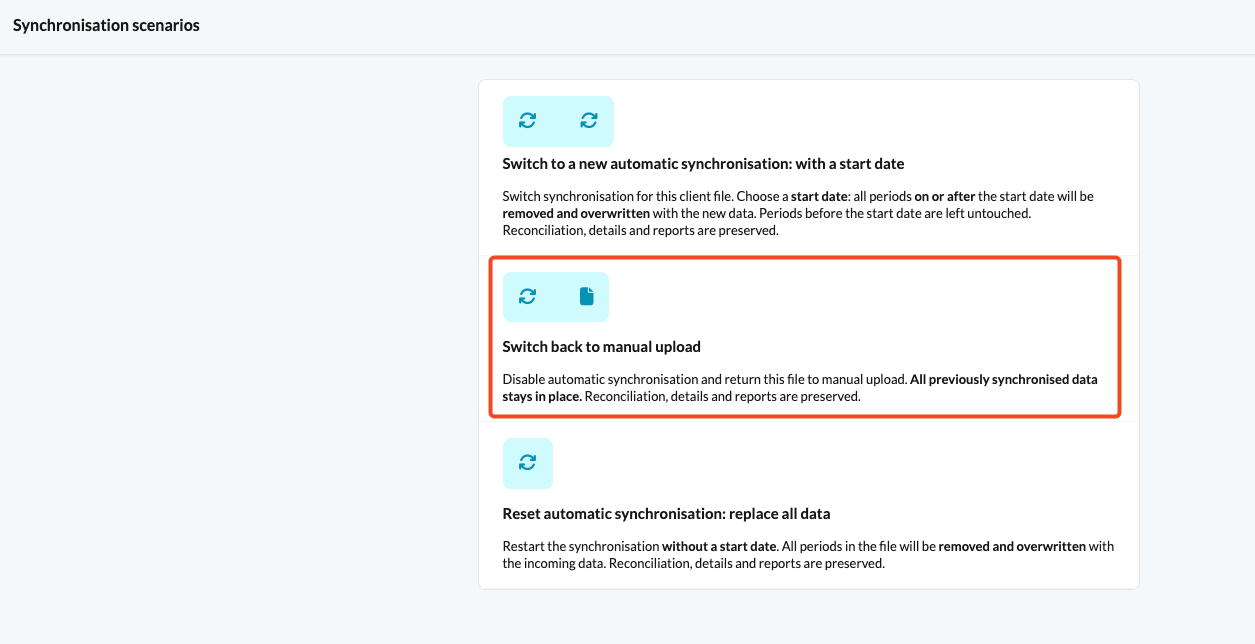
- Once selected, the file will become a manual file.
- All previously synchronised data will remain intact.
- Any manual input in templates will also be preserved.
Replacing bookkeeping data
If you need to update data in a specific period, you can replace the bookkeeping data. This allows you to quickly correct mistakes.
Steps to replace bookkeeping data
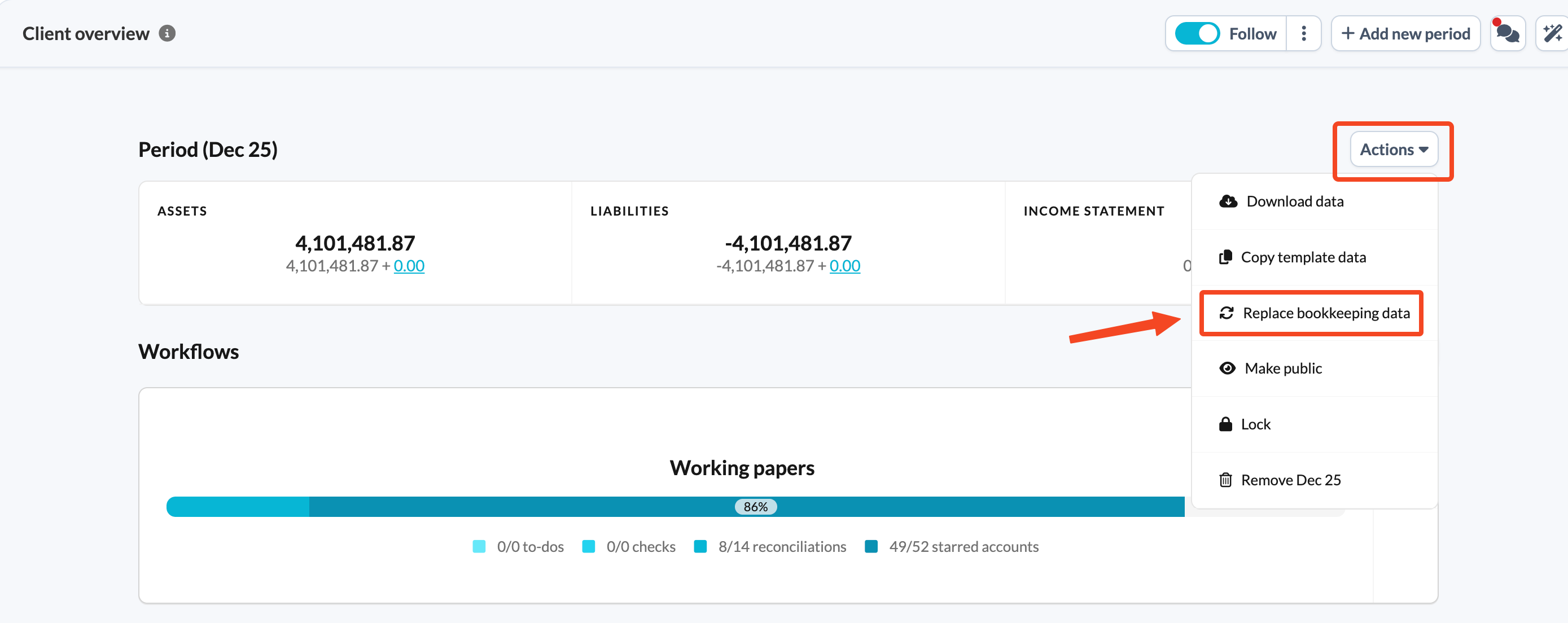
- Click the Actions button on the client overview page. Make sure you are in the period where the data needs to be replaced.
- Select Replace bookkeeping data.
- Click Upload file and choose the file from your computer.
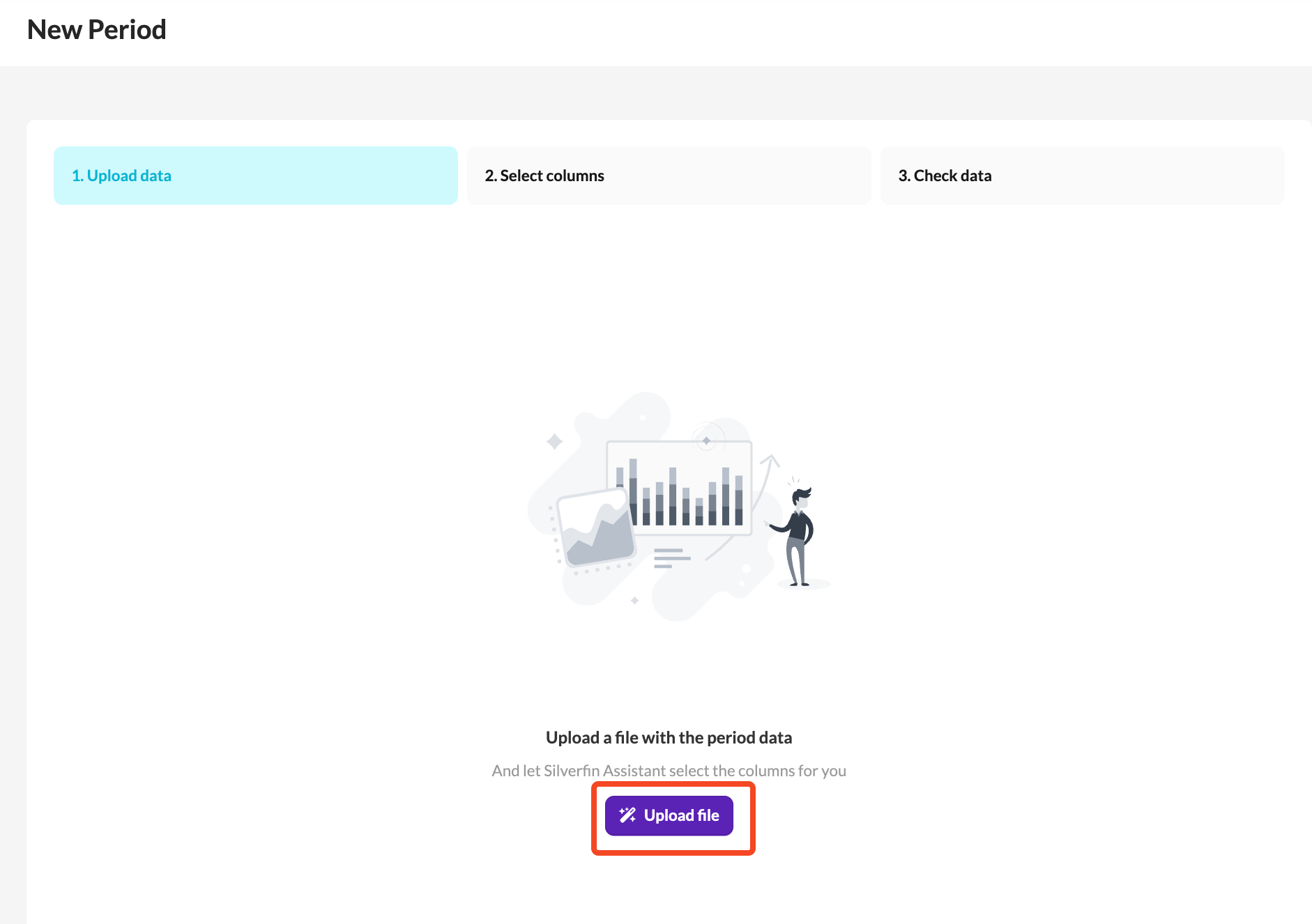
For more details on uploading data, see: How do I add manual data to a file?
Good to know
- Accounts that are not included in your new file will show a value of 0 after the import.
- If an account has no values and no input data in any period, you can delete it.
- To delete an empty account, go to the Accounts tab and click the bin icon.