
| User Roles |  Admin |  Staff contributor | External contributor | ✗Pulse user |
This article explains how to adjust the financial years (periods) in a client file, and how to control what Silverfin carries forward from one year to the next. It covers both manual and synchronised client files. Where the behaviour is different for Belgian client files, this is noted in the relevant section.
Table of contents
- How do I adjust financial years?
- How do I roll forward opening balances, retained earnings and adjustments?
- How do I turn off manual roll forward?
- How are adjustments handled in the roll forward?
- Good to know
How do I adjust financial years?
- Click the client file name at the top of the left panel and choose Edit client.
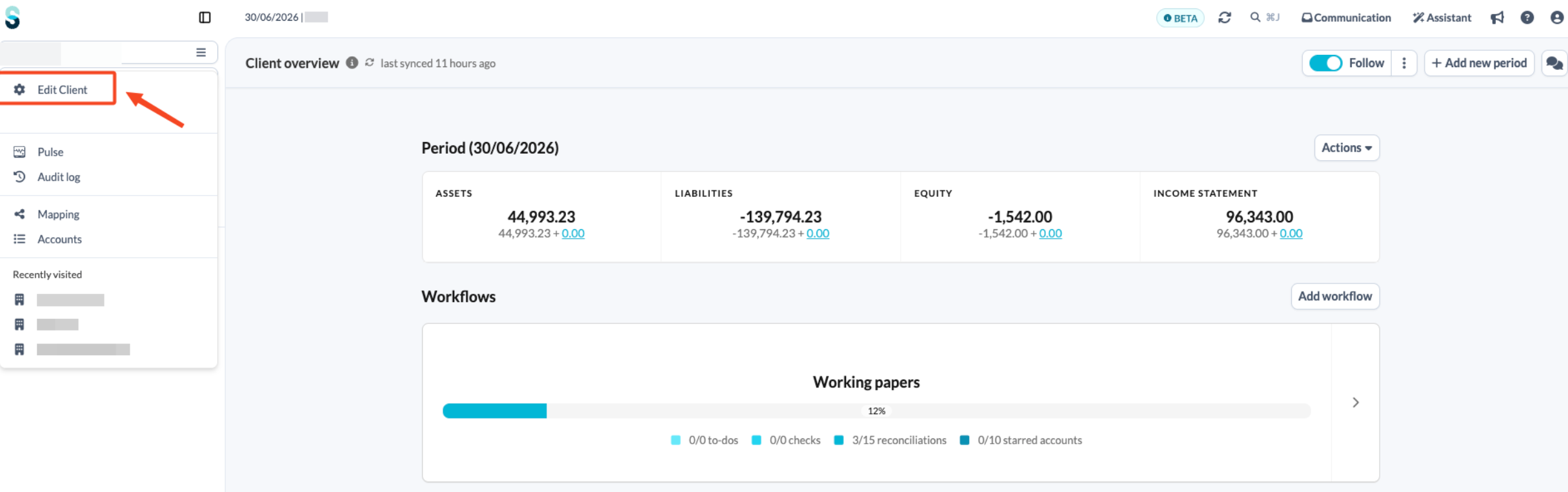
- Open the Periods tab.
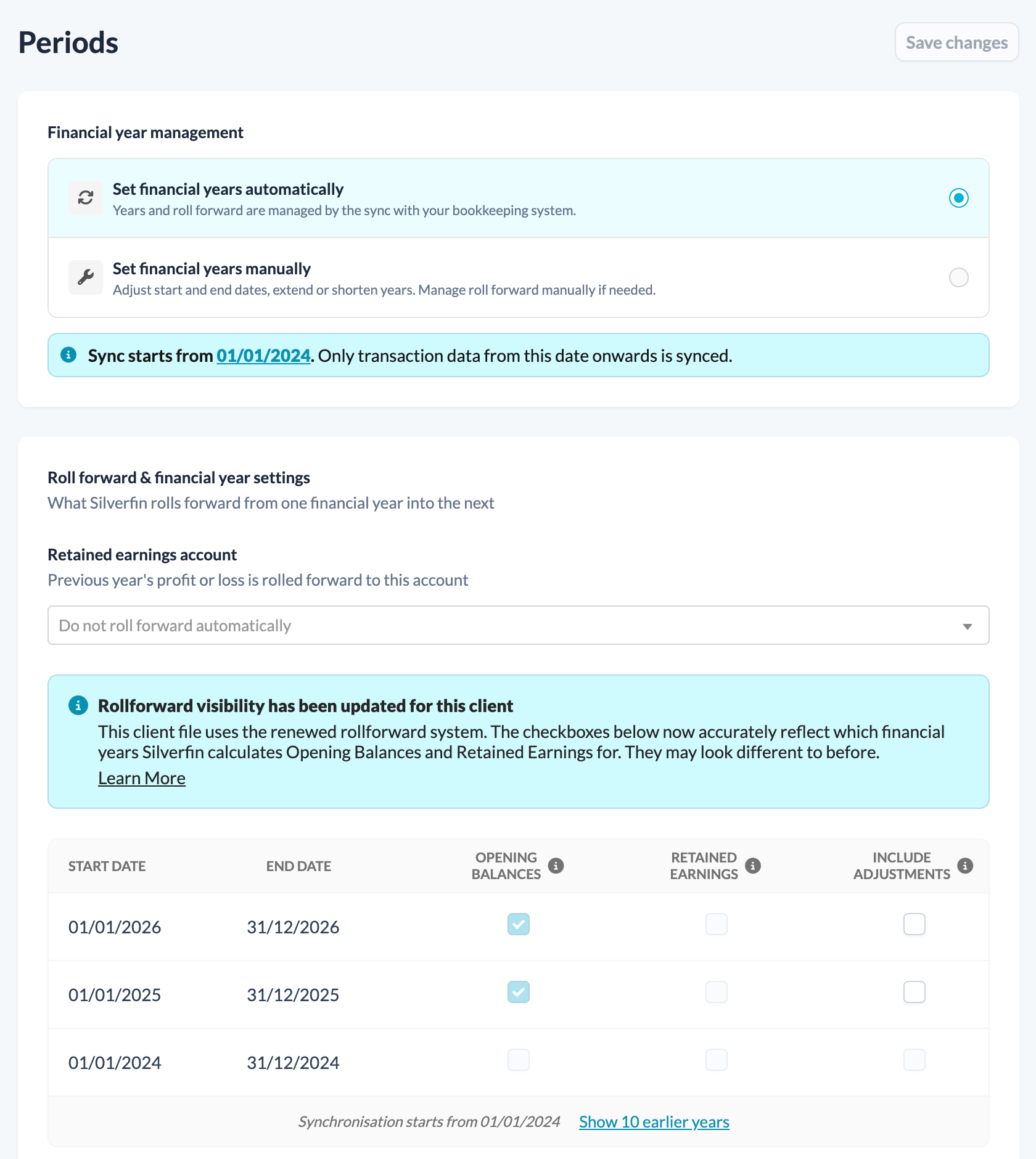
Note: Belgian client files show the same page without the Retained Earnings account selector and column.
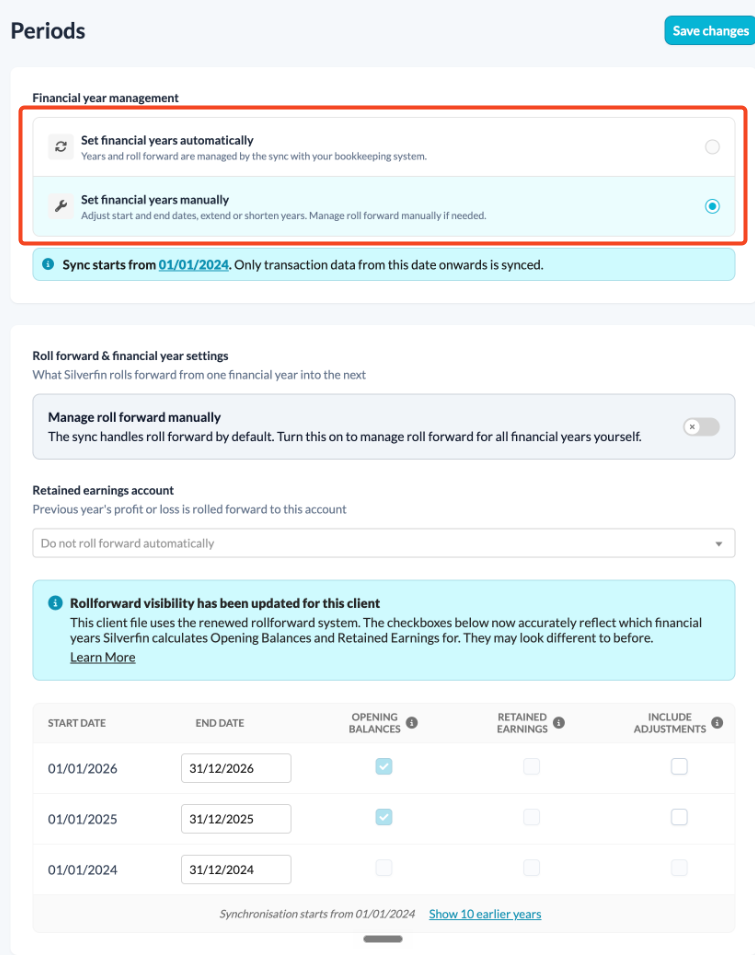
- Under Financial year management:
- Manual files: go to step 4.
- Synchronised files: the years come from your bookkeeping software, because Set financial years automatically is selected. To change them yourself, select Set financial years manually.
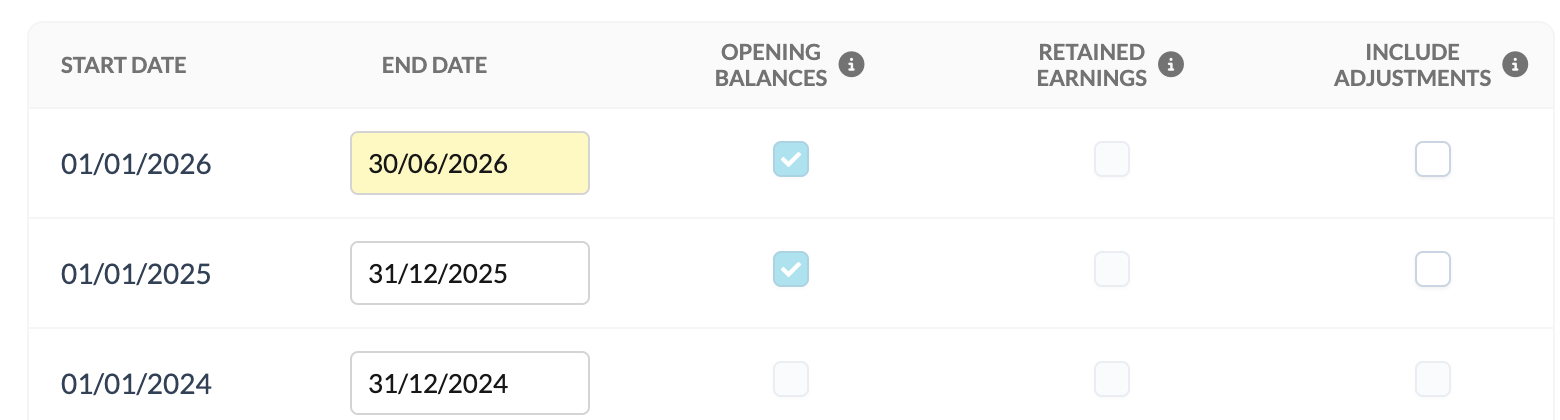
- Click the end date you want to change and pick a new date from the calendar, or type it in. Note: changing one year automatically adjusts all following years.
- Your changes are highlighted in yellow until you save them.
- Click Save changes.
- In Save changes to financial years?, check which financial years will be changed and click Save to confirm, or Cancel to keep editing.
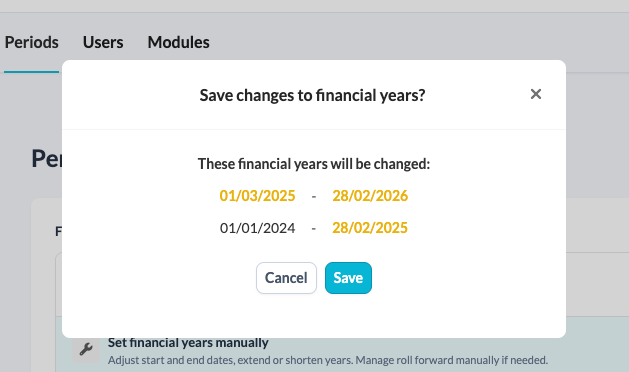
A financial year must be shorter than two years, and a period cannot start and end on the same date. If you try to save a year that is too long, Silverfin shows the message Financial year needs to be shorter than 2 years.
How do I roll forward opening balances, retained earnings and adjustments?
On synchronised files where the years come from the sync, Silverfin rolls forward automatically. You do not need to do anything.
When you set financial years manually, you can manage the roll forward yourself:
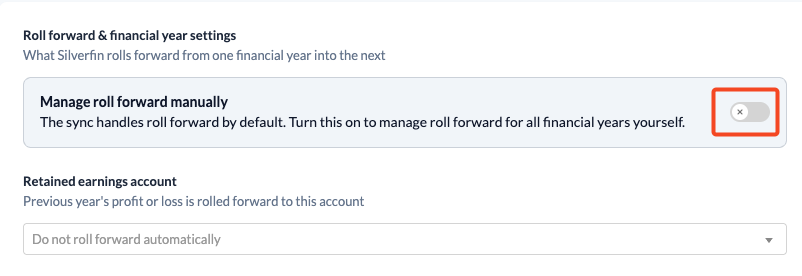
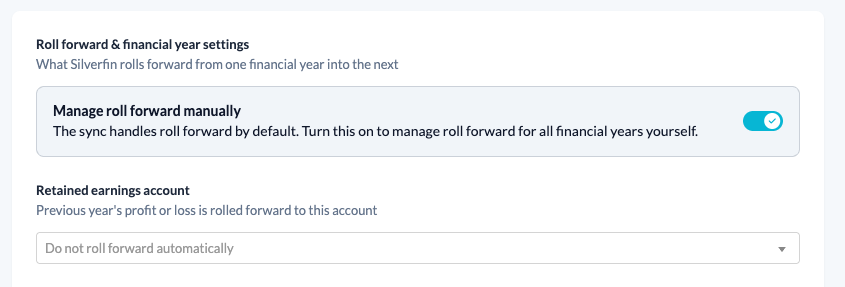
- Under Roll forward & financial year settings, turn on Manage roll forward manually.
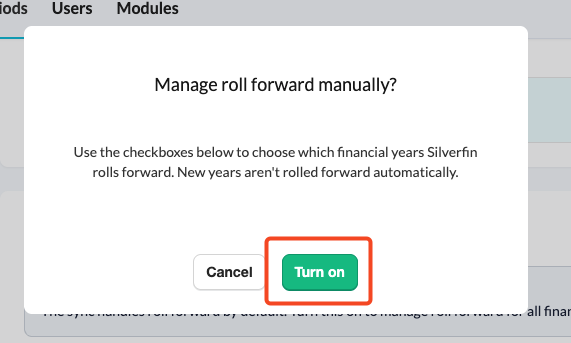
- Confirm with Turn on. From then on, Silverfin no longer rolls new years forward automatically.
- For each year, choose what Silverfin rolls forward:
- Opening balances: Silverfin calculates the opening balance from the previous year's closing balance.
- Retained earnings(not in Belgium): Silverfin books the previous year's profit or loss to the retained earnings account. Select the Retained earnings account first.
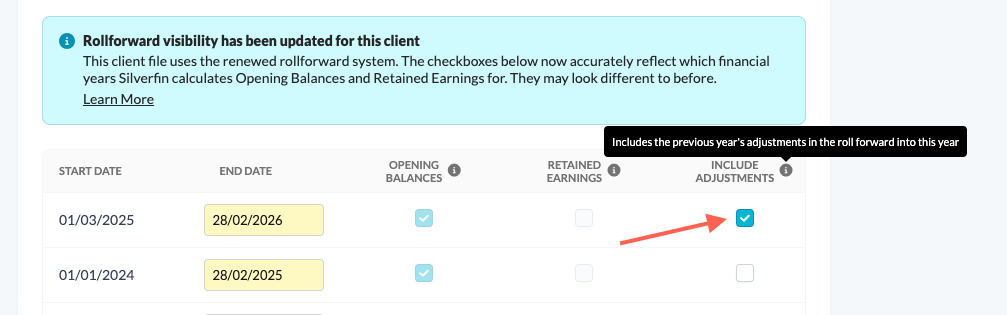
- Include adjustments: Silverfin includes the previous year's adjustments when it rolls that year forward. This is only available when Opening balances or Retained earnings is switched on for that year.
- Click Save changes.
For Belgium: Include adjustments applies only to the opening balances.
How do I turn off manual roll forward?
- Turn off Manage roll forward manually.
- Confirm with Turn off. Note: On a synchronised file, the next sync takes over the roll forward again, which might change the figures that were rolled forward.
- Click Save changes.
To stop the roll forward for a single year, untick the option for that year.
How are adjustments handled in the roll forward?
- Default: years you set manually include the previous year's adjustments when they roll forward. Years that come from the sync do not, because those adjustments are booked in your bookkeeping software.
- You can change this per year with Include adjustments.
- On the client overview, the period header shows Adjustments rolled forward when the previous year's adjustments have been carried into the period. Click the badge to go to the Periods page.

Good to know
- On synchronised files, saving changes on the Periods page starts a sync.

- The Periods page only shows periods with data, matching the period picker at the top of the client file.
- To add data for a period before the first financial year, use Add new period on the client overview to create a comparative period.

- You cannot change years that start before the sync start date. Turn off the sync first.
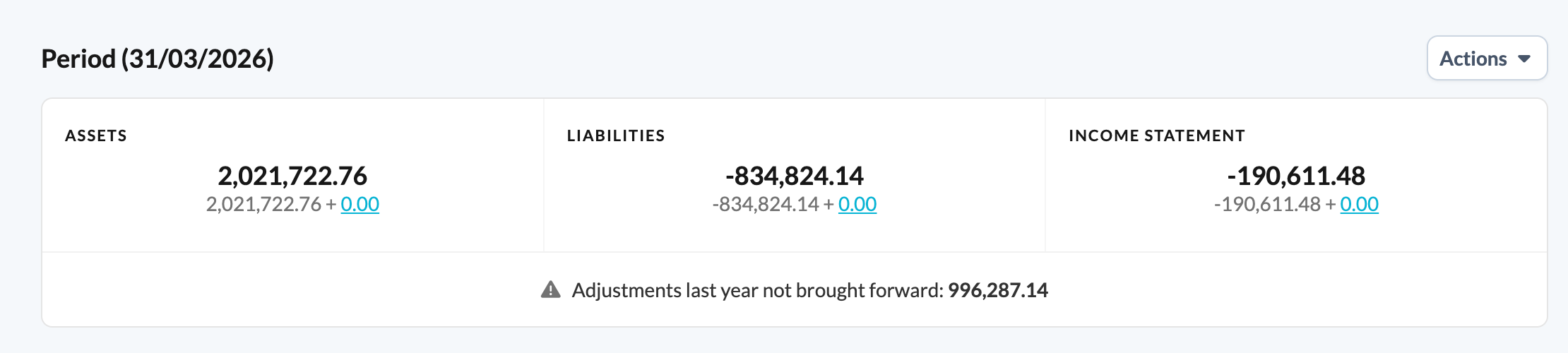
- If a period is out of balance by exactly the amount of last year's profit and loss adjustments, the client overview shows Adjustments last year not brought forward together with the amount. On a synchronised file, the best fix is to book those adjustments in your bookkeeping software, so they come in with the next sync. Otherwise, tick Include adjustments for that year.
- On synchronised files where the years come from the sync, Silverfin rolls the opening balances and retained earnings forward automatically. You do not need to do anything. Adjustments are the exception: Silverfin does not roll them forward (adjustments roll forward is not ticked) because they are booked in your bookkeeping software and reach Silverfin through the sync.
- Roll forward of manual financial years includes adjustments.
Caution for on-premise syncs: accounting packages store both a booking date and a booking period. Keep the two identical in Silverfin, or transactions can end up in the wrong period. Contact Silverfin Support if you are unsure.