
| User Roles |  Admin Admin |  Staff contributor Staff contributor | ✗External contributor | ✗Pulse user |
This article explains how to connect a Silverfin client file with Exact Online (EOL) to synchronise bookkeeping data. Once the connection is established, any changes made in Exact Online will sync with Silverfin.
Table of contents
- How do I set up synchronisation with Exact Online in a client file?
- Why aren't all client files (sync references) visible in the dropdown in Silverfin?
How do I set up synchronisation with Exact Online in a client file?
The Exact Online synchronisation must already exist at the firm level before you can link it to a client file. Setting it up at the firm level requires admin rights: seeHow to set up synchronisation with Exact Online and Exact Online Premium at the firm level? Linking the synchronisation to a client file does not require admin rights: both Admin and Staff contributor users can do this.
To link an existing synchronisation to the client file, follow these steps:
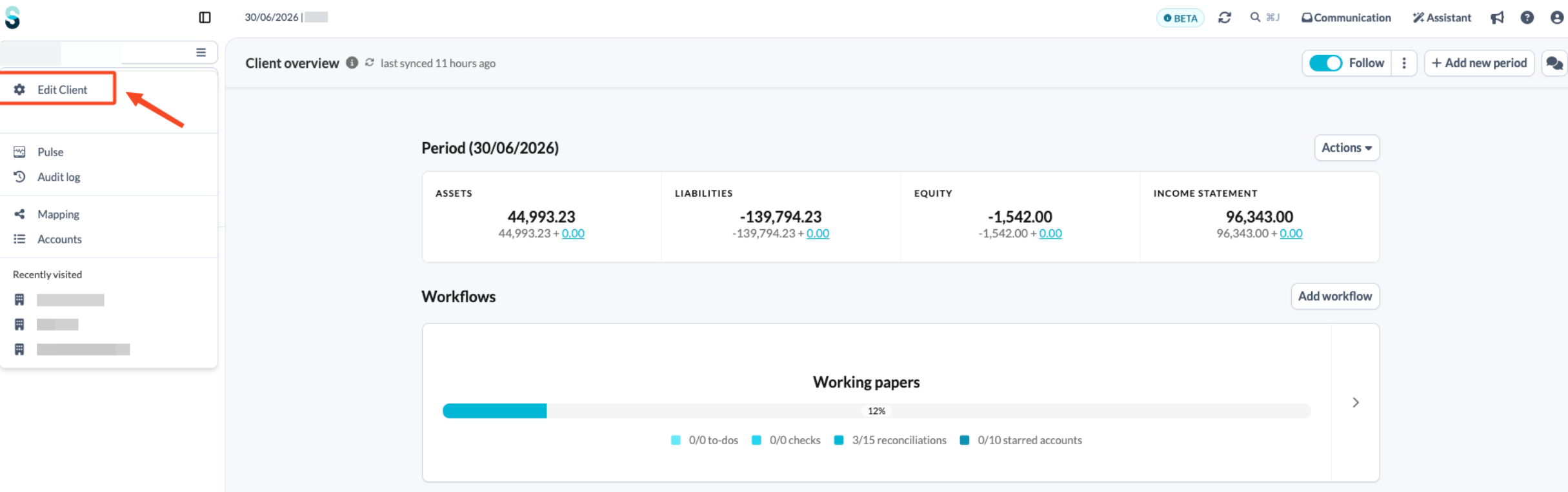
- On the client overview page, open the left-hand navigation panel and click Edit client.
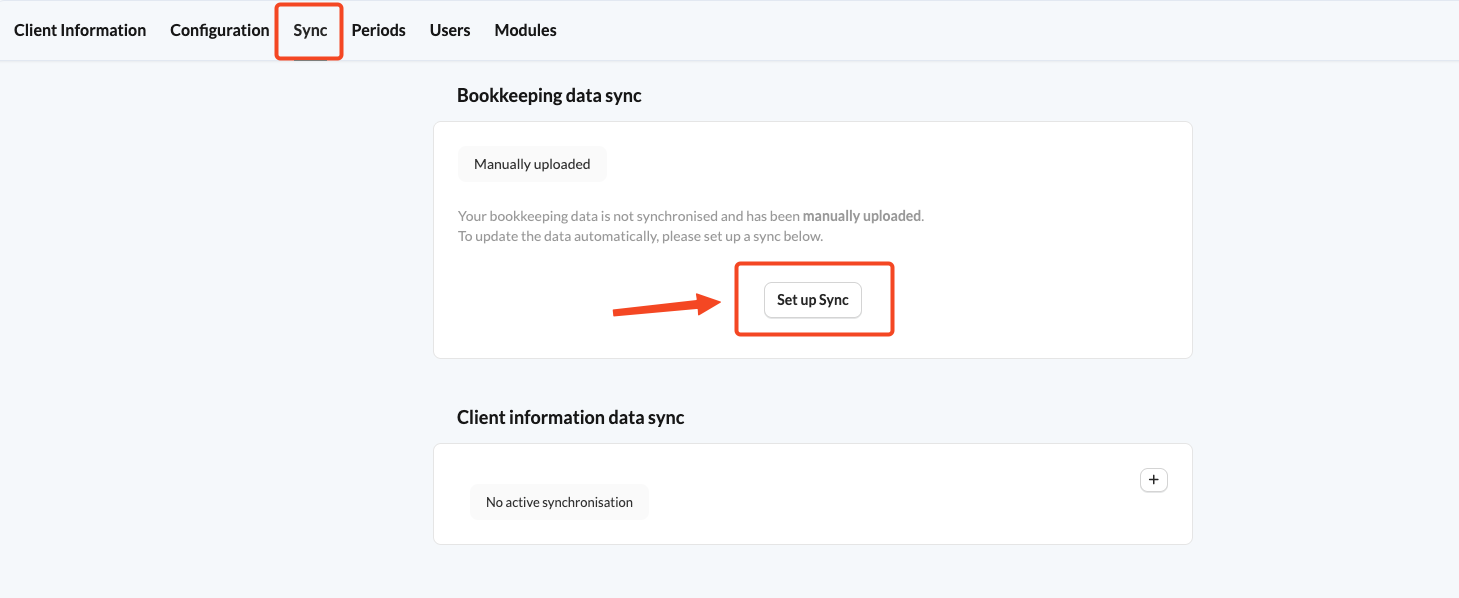
- Click the Sync tab.
- Click Set up Sync.
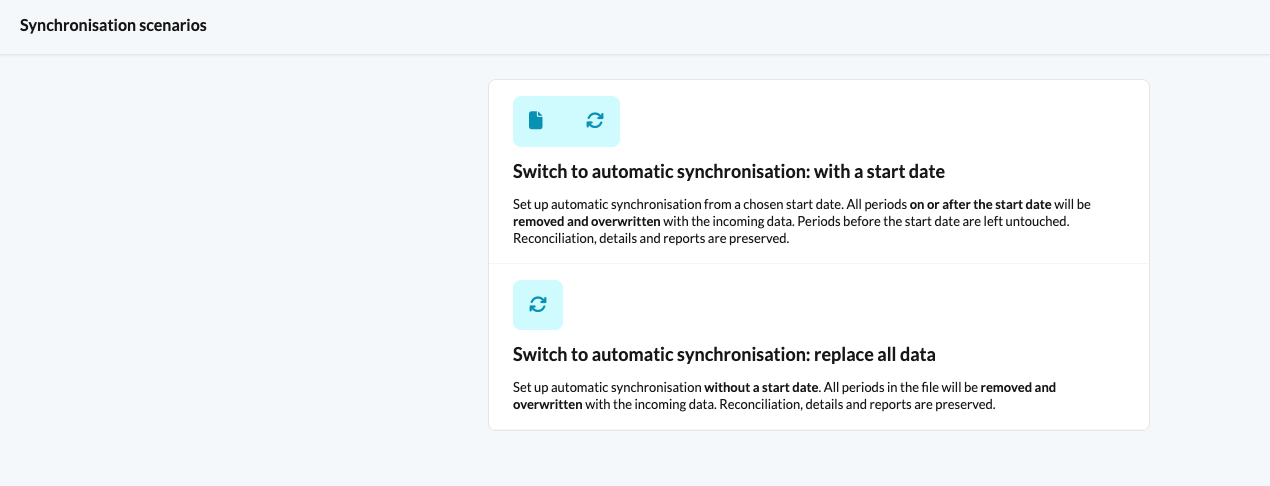
- Choose one of the provided synchronisation scenarios.
- If you have chosen the first synchronisation scenario, you will be prompted to set the start date of the synchronisation.
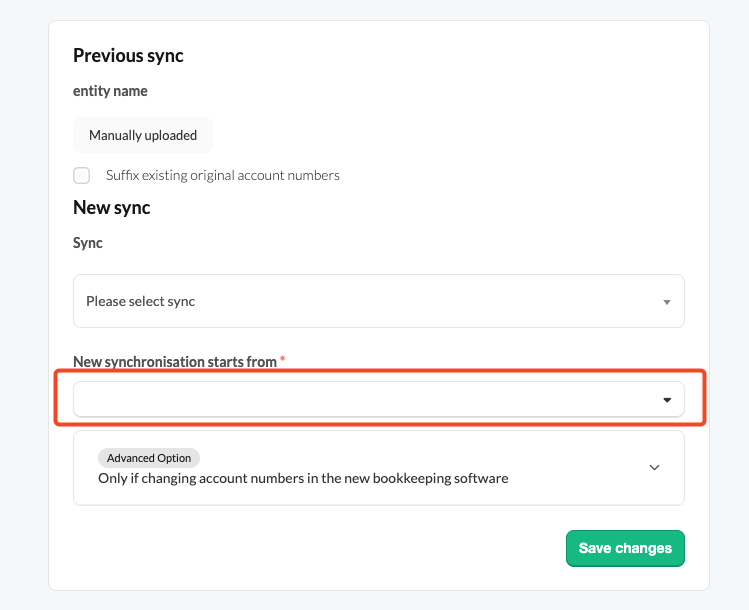
- Choose Exact Online from the list of available synchronisations and select a sync reference.
Retained Earnings settings
If the client file uses Exact Online's year-end closing feature, select the first year that this feature was used in the Retained Earnings section.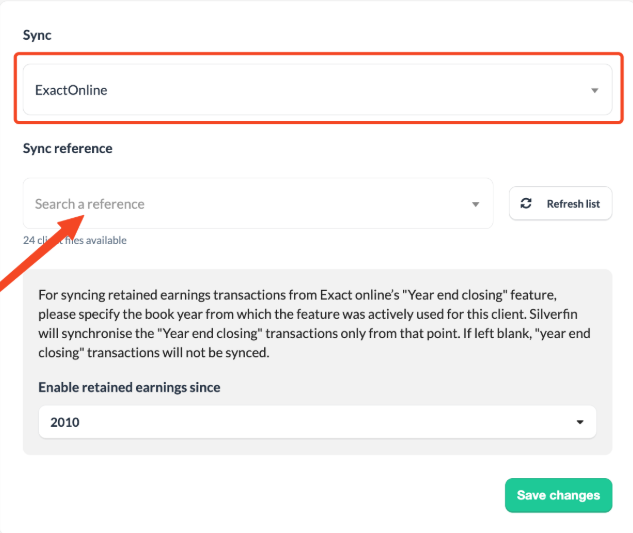
When you are done, save your changes.
Why aren't all client files (sync references) visible in the dropdown in Silverfin?
If some references are missing, make sure the files you want to synchronise are added to the Silverfin Application in Exact Online.
Once that is done, refresh the list of references in Silverfin. You can find the refresh button in the synchronisation setup section of the client file.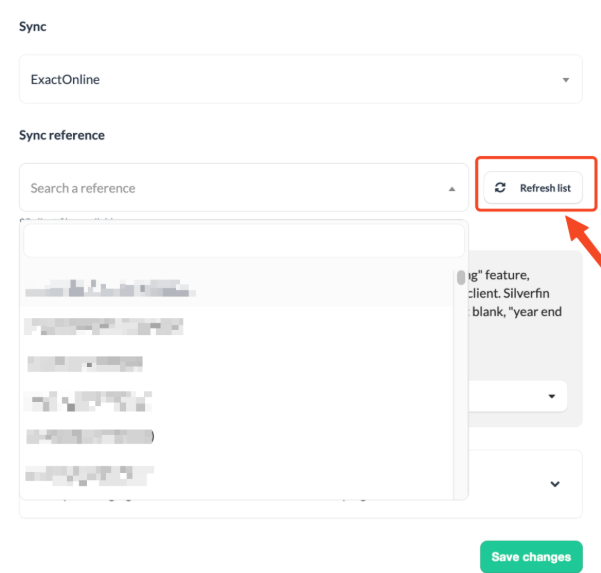
Figures are updated automatically every night with the latest data in Silverfin. To retrieve updated figures during the day, use the synchronisation arrows on the top right.