
| User Roles |  Admin |  Staff contributor | ✗External contributor | ✗Pulse user |
If you need to remove or edit the start date of a synchronisation in a client file, follow the steps below. The start date must align with the start of a financial year.
Table of contents
Removing the start date of the sync
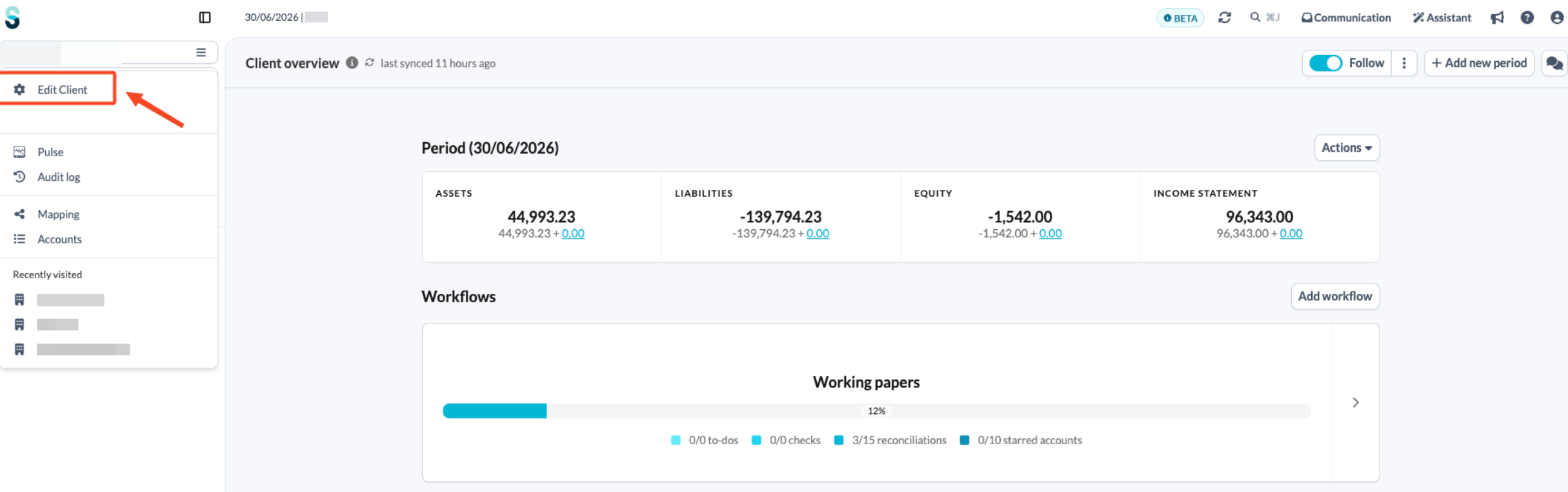
- On the client overview page, open the left-hand navigation panel and click Edit client.
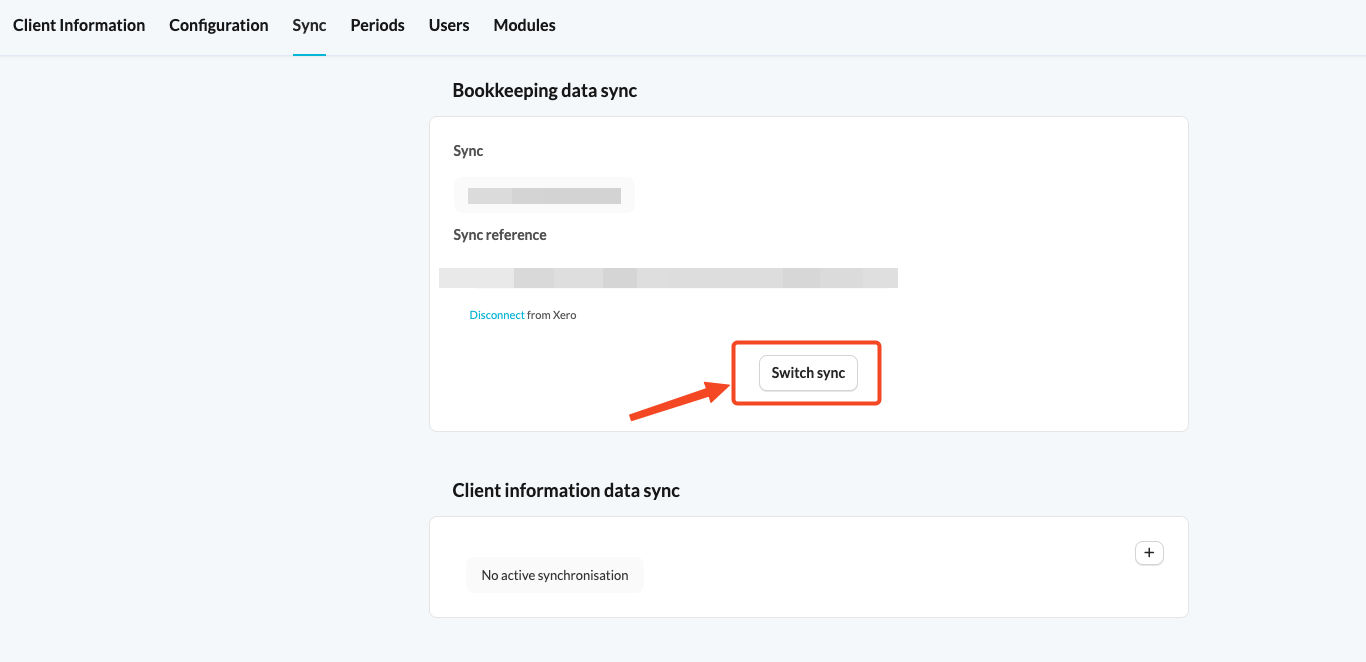
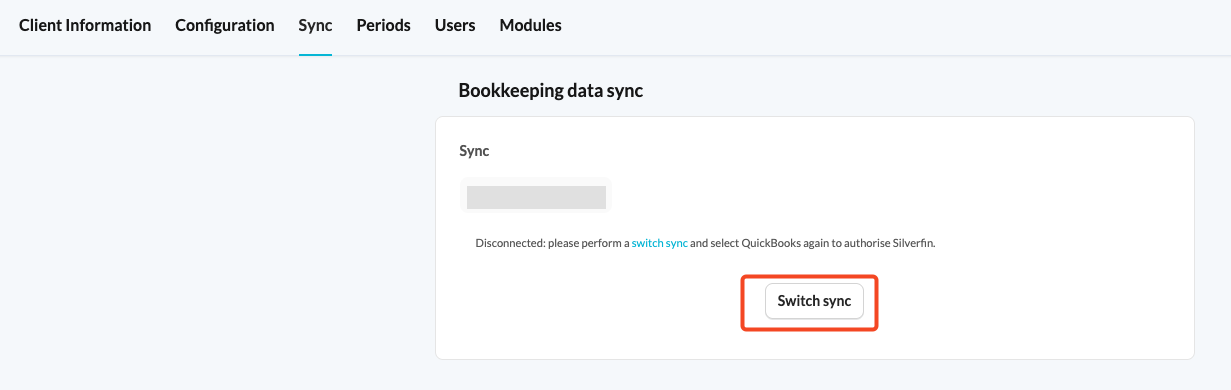
- Select the Sync tab and click Switch sync.
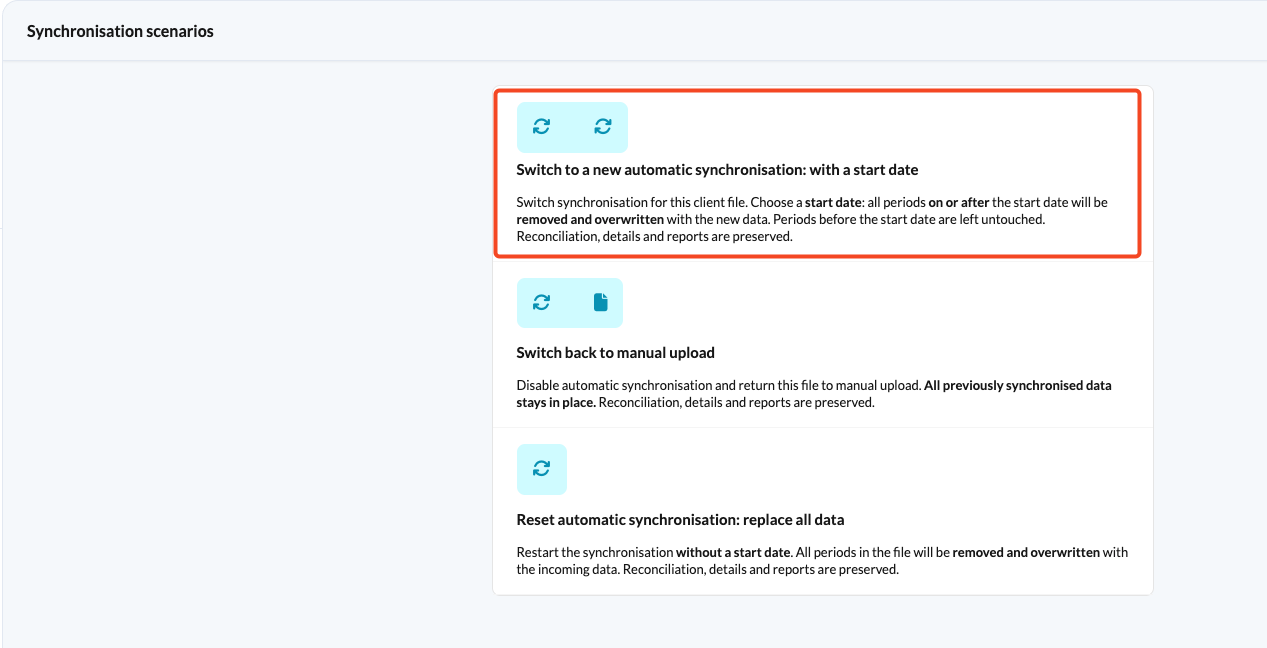
- On the next page, choose:
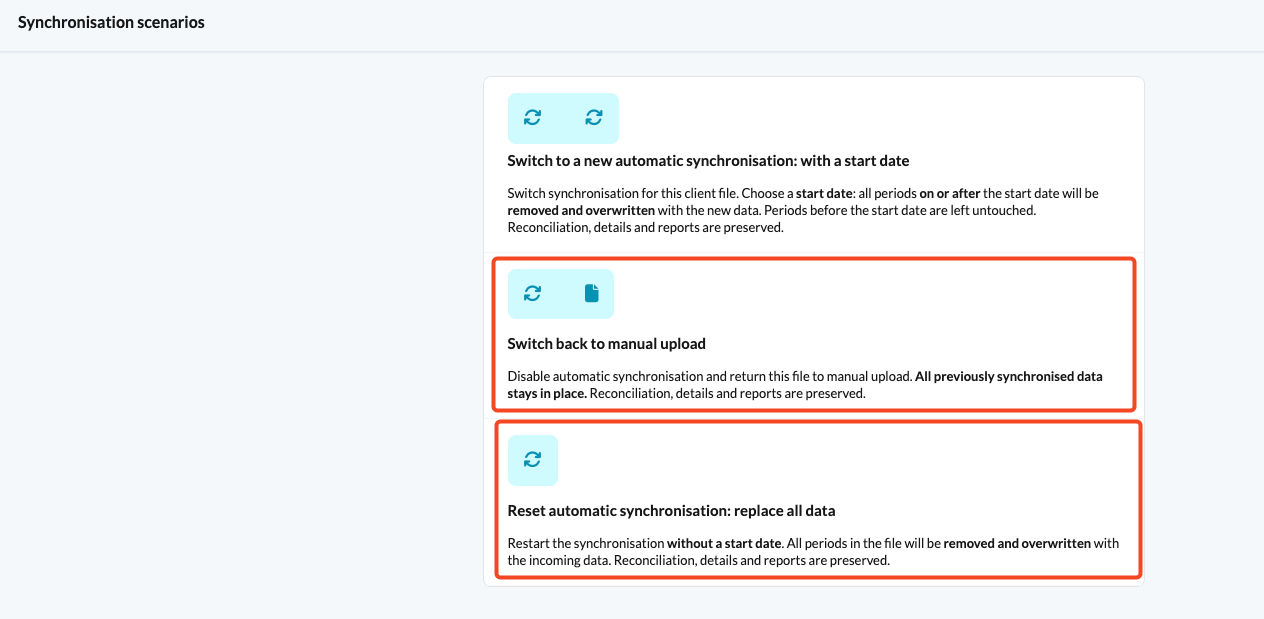
- The second scenario if you want to switch off the synchronisation completely. See How to switch from automatic synchronisation to manual upload? for more detail.
- The third synchronisation scenario if you want to sync the file without the start date.
Resetting the synchronisation will overwrite all existing ledgers in the file with new data.
Editing the start date of the sync
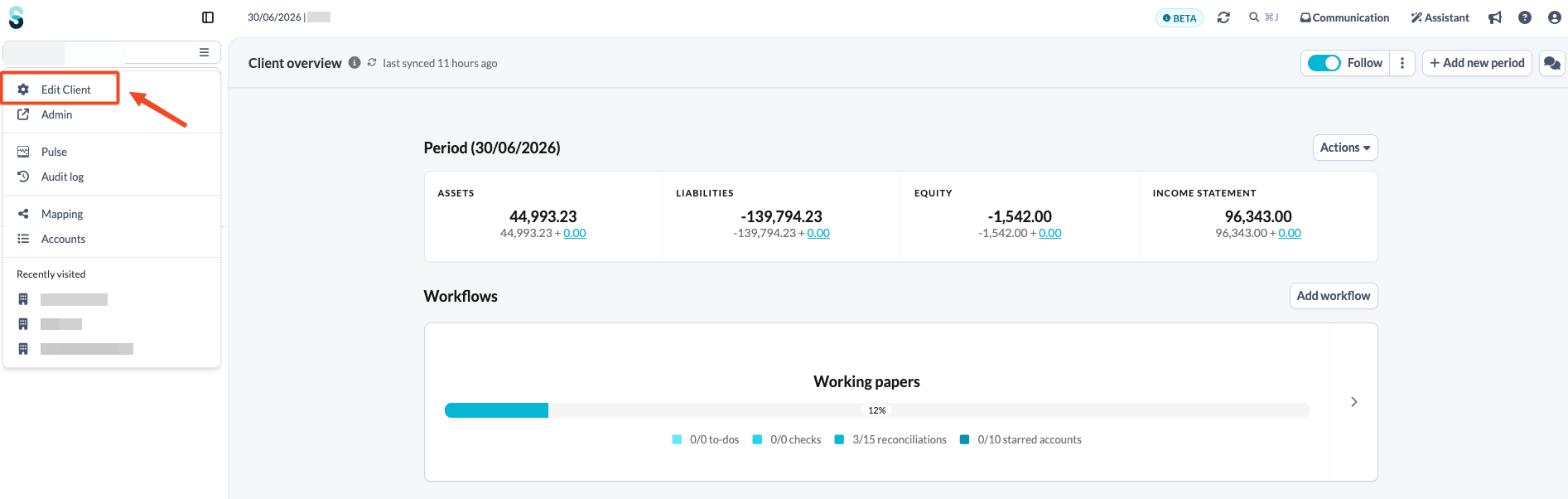
- On the client overview page, open the left-hand navigation panel and click Edit client.
- Select the Sync tab and click Switch sync.
- On the next page, choose the first synchronisation scenario.
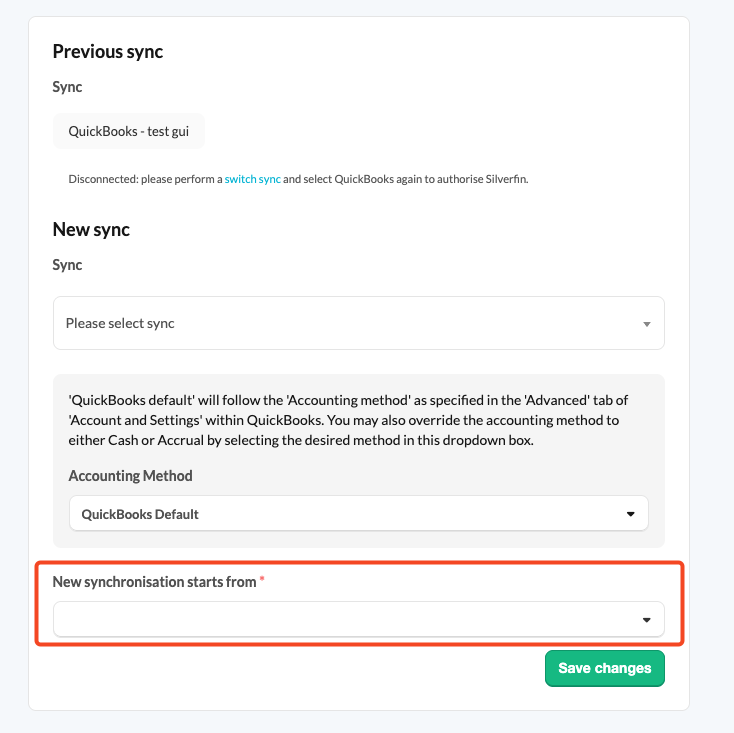
- You will be prompted to select a start date, which must align with the start of a fiscal year. Starting the synchronisation on any other date is not allowed.
For further assistance, please contact our support team.
If you are unable to select the first financial year when setting the start date, you must use the synchronisation option ‘Reset automatic synchronisation: replace all data’.

Synchronisation using a start date serves to preserve previous financial years in Silverfin so that this data is not overwritten; it is therefore not an option for the first financial year of the file.