
| User Roles |  Admin Admin |  Staff contributor Staff contributor | ✗External contributor | ✗Pulse user |
This article explains how to link an existing Odoo synchronisation to a client file in Silverfin. Once the client file is linked, any changes made in Odoo will sync with Silverfin.
Table of contents
How do I set up synchronisation with Odoo at the file level?
The Odoo synchronisation must already exist at the firm level before you can link it to a client file. Setting it up at the firm level requires admin rights: see How to set up synchronisation with Odoo at firm level? Linking the synchronisation to a client file does not require admin rights: both Admin and Staff contributor users can do this.
To link an existing Odoo synchronisation to a client file, follow these steps:
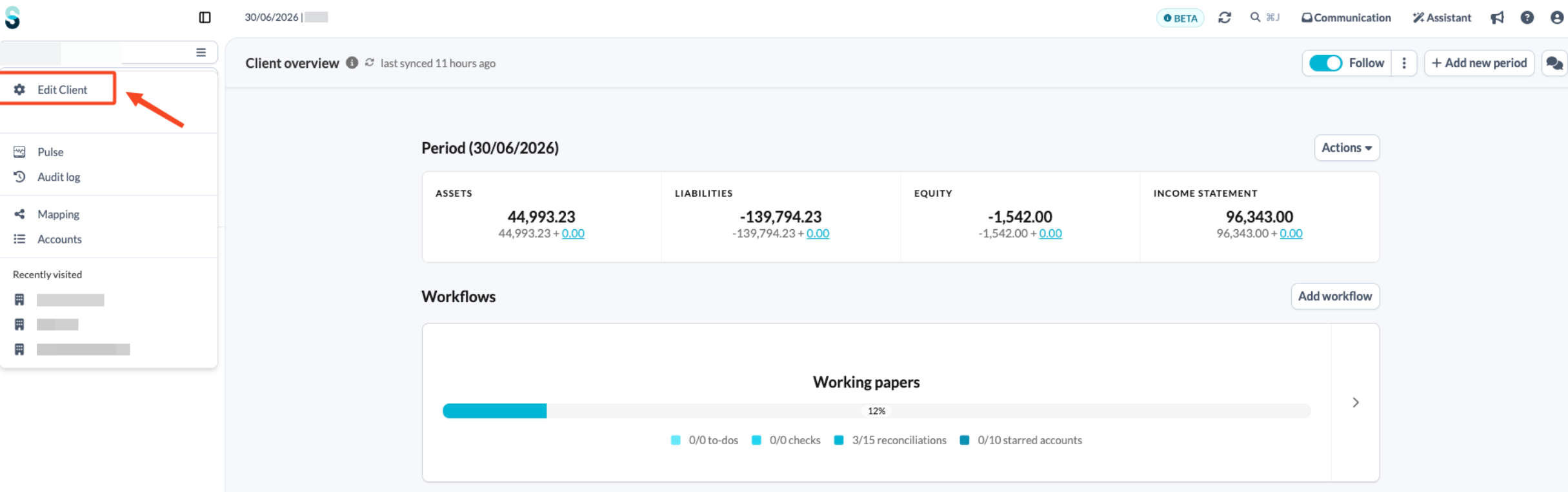
- On the client overview page, open the left-hand navigation panel and click Edit client.
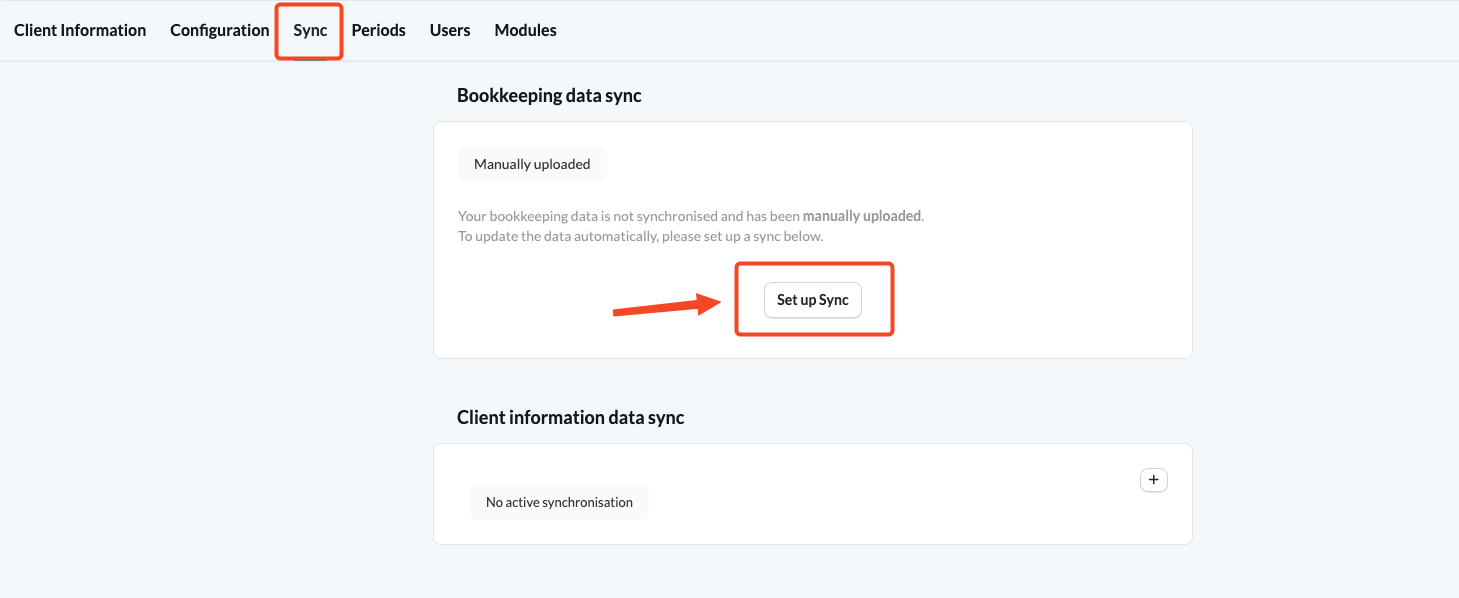
- Click the Sync tab.
- Click Set up Sync.
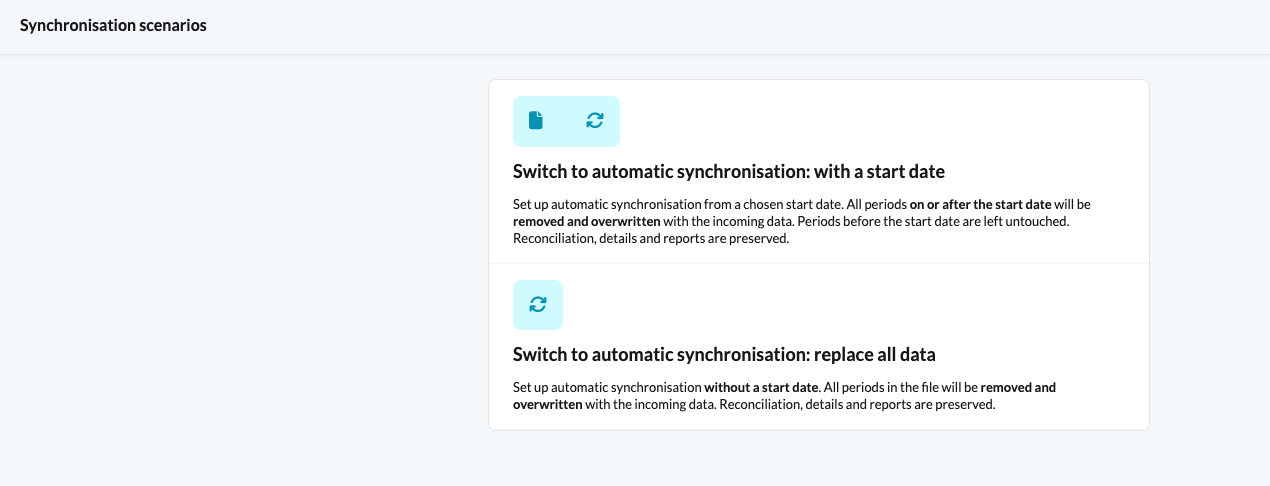
- Choose one of the available synchronisation scenarios. If you choose the first scenario, you will be prompted to set a sync transfer date.
- Choose the Odoo sync entity from the list of available synchronisations and choose a sync reference.
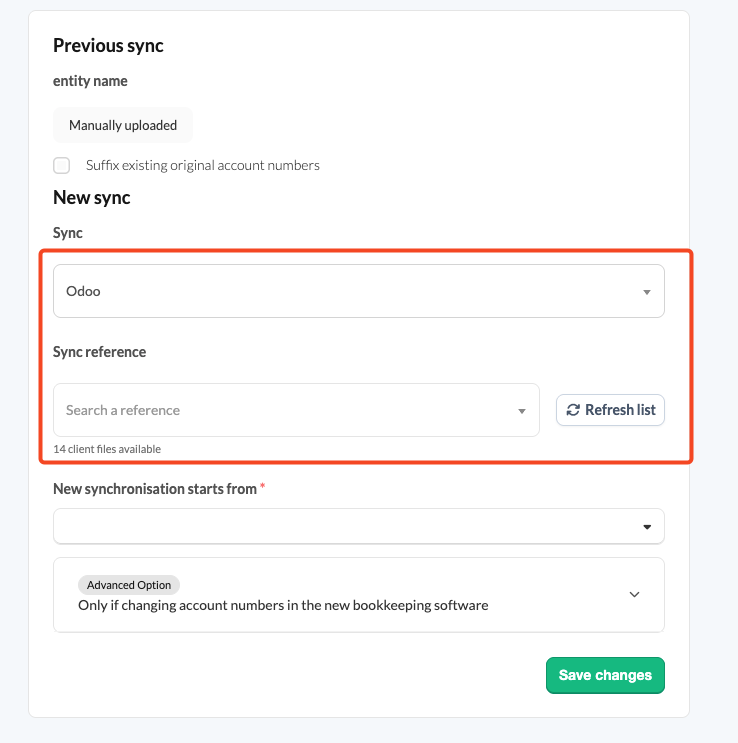
- Save your changes.
When are the figures updated?
Figures are updated automatically every night with the latest data in Silverfin. To retrieve updated figures during the day, use the synchronisation arrows next to the client file name.