| User Roles |  Staff contributor Staff contributor |  External Contributor External Contributor | ✗Pulse user |
Tags help you organise and manage your adjustments more efficiently. You can use them to group similar corrections and easily copy them across periods. This article explains how to create, apply, and manage tags in Silverfin.
Table of contents
Creating Adjustment Tags
Only an admin user can create adjustment tags at the firm level. These tags will then be available for admin users, internal users and external contributors when creating or editing adjustments in clients' files.
To create a new adjustment tag:
- Go to Templates tab at firm level.
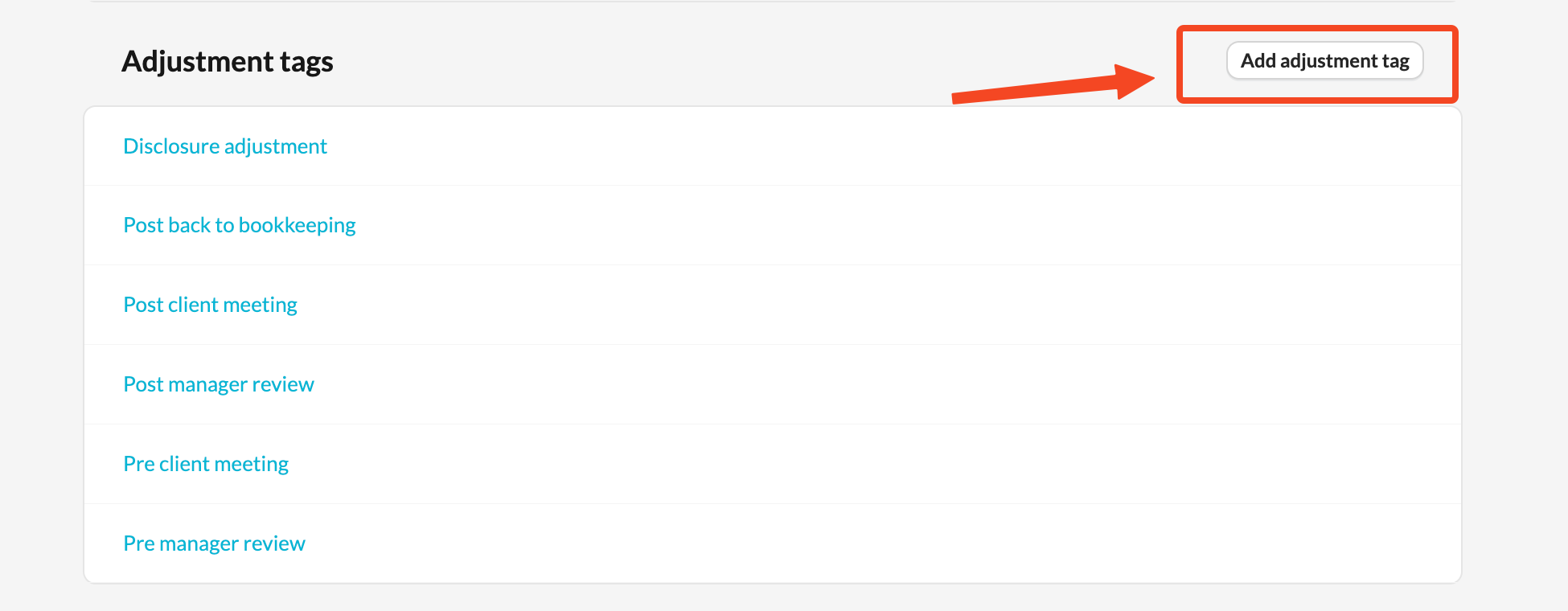
- Scroll down to the Adjustments tags section.
- Click Add adjustment tag and give it a name.
Using Tags in Adjustments
When creating or editing an adjustment, you can assign one or more tags to it. This helps you organise corrections and makes it easier to filter or copy them later.
To add a tag:
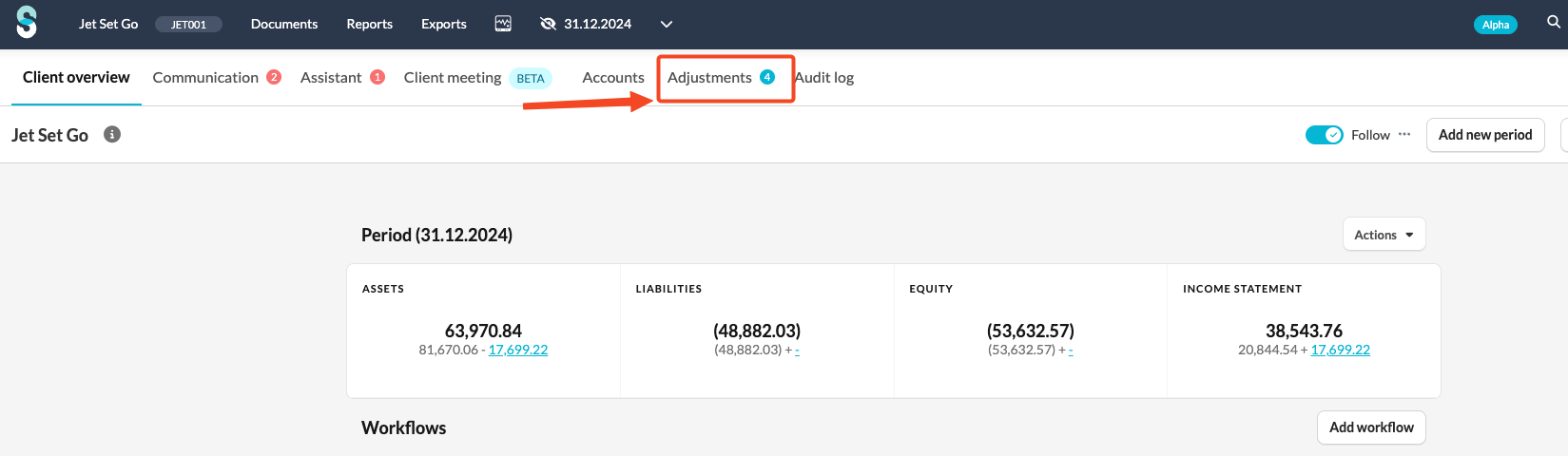
- Go to the client’s landing page and select Adjustments.
- Click New adjustment.
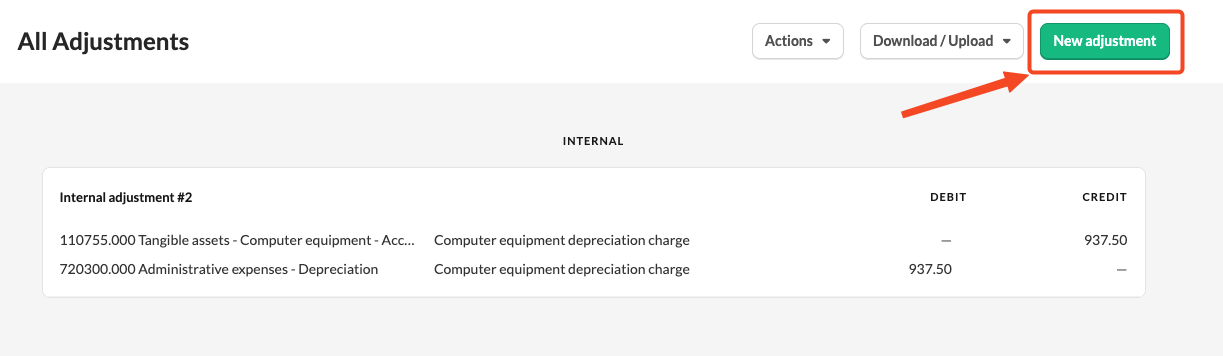
- Enter the adjustment details.
- Choose a Tag or tags.
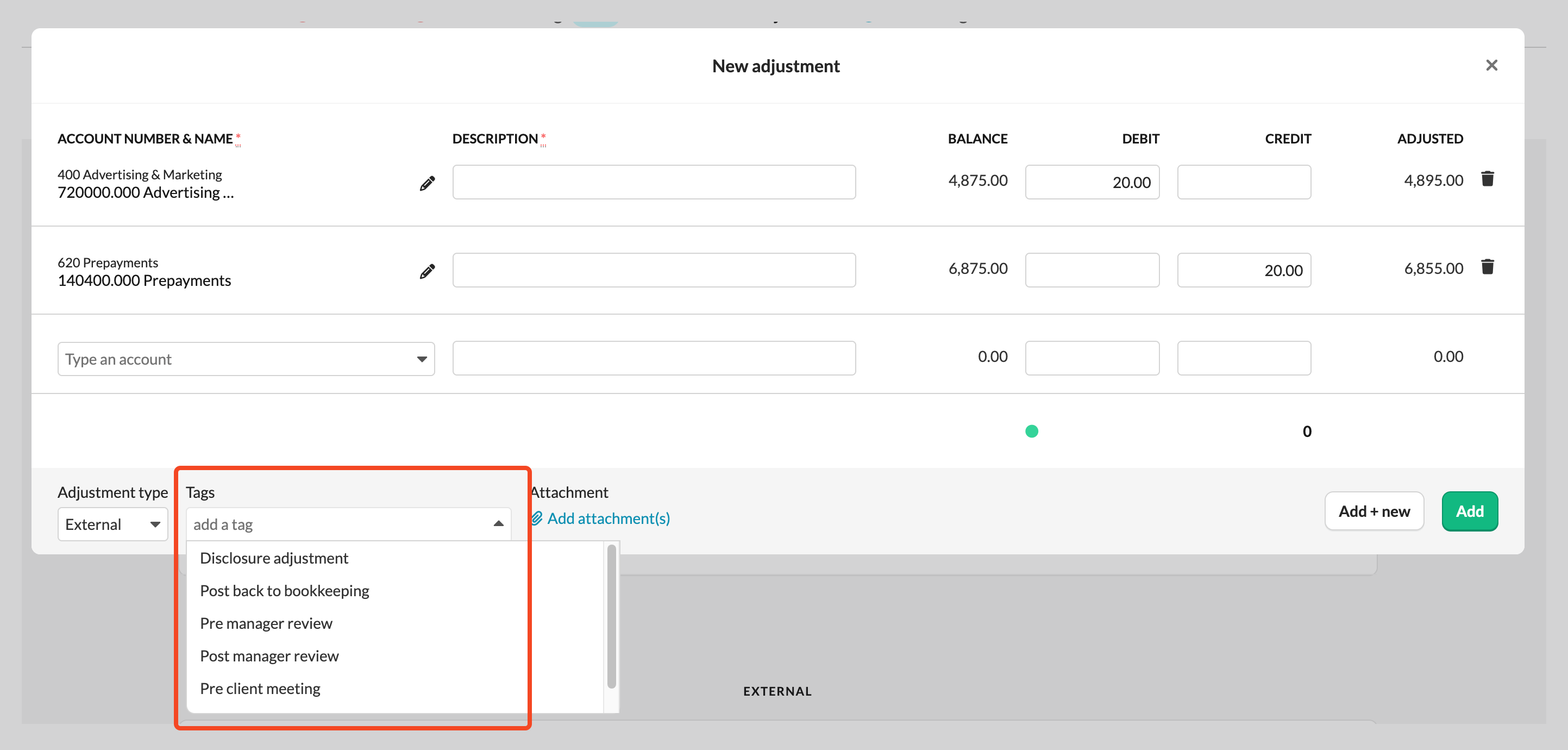
- Click Add to save the adjustment, or Add + new to create another one.
You can also create adjustments directly within an account:
- Open the relevant account.
- Click New adjustment.
- Fill in the adjustment details and select a Tag or tags.
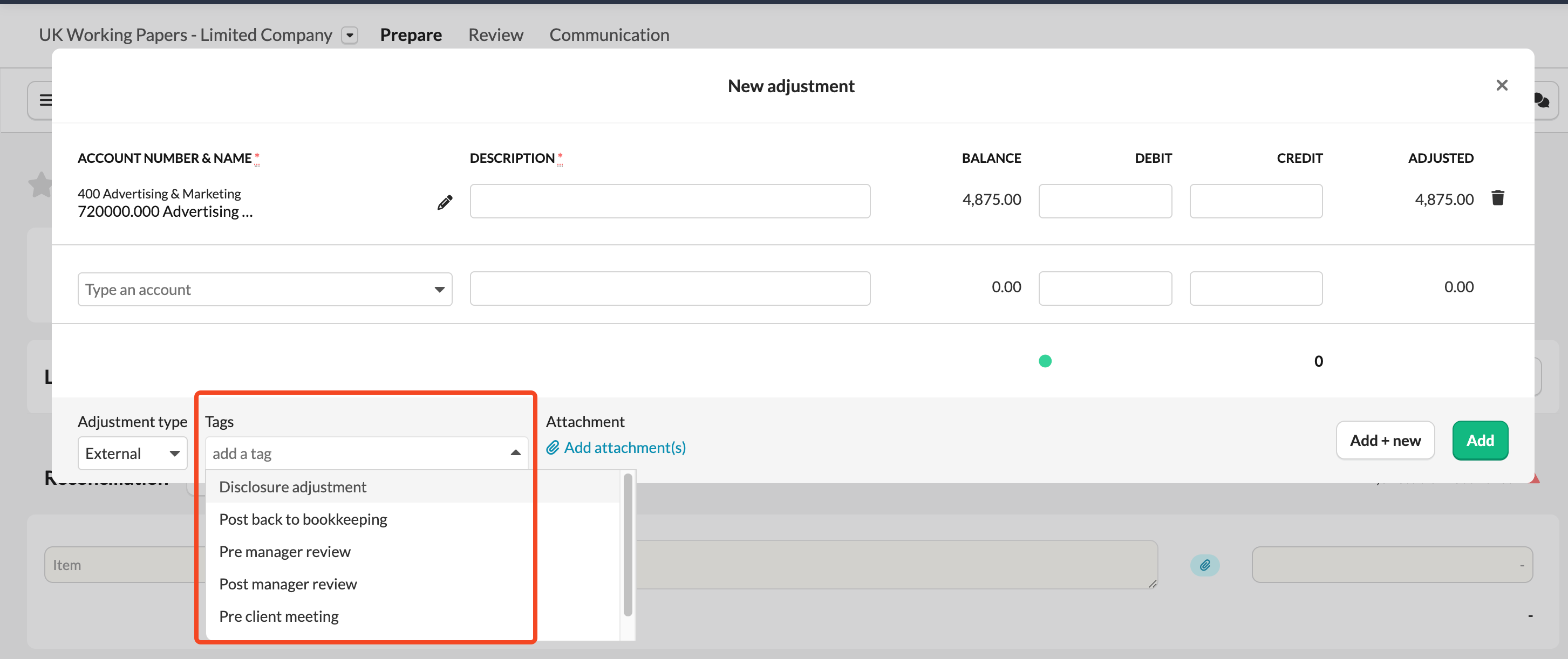
- Save your adjustment.
Using Tags When Copying Adjustments
- When copying adjustments between periods, tags let you quickly select specific groups of corrections.
- Instead of selecting each correction manually, you can choose to copy by tag, and Silverfin will include all adjustments linked to that tag.
Removing Tags
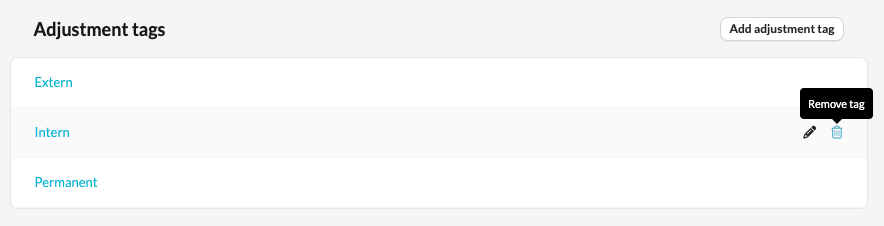
- To remove an used tag on firm level, navigate back to Templates
- Scroll down to the Adjustments tags section.
- Select the bin icon to remove the desired tag