| User Roles |  Staff contributor Staff contributor | ✗External Contributor | ✗Pulse user |
This article provides a step-by-step guide on how to change your file type to consolidation file and how to add client files to consolidation file.
Table of contents
- How to change client file type to consolidation file?
- How to add client files to your consolidation file?
- Good to know
How to change client file type to consolidation file?
In the file configuration you can adjust current client type to a consolidation file.
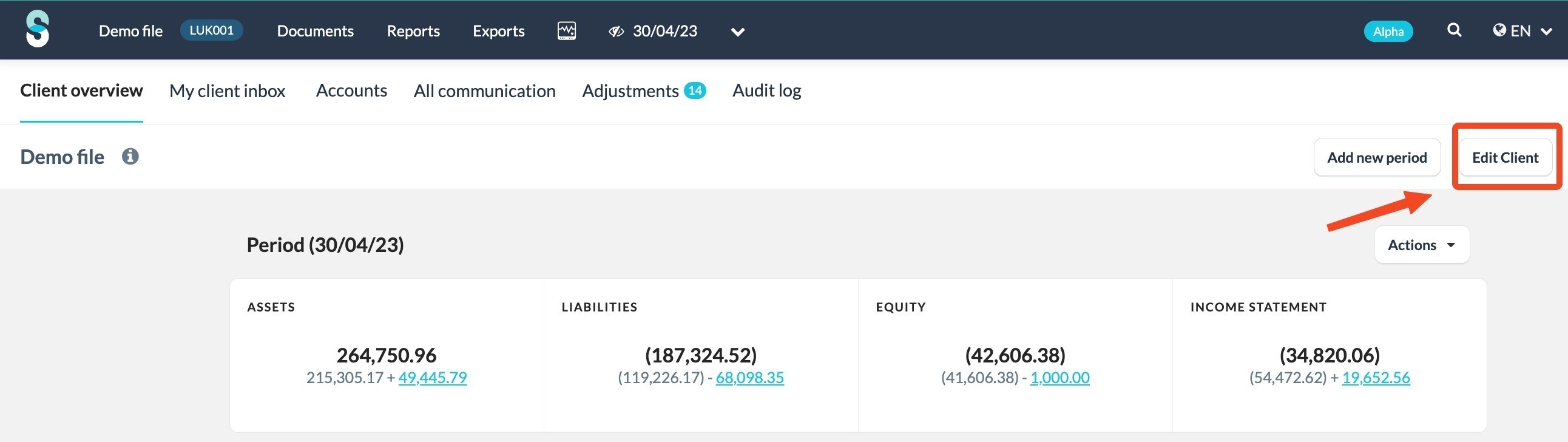
- On the client overview screen, click the 'Edit Client' button.
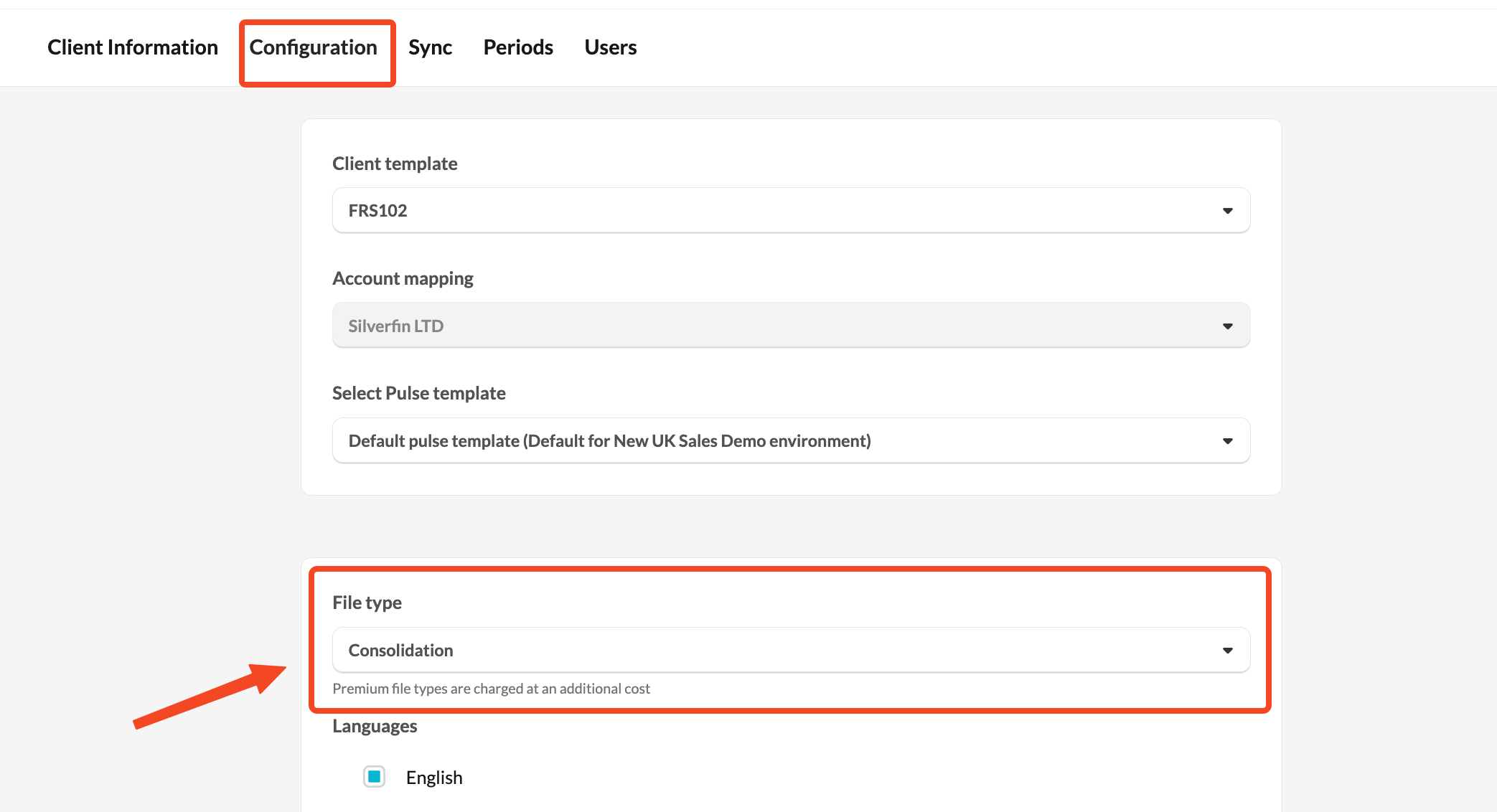
- Go to 'Configuration' tab.
- Scroll down and adjust the client file type to consolidation.
How to add client files to your consolidation file?
After you set up your consolidation file you will see the Consolidation screen. You can add all client ffiles that belong to the consolidation file here.
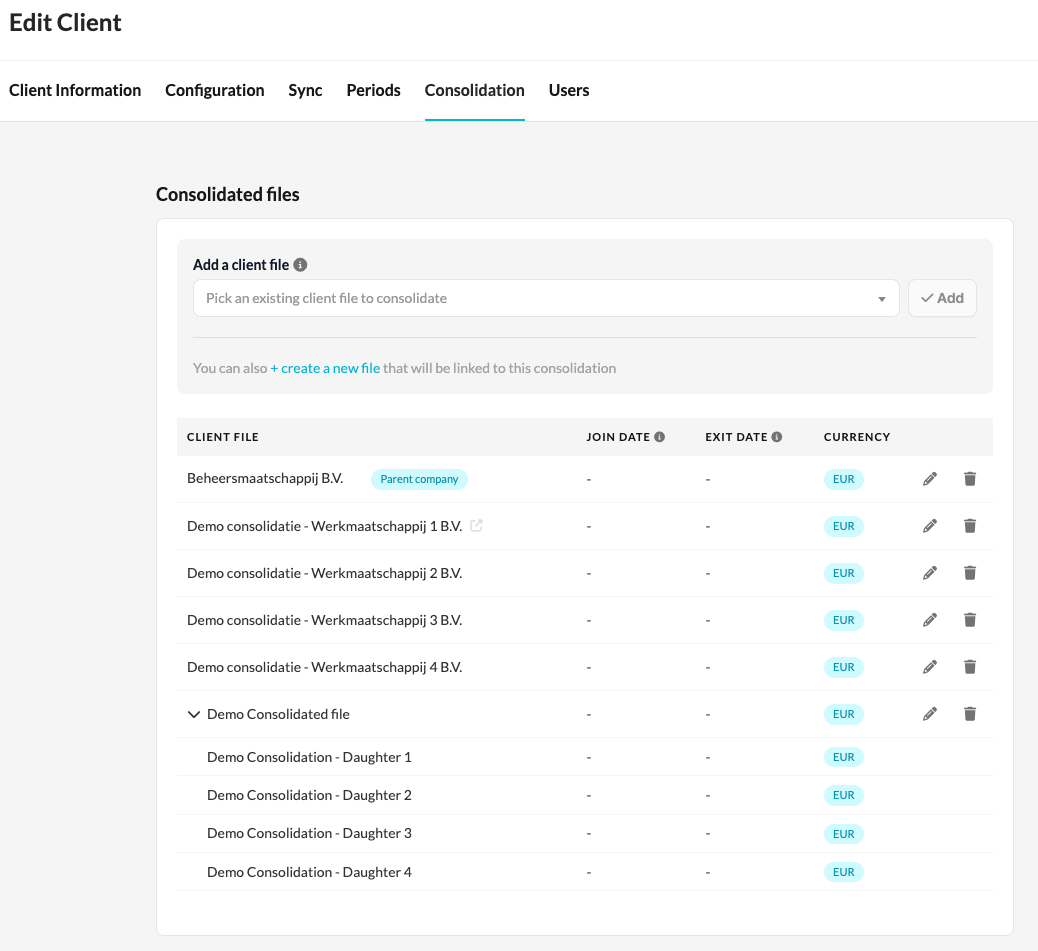
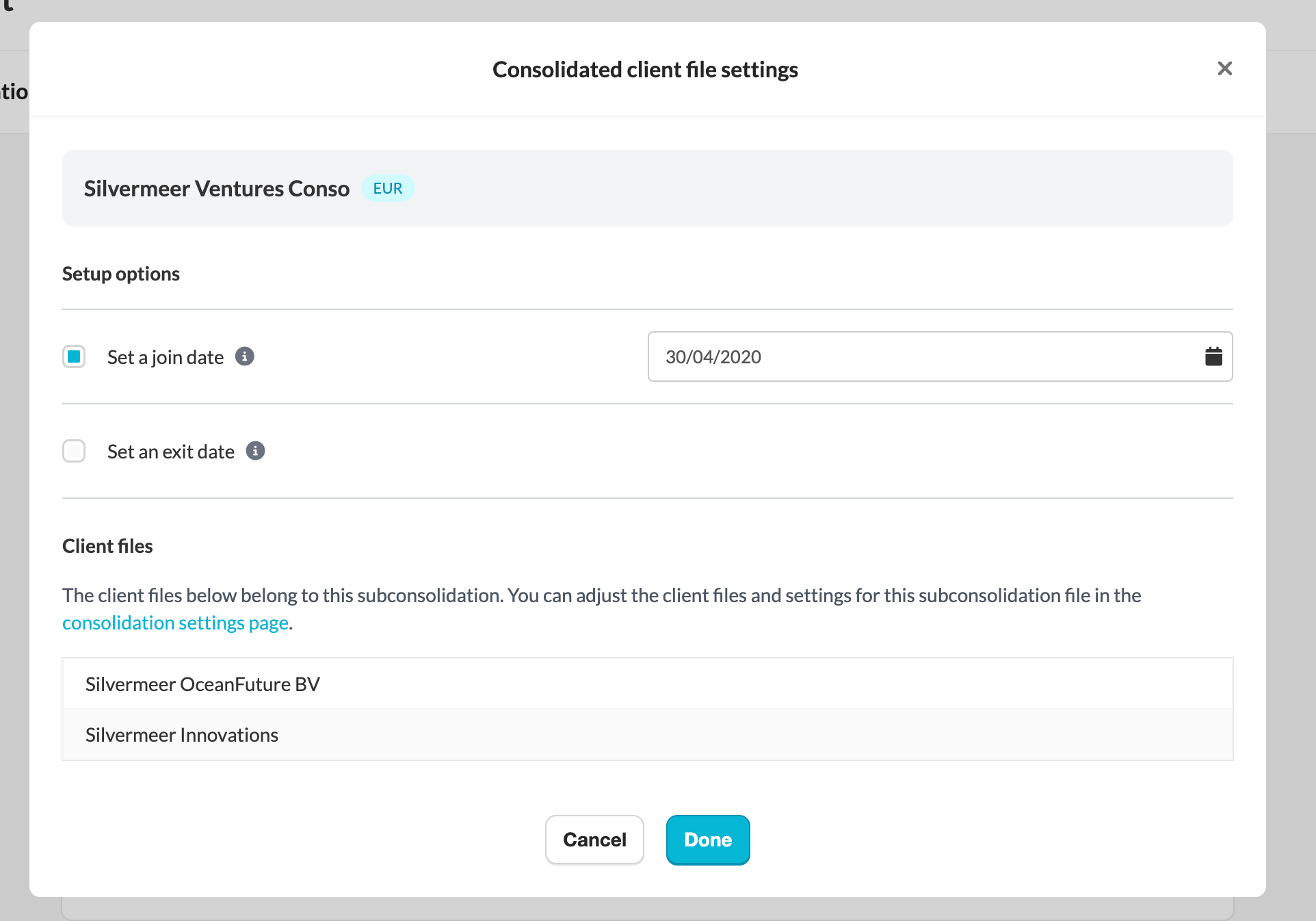
Set a join or exit date: You can define the date on which a client file joins or exits the consolidation. If you do not set a date, Silverfin will include all available data from that file.
Currency mismatch warnings: Silverfin will warn you if you add a client file that uses a different currency from the consolidation file.
Add sub-consolidations: Save time by adding entire sub-consolidation files to your main file. No need to add each individual client file again.
Create new files from the consolidation page: If you need to add a client file that does not exist yet, you can create it directly from the consolidation settings. Silverfin will add it to your consolidation automatically.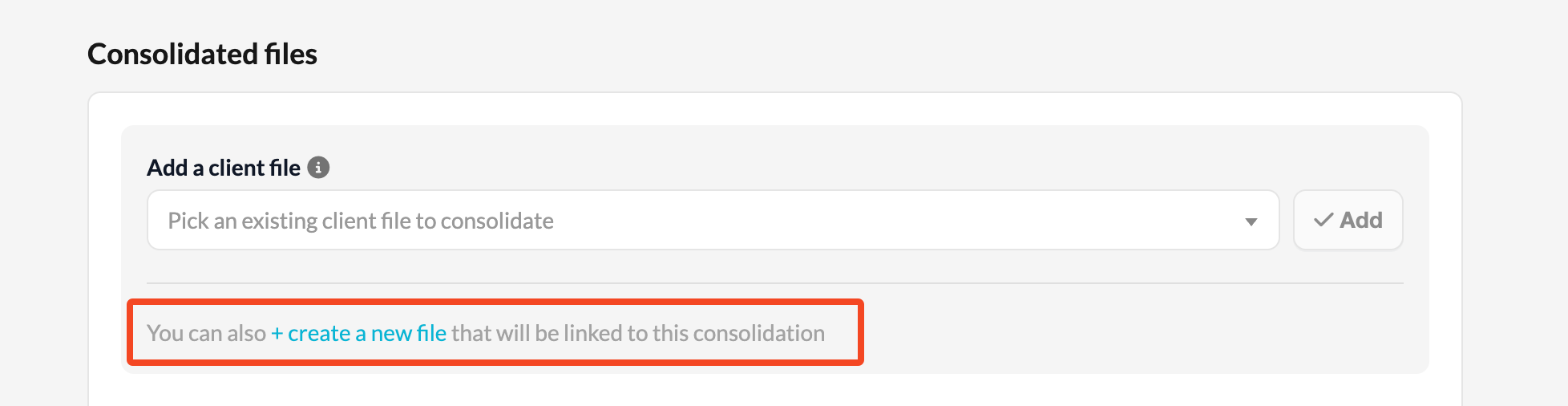
Mark your parent company: You can designate the parent company in the consolidation settings. Future templates will use this setting to improve your workflow. You can set it now to prepare for upcoming updates.
Figures in consolidation file are updated automatically every night with the latest data in Silverfin. To retrieve updated figures during the day, use the synchronisation arrows next to the client file name.
Good to know:
- In order to use the consolidation module you can contact your Customer Success Manager and request activation for your environment.
- A consolidation file is a premium file and carries a different cost.
- Consolidation is based on the mapped account number.
- The mapped account number is used to ensure consistent mapping across all connected subsidiary files and to follow the mapping defined in each subsidiary.
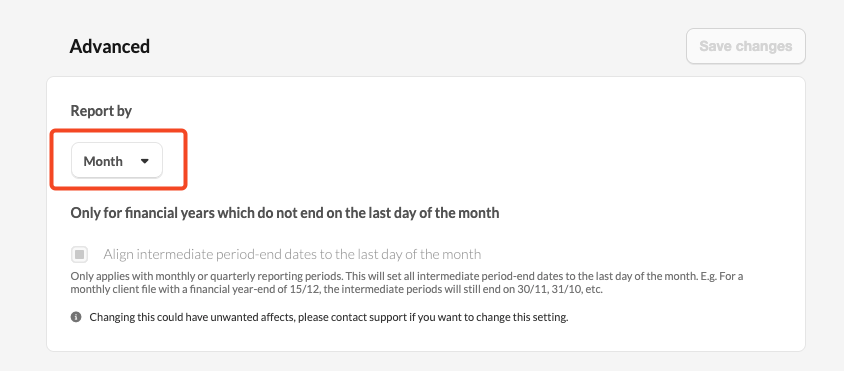
- It's recommended to set up monthly reporting frequency, both for consolation file and subsidiaries (consolidation client files).