
| User Roles |  Admin Admin | ✗Staff contributor | ✗External Contributor | ✗Pulse user |
Custom mapping lists help you map accounts from your bookkeeping software to the correct accounts in Silverfin. This article explains how to create a mapping list, what the available options mean, and how to upload and maintain your list.
Table of contents
How to create a mapping list?
Only admin users can create and manage mapping lists. Mapping lists are created at firm level.
To create a mapping list:
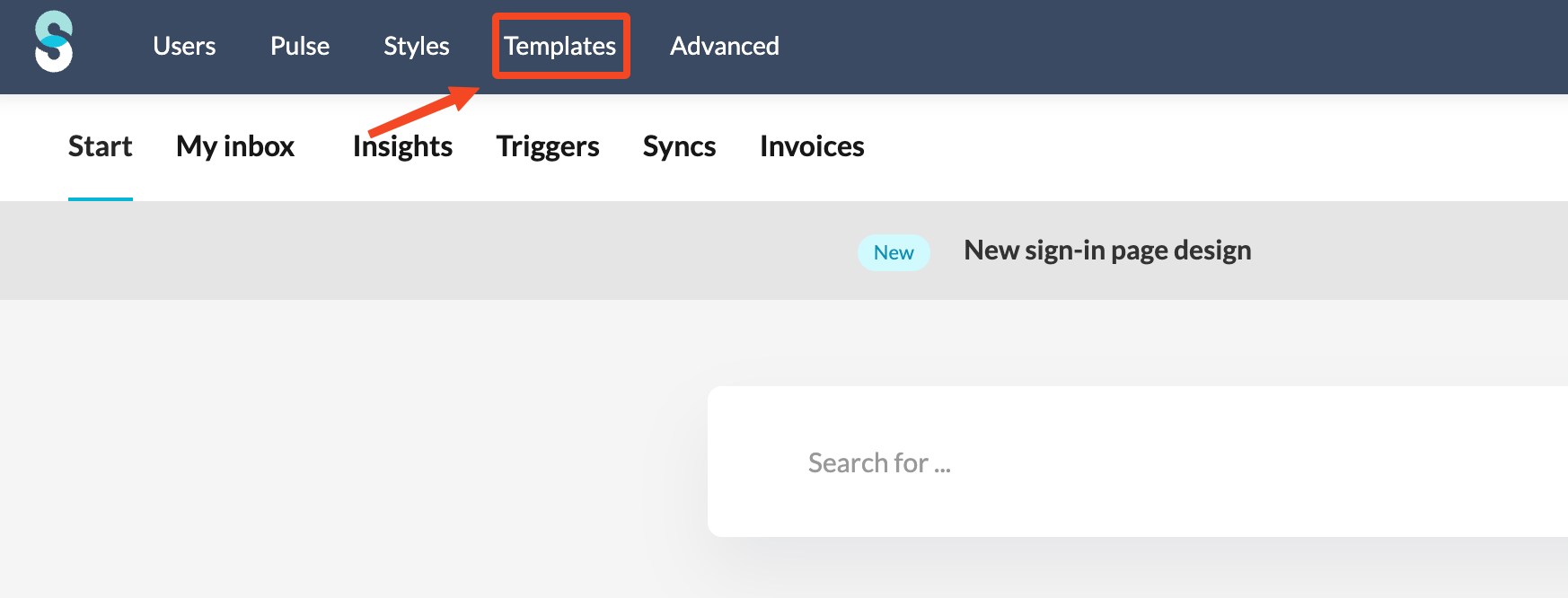
- Go to the Templates tab at firm level.
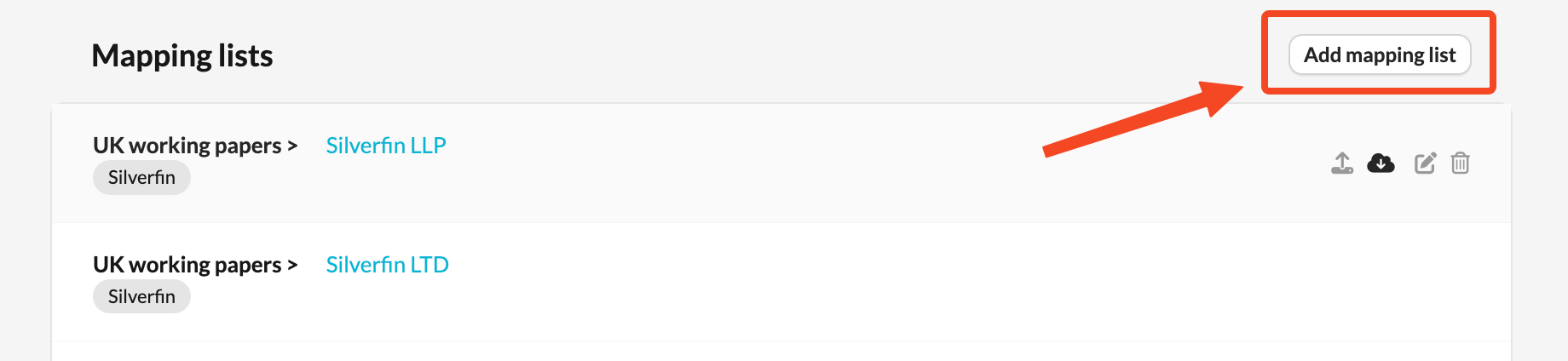
- Scroll down to the section 'Mapping lists' and click 'Add mapping list'.
- Enter a mapping list name.
- Choose the relevant options for your mapping list.
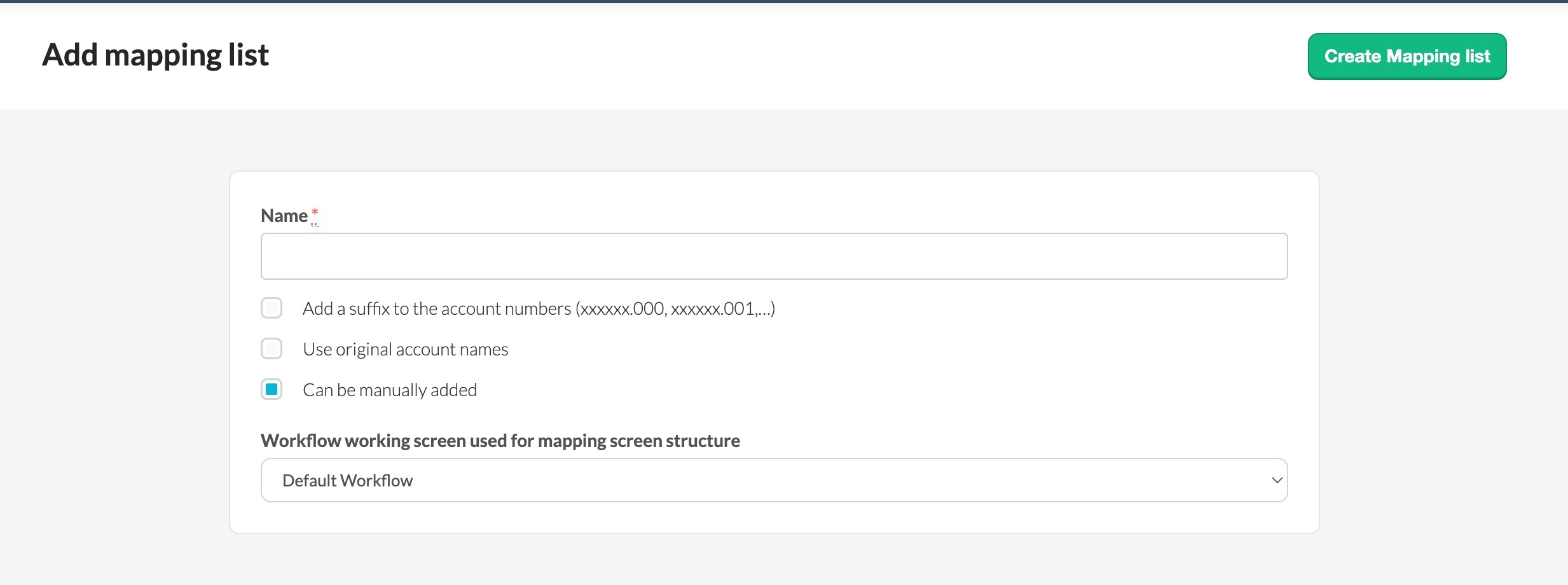
- Click 'Create Mapping list'.
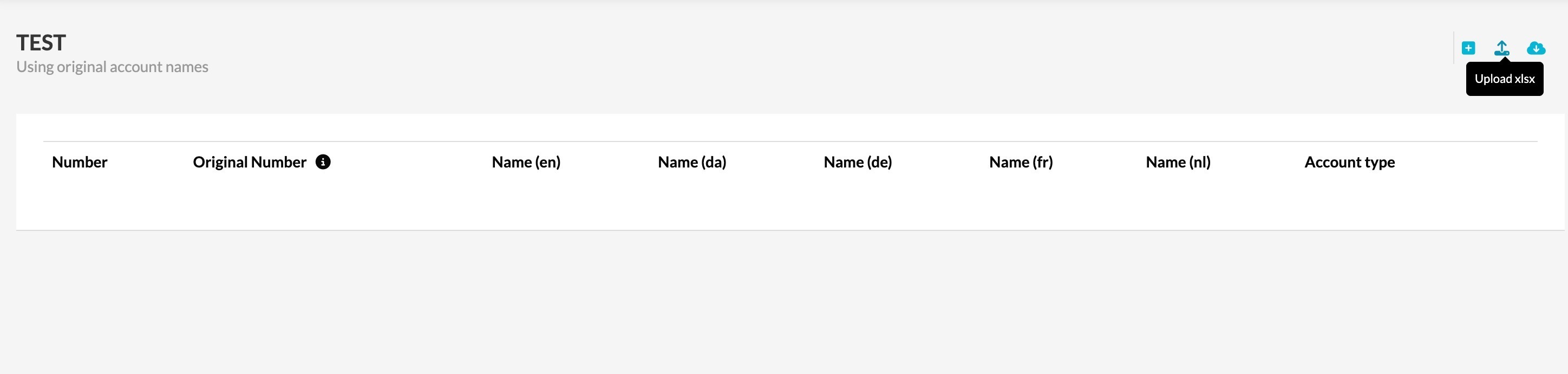
- Upload the Excel file.
- Save the mapping list.
Mapping lists are created and maintained in Excel. The file must follow the required structure.
Key points:
- The correct column format must be respected.
- 'Number' is mandatory.
- The easiest way to ensure the correct format is to download an existing mapping list and use it as a template.
- You can download an existing mapping list from the Mapping lists overview and adapt it to your needs.

Mapping list options
Suffixes
- By default, one original account can be mapped to only one account number in Silverfin. Account mapping cannot be used to merge multiple external accounts into a single Silverfin account.
- The Use suffixes option allows you to keep one to one logic, while still mapping multiple original accounts to a single account in the mapping list.
- This is useful when several detailed accounts in your original chart of accounts need to be grouped under one standard account in Silverfin.
For example, your original chart of accounts may contain separate accounts for:
- 900 Loan 1 - person x
- 901 Loan 2 - person y
- 902 Loan 3 - person z
In the Silverfin standard chart of accounts, these expenses may all belong to a single account such as 250601 Loans.
By enabling suffixes:
- Silverfin automatically adds a suffix to the account number.
- All accounts can be mapped to the same Silverfin account number, with a different suffix for each one.
- You can refer to the same base account number consistently across templates.
- The one to one mapping principle is preserved.
- It remains easy to trace each mapped account back to its original account number.
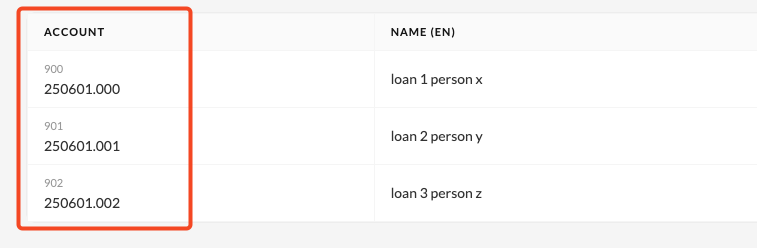
Without suffixes enabled, mapping multiple accounts to the same Silverfin account number is not possible.
Use original account names
If you choose to work with suffixes, we recommend enabling Use original account names.
Without this option, multiple mapped accounts would appear with the same name, which can be confusing. Keeping the original account names improves clarity and makes account mapping easier to review
For example:
- 250601.000 Loan becomes 250601.000 loan 1 person x
- 250601.001 Loan becomes 250601.001 loan 2 person y
- 250601.002 Loan becomes 250601.002 loan 3 person z
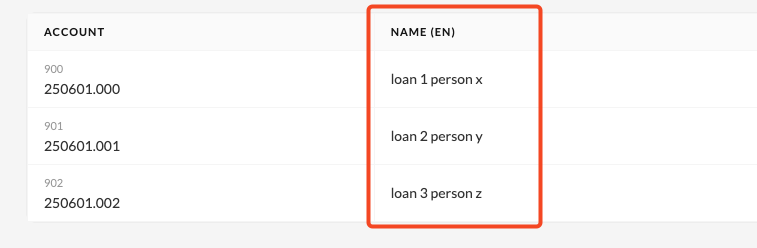
This way, each account keeps its original name while still being mapped to the same standard account.
Can be manually added
The 'Can be manually added' option controls whether users can select this mapping list within a file.
If this option is enabled:
- Users can choose the mapping list from the dropdown in the Account mapping section.
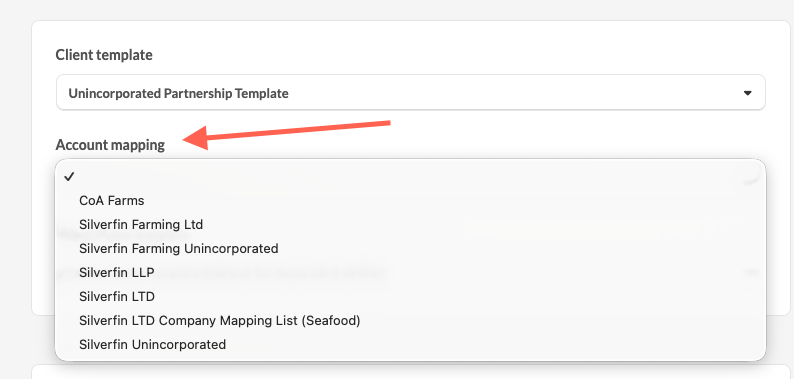
- Note: This is only possible if the mapping list has not been preselected in the client type at firm level.
If this option is disabled:
- The mapping list will not show in the dropdown in files.
- The mapping list name appears dimmed at firm level.
Mapping list structure
You can choose a workflow working screen to control the layout of the Account mapping screen, making it easier to work in line with your workflows.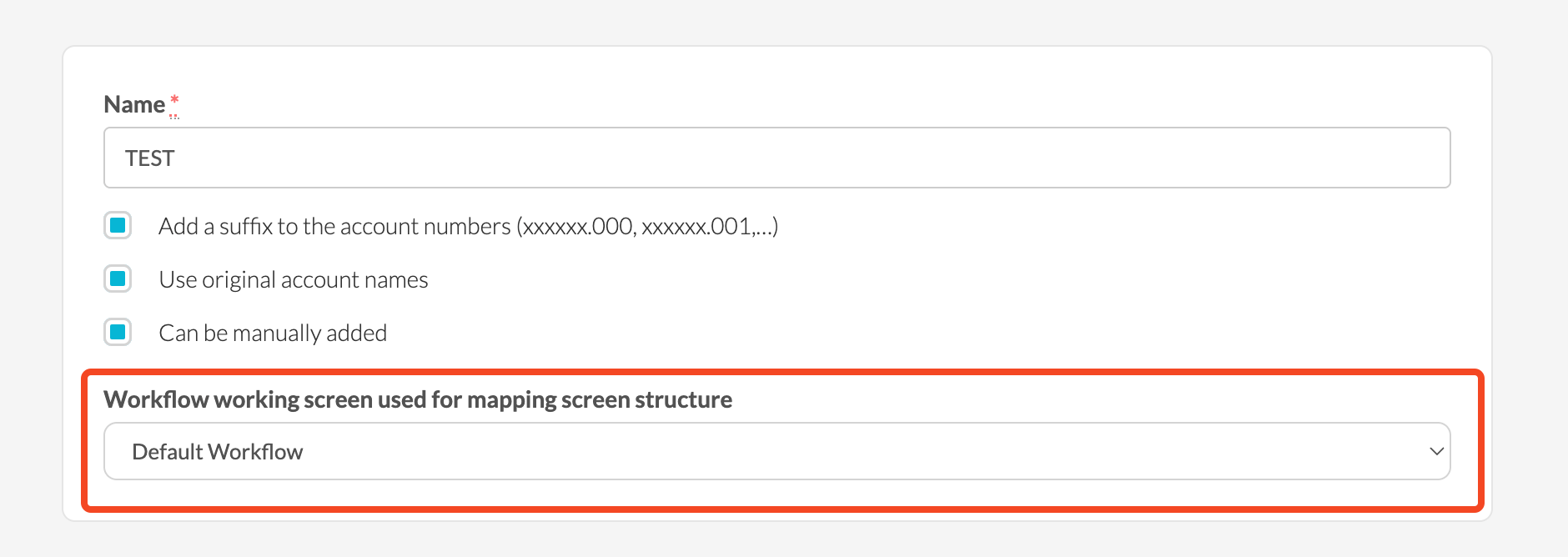
Mapping lists provided by Silverfin
Silverfin provides ready to use mapping lists that are optimised and compliant with applicable laws and regulations. These mapping lists are maintained by Silverfin and can be used immediately, without additional setup.
To add a mapping list provided by Silverfin:
- Go to the Marketplace at firm level.
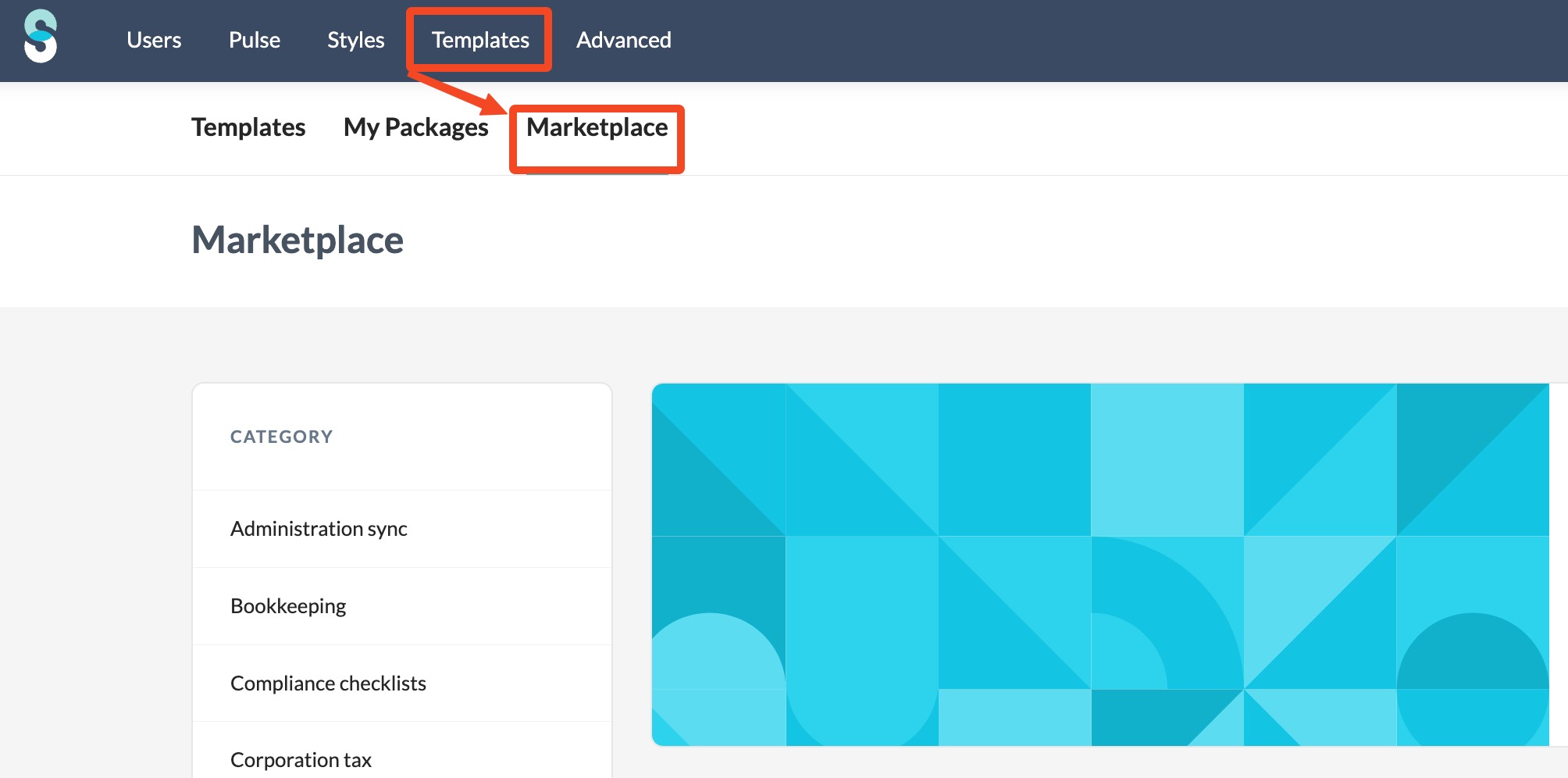
- Find the relevant package.
- For UK clients, Silverfin mapping lists are included in the UK Working Papers package.

- Activate the package.
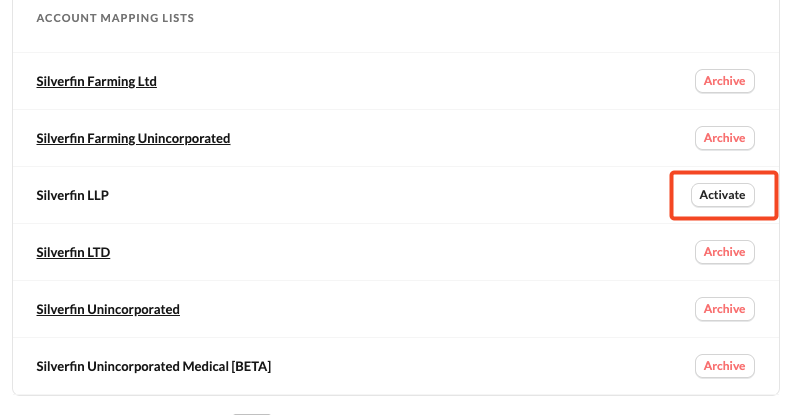
Once activated, the mapping list becomes available in the Mapping lists overview.
Characteristics of Silverfin mapping lists
Mapping lists provided by Silverfin have the following properties:
- They have a Silverfin label.
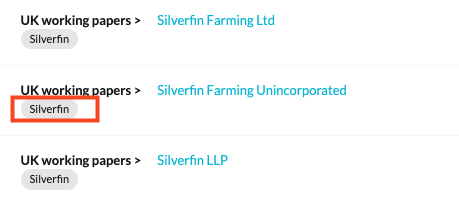
- They cannot be edited.
- Suffixes are enabled.
- Use original account names is enabled.
- Can be manually added is enabled.
- They use the default workflow working screen structure.
- These settings ensure consistent behaviour across files.