
| User Roles |  Admin Admin | ✗ Staff contributor | ✗ External contributor | ✗ Pulse user |
As an administrator, you can control the colour palette used in reports by adjusting the default export style at firm level. This ensures consistent branding and presentation across all client files.
How Report Colours Work
- Report colours are derived from the default export style set at the firm level. To change the colours available in reports, you need to edit the colour settings of that style.
- This same style governs the colours shown when editing report groups and rows. Any change you make to the style will be reflected across all reports that use it.
For example:
- At file level, reports may display a combination of colours such as blue and black.
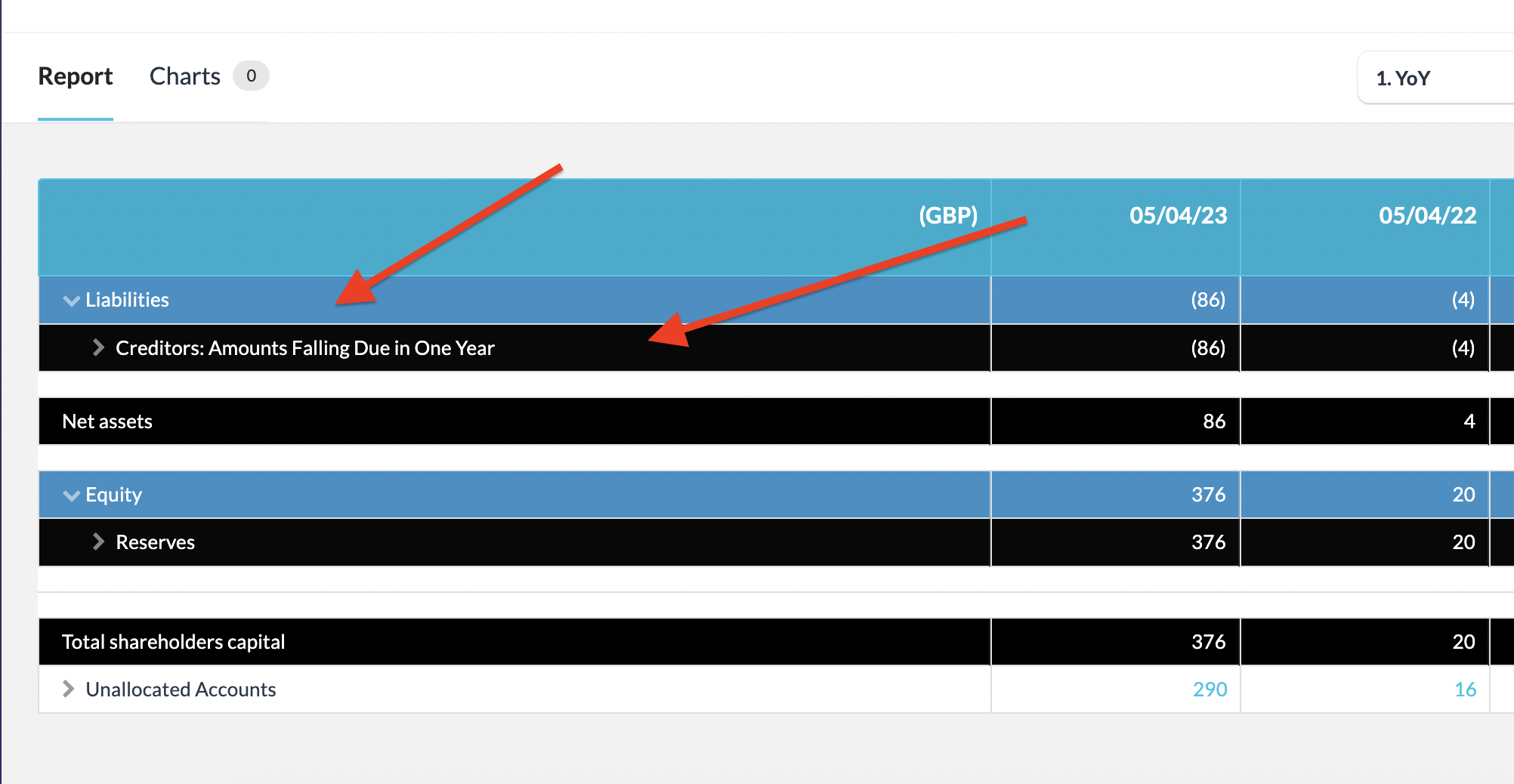
- In the report editor, these same colours are applied to groups and rows
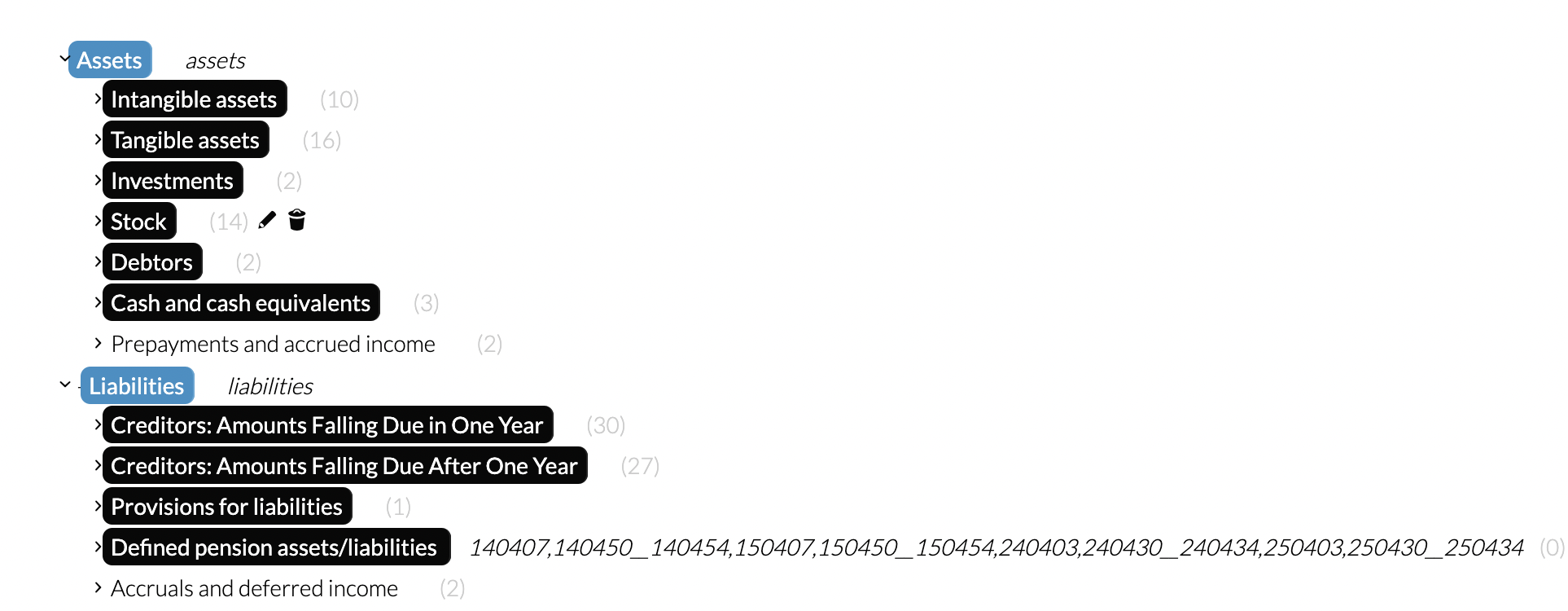
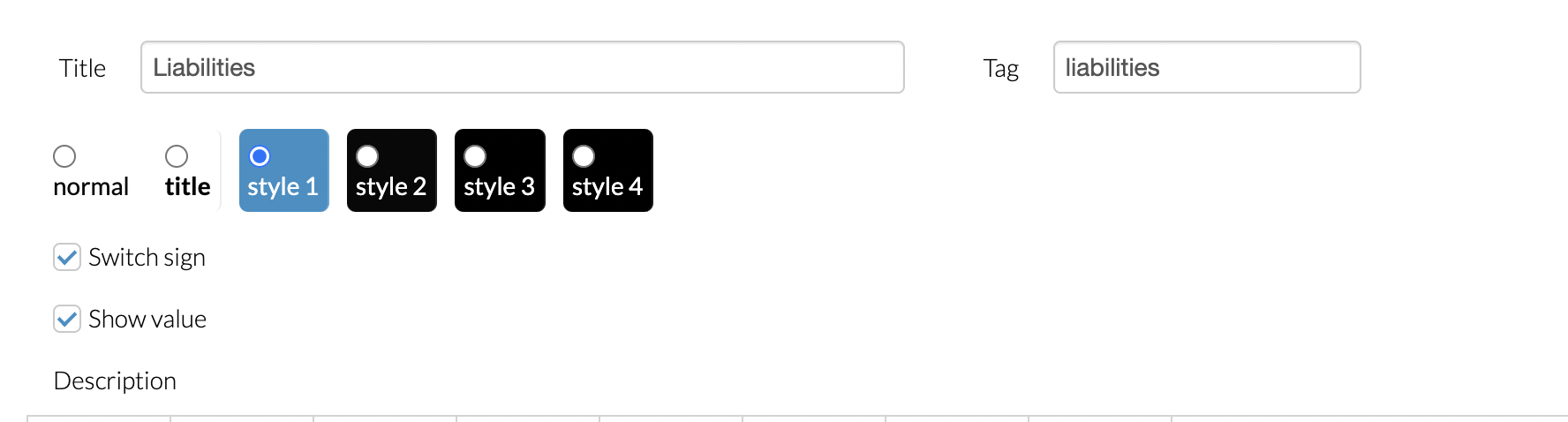
- The available colour options in the row editor come directly from the default export style.
How to Update the default report colours
To change the colours available in reports, update the default export style:
Step 1: Identify the default style used
- Go to Advanced settings at the firm level.
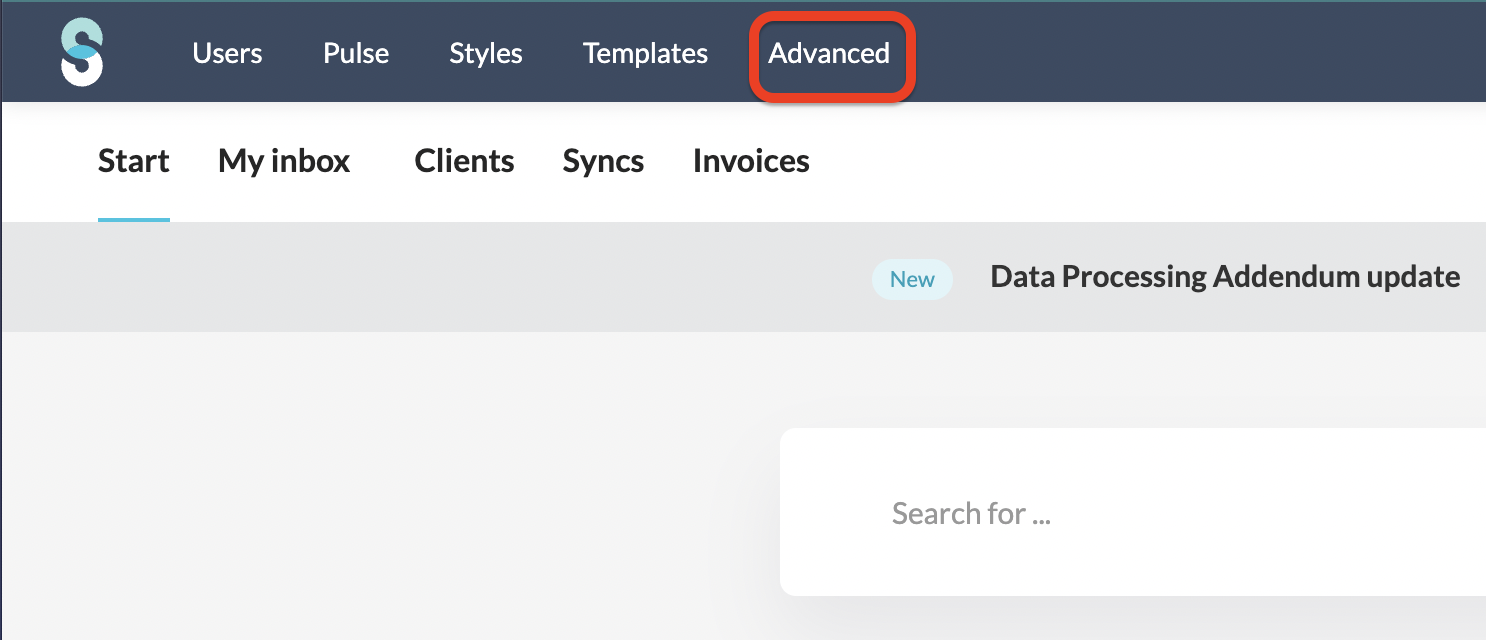
- Locate the Default style.
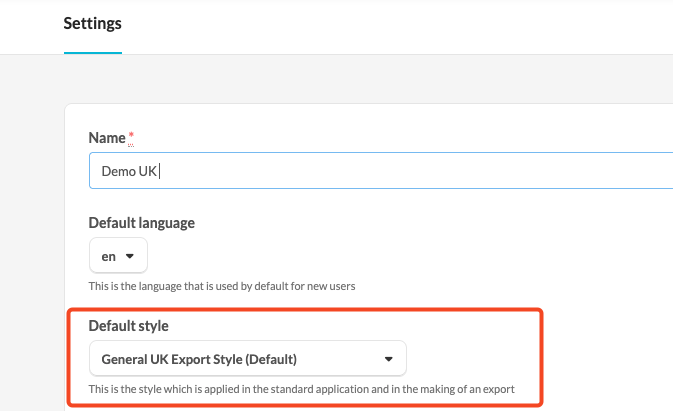
Step 2: Edit the style at firm level
- Go to the Styles section at firm level.
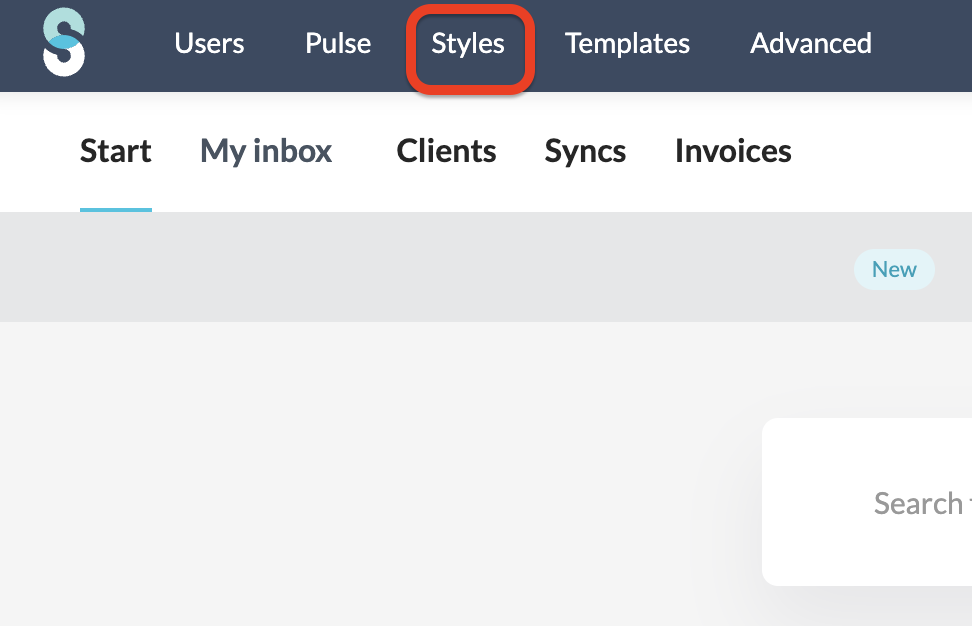
- Locate the identified default style.
- Open the Style and click Style settings.

Step 3: Adjust report colours
- In the style settings, go to the Report and charts section.
- Update the colour palette as needed.
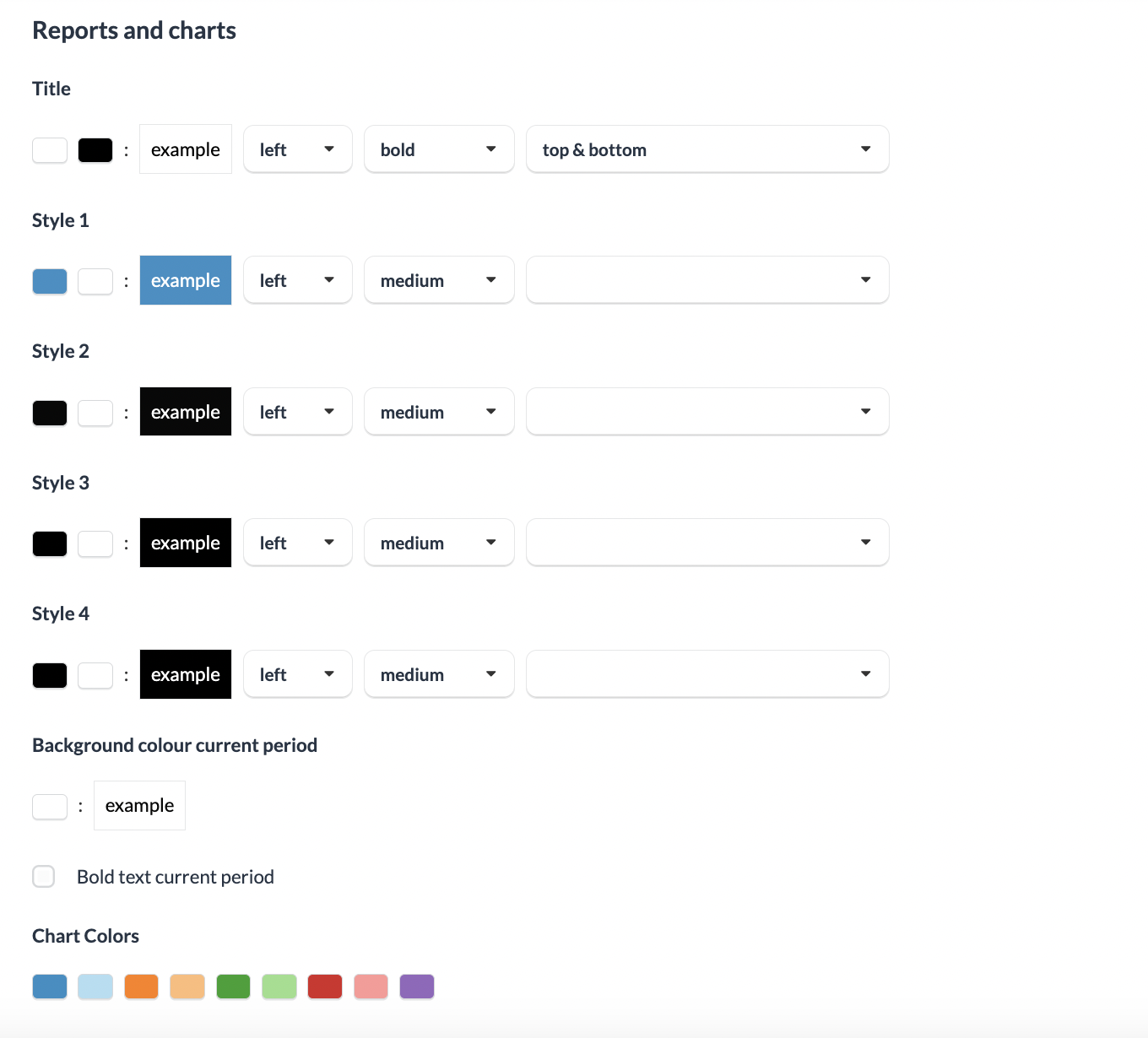
- Save your changes.
Customising the Top Bar Colour
The top bar colour displays the standard default colour. In some cases, this can be customised to a preferred colour code.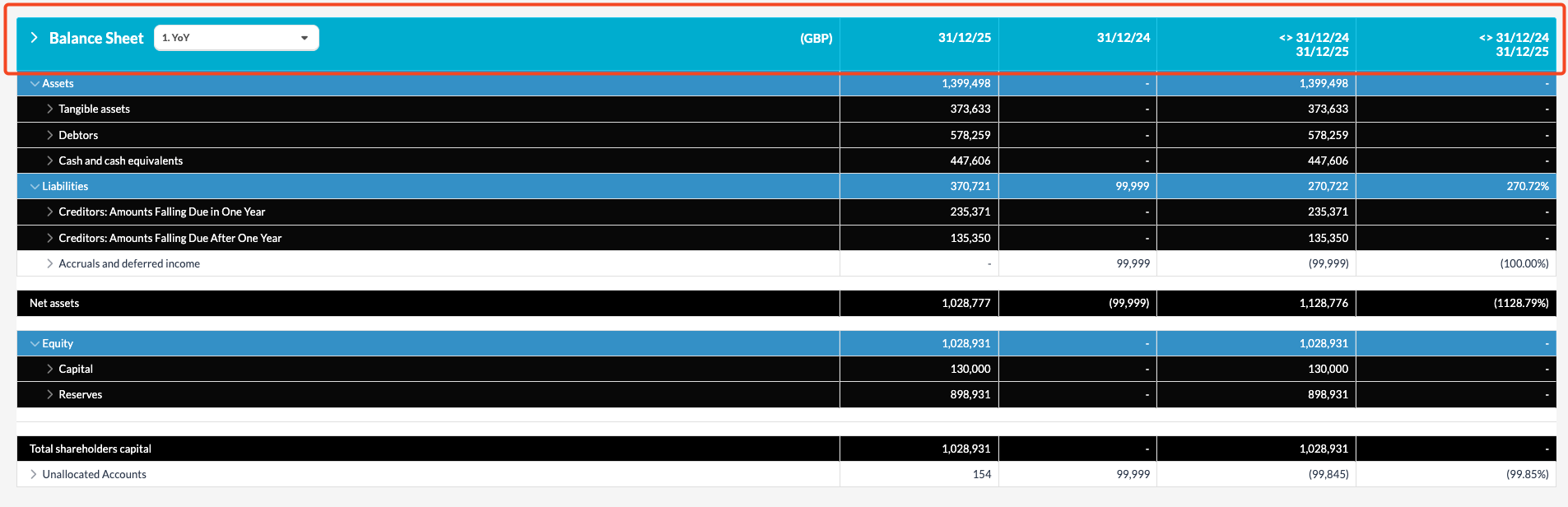
For any questions regarding top bar colour customisation, please contact your Customer Success Manager.