
| User Roles |  Admin Admin |  Staff contributor Staff contributor | External contributor | Pulse user |
This article explains the different ways you can get in touch with the Silverfin Support team, and how to track your requests afterwards in My Tickets. It is relevant for all Silverfin users who need help or want to follow up on a question.
Table of contents
- How can I reach Silverfin Support?
- Which contact option should I choose?
- How do I access My Tickets?
- What can I do in My Tickets?
- Can I see all tickets submitted by my firm?
How can I reach Silverfin Support?
Silverfin offers several ways to contact our Support team. Choose the option that best suits your question.
How do I submit a support ticket?
You can submit a support ticket directly via the Silverfin Support portal. This is the best option for non-urgent questions or issues that require detailed follow-up.
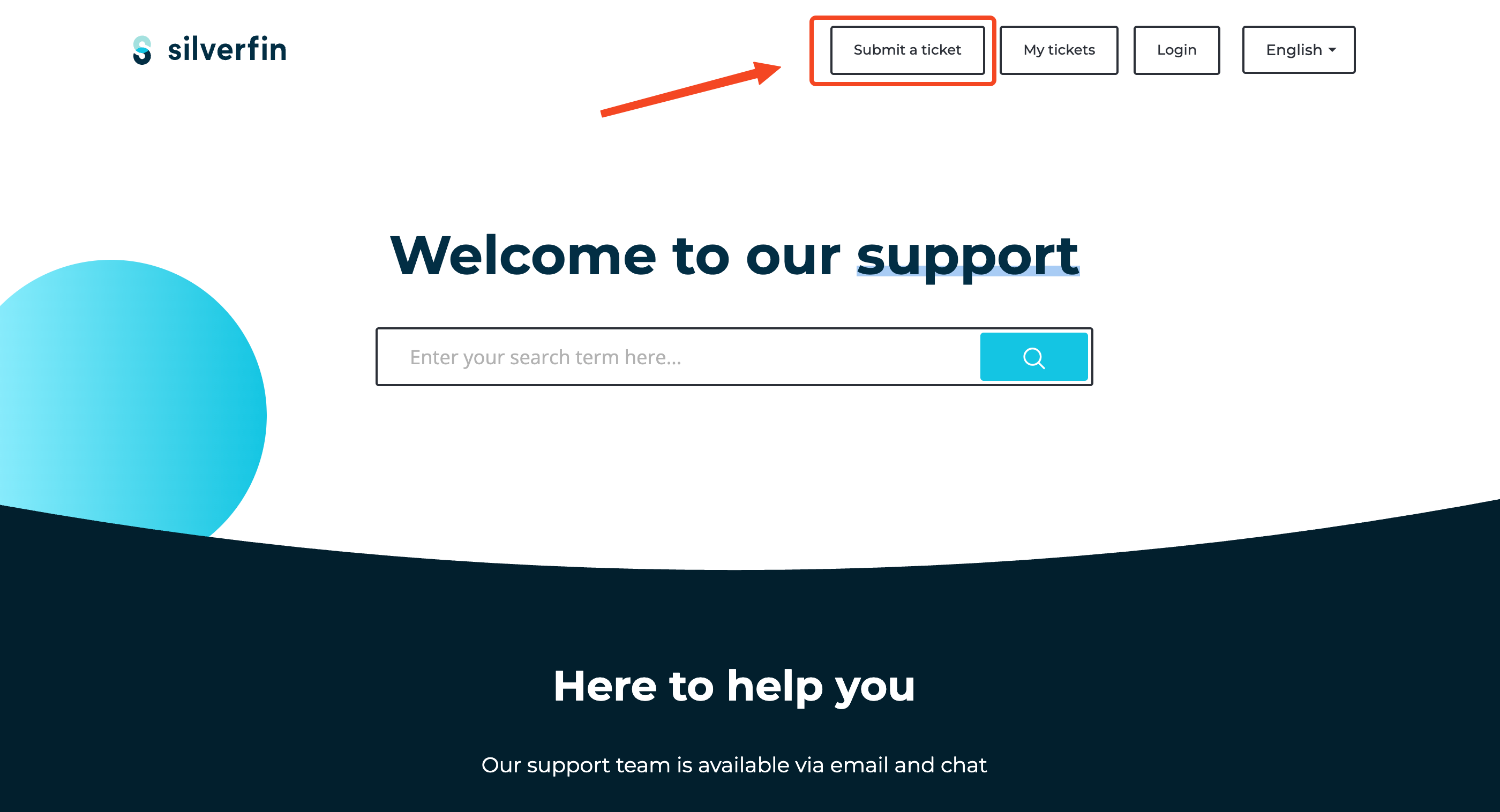
- Go to the Silverfin Support home page.
- Click Submit a ticket in the top navigation.
- Fill in the form with a clear description of your question or issue.
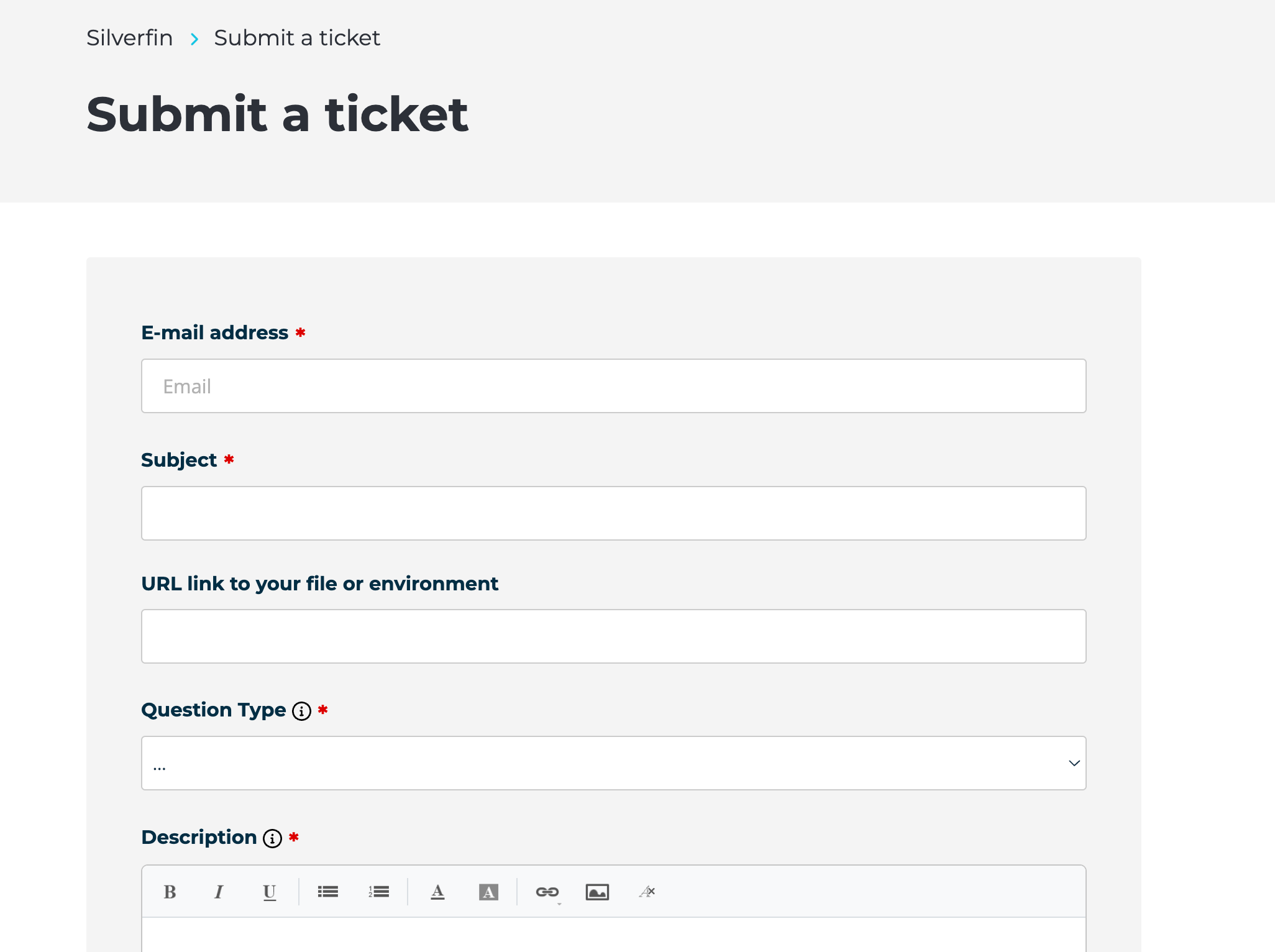
- Click Submit. You will receive a confirmation by email.
Once submitted, your ticket appears in My Tickets, where you can follow its progress and reply to our team.
How do I chat with Support?
For quick questions, you can use the chat function directly within Silverfin.
- Log in to your Silverfin account.
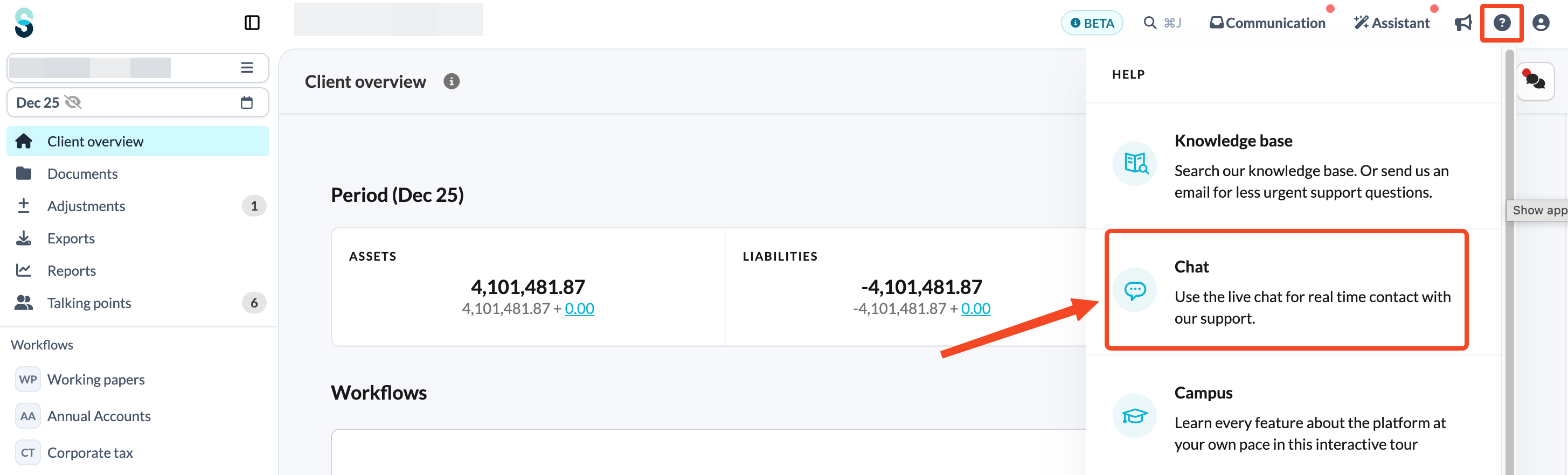
- Click the Help button in the upper right corner.
- Select Chat.
Using Silverfin in Belgium, the Netherlands or the United Kingdom? You will be connected to Finn, Silverfin's AI chatbot. Finn can answer most day-to-day questions immediately, using the same knowledge base our support team relies on. If your question needs a human specialist, Finn will direct you to the right place. Learn more in Meet Finn, AI chatbot in Silverfin (BE, NL and UK markets).
How do I contact Support by email?
You can also reach our Support team by sending an email directly to: support@silverfin.com
This is a good option if you are unable to access the Support portal or prefer to get in touch by email. We will create a ticket on your behalf and follow up as soon as possible.
Which contact option should I choose?
- Complex issue? Submit a ticket or send an email so our team can investigate and follow up properly.
- Urgent or quick question? Use the chat function for an immediate response.
If you are not sure, the Support portal is always a safe starting point.
How do I access My Tickets?
With My Tickets, managing and tracking your support requests is easier than ever. It gives you everything you need to follow up on your requests in one place, so you get faster and more efficient support.
To use it, you need a Support portal account. This account is separate from the login you use for the Silverfin platform, so you will need to sign up for it once.
How do I create a Support portal account?
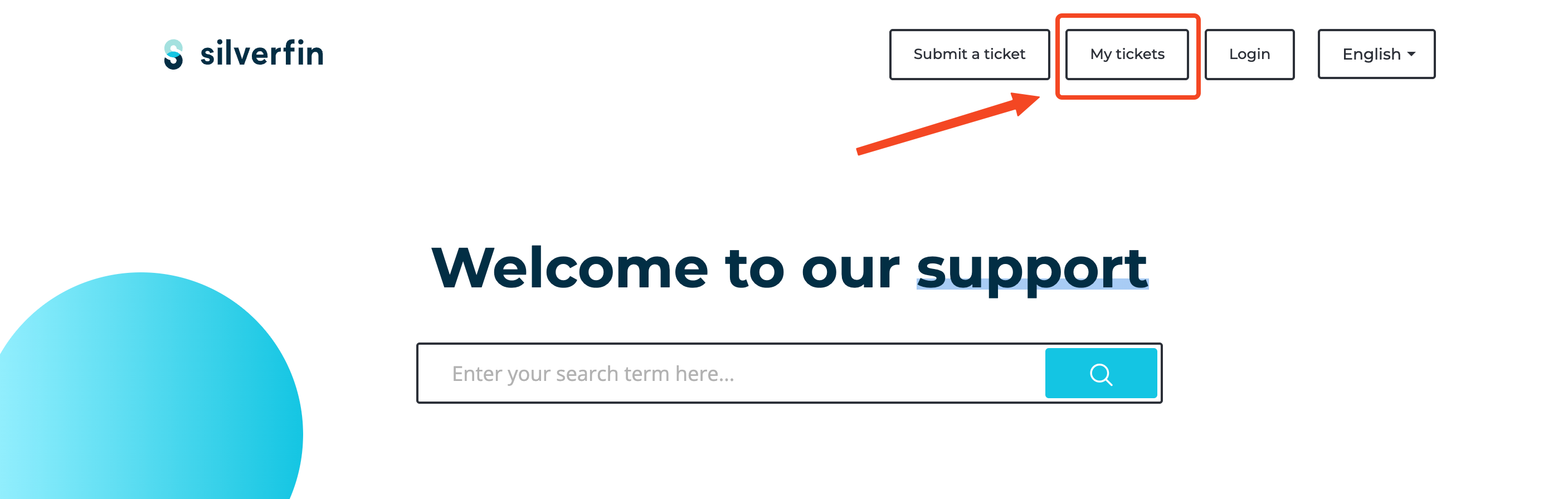
- Go to support.silverfin.com and click My tickets in the top navigation.
- Under Sign up, click Sign Up With Us to create an account with your email address and a password.
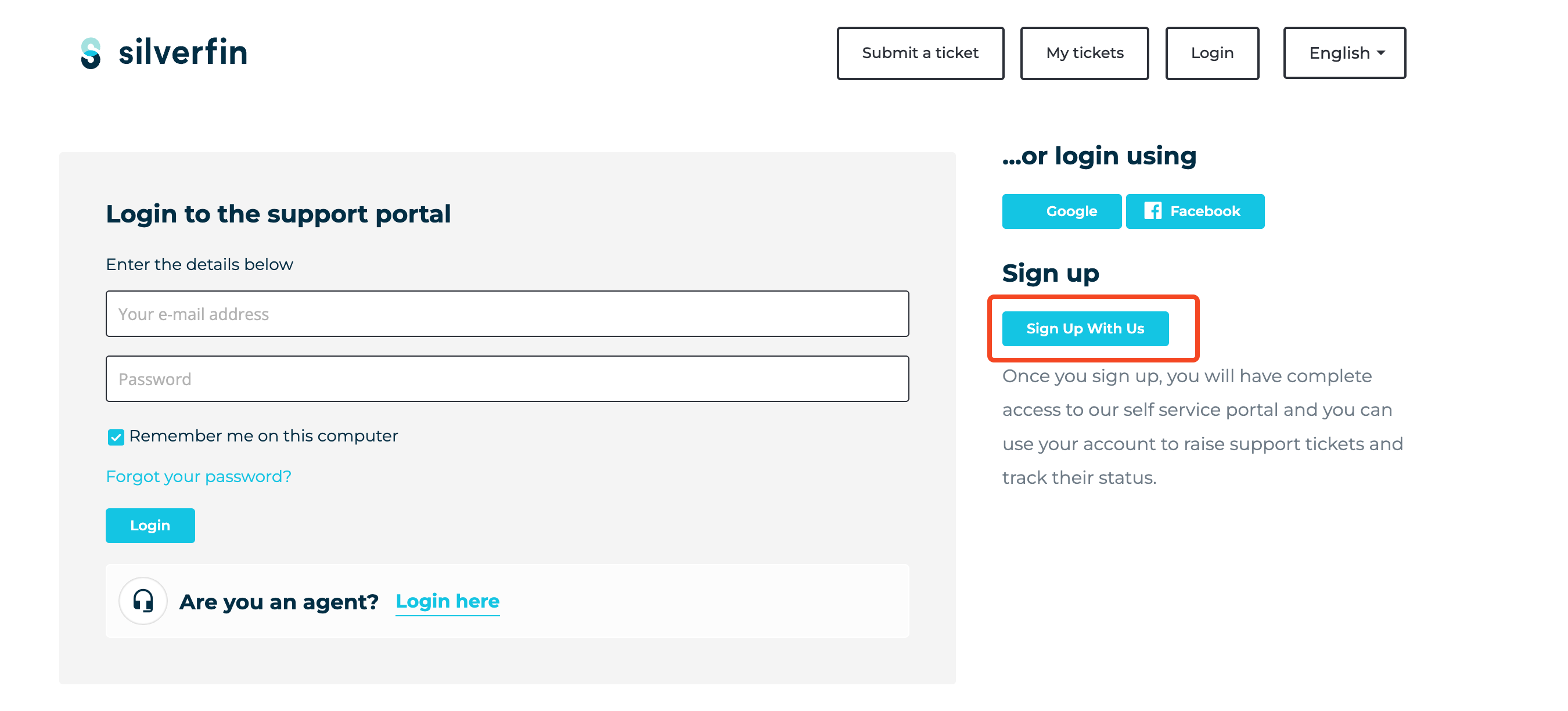
- Alternatively, use Google or Facebook under ...or login using to sign in without creating a separate password.
Sign up with the same email address you have used to contact us before. Your existing tickets are linked to that address, so using it means your full history appears in My Tickets straight away. If you sign up with a different address, only new tickets will be visible.
On the login page you will also see Are you an agent? Login here. That option is for Silverfin support agents only - as a customer, use the Login or Sign Up With Us options instead.
Tick Remember me on this computer if you would rather not log in each time you visit. If you forget your password later, use Forgot your password? on the login page to set a new one.
Why can't I create a Support portal account?
If you run into any issues while signing up, contact us. We are happy to help you get access.
What can I do in My Tickets?
My Tickets shows all your support requests in one place, so you can:
- Search for a specific ticket by keyword.
- Filter your tickets by status.
- Sort your tickets by date, most recent activity or status.
- See how many tickets are in your current view.
- Export your tickets for your own records.
How do I filter my tickets?
By default, My Tickets shows your Open or Pending tickets. To see a different selection, click the status dropdown at the top of the list and choose one of the following options: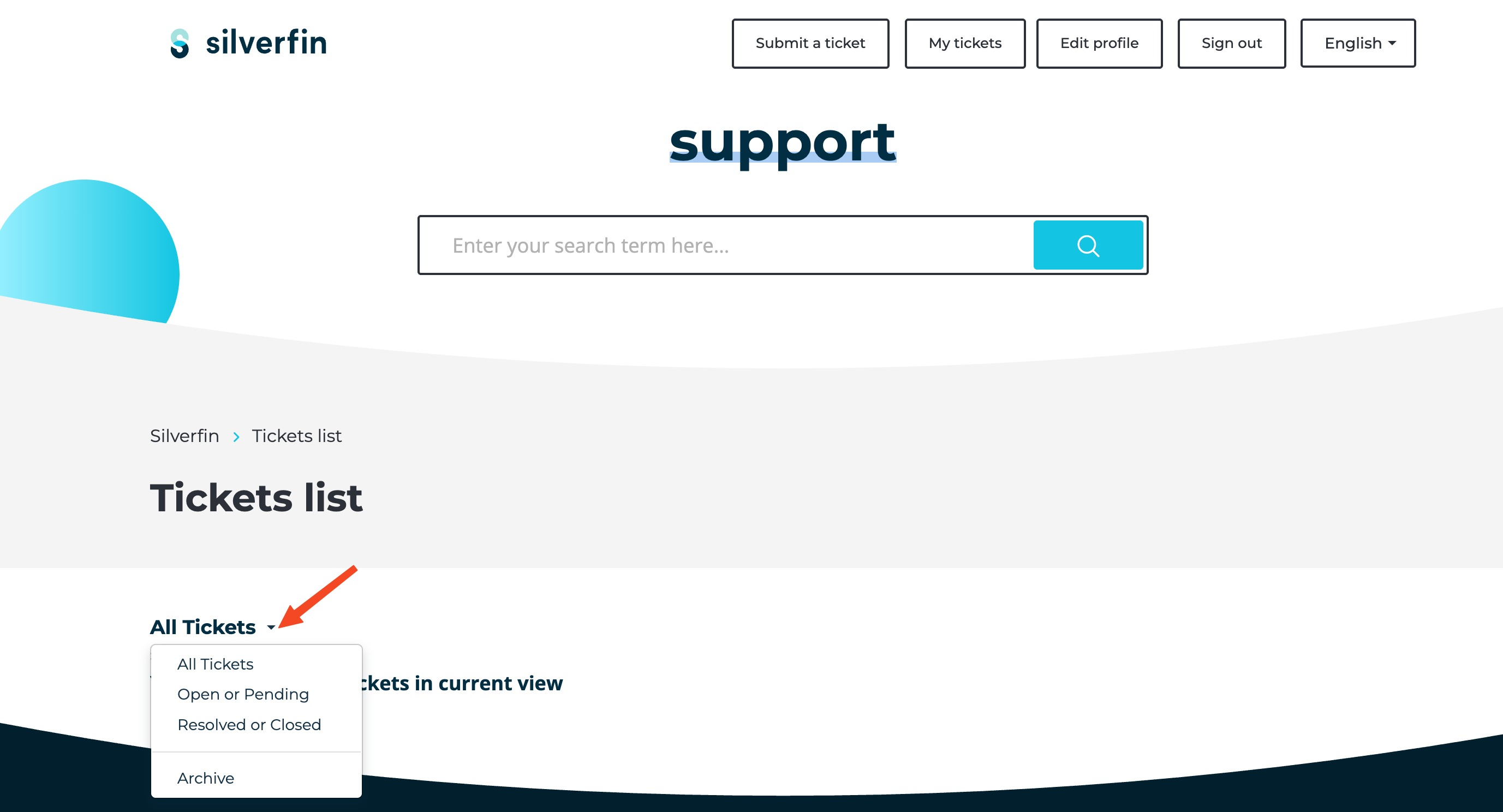
| Filter | What it shows |
| All Tickets | Every ticket linked to your email address, whatever its status. |
| Open or Pending | Tickets our team is still working on, or that are waiting for a reply. This is the default view. |
| Resolved or Closed | Tickets that have been answered and completed. |
| Archive | Older tickets that have been moved out of your active list. |
The number of tickets in your current selection is shown just beneath the dropdowns, so you can always see how much the filter has narrowed the list.
How do I sort my tickets?
Underneath the status filter you will find Sorted by, which changes the order of the list rather than which tickets appear in it. Click it and choose how you want your tickets ordered: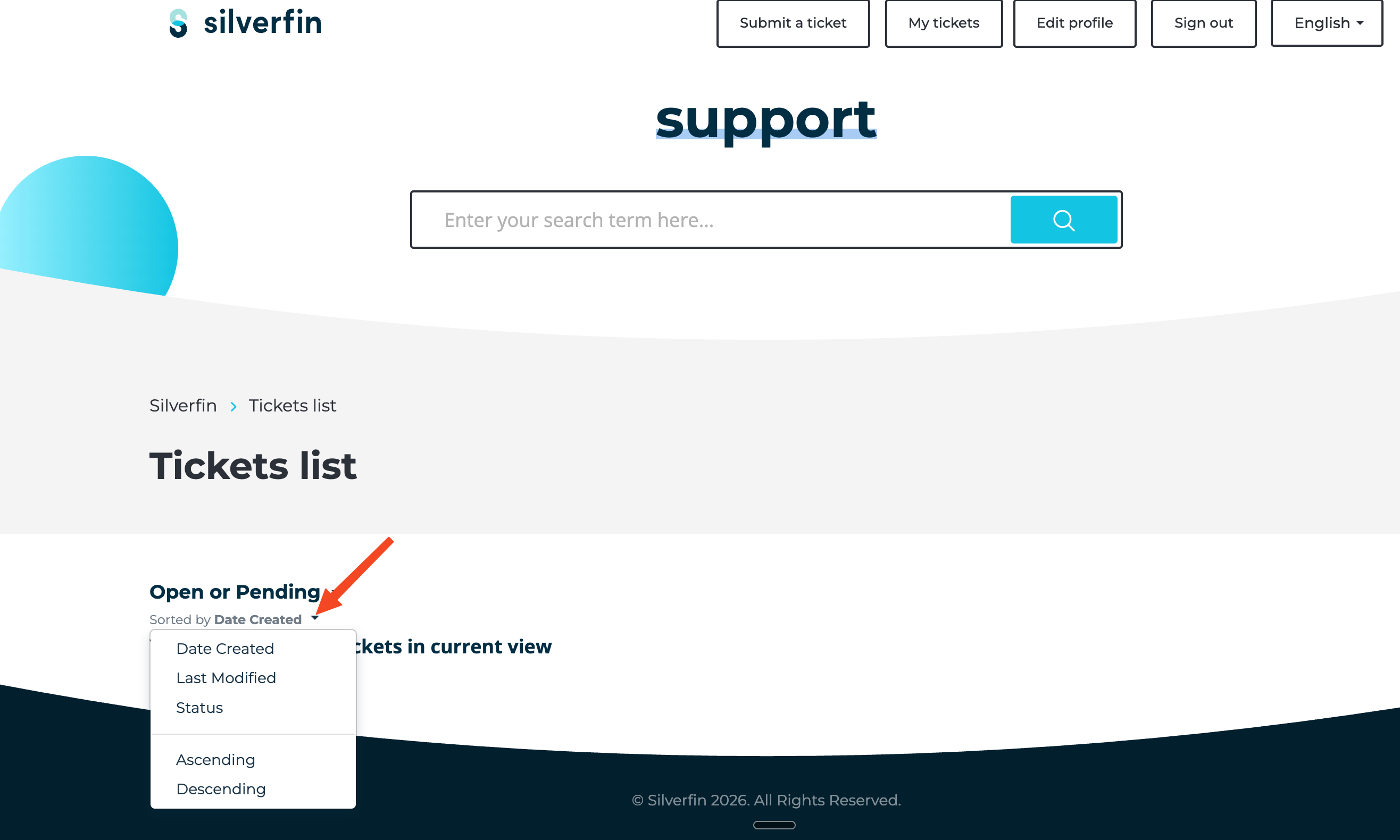
| Sort by | What it does |
| Date Created | Orders your tickets by the date you submitted them. This is the default. |
| Last Modified | Orders your tickets by the most recent activity, so the ones with a new reply come first. |
| Status | Groups your tickets by status, so requests at the same stage sit together. |
In the same dropdown, choose Ascending or Descending to reverse the order - for example, to put your oldest tickets at the top instead of your newest.
Can I see all tickets submitted by my firm?
Yes. On request, we can give specific users permission to see every ticket submitted by colleagues in the same firm, not only their own. This is useful if you coordinate support requests for your firm and want a complete overview.
This is available to users with the Admin role only. We do not grant the firm-wide overview to Staff contributors, External contributors or Pulse users. There is no limit on how many Admins in your firm can have it, so you can request it for more than one person.
To request it, contact our Support team and give us the email addresses of the Admin users who should have the firm-wide view.