| User Roles |  Admin Admin |  Staff contributor Staff contributor | External Contributor | Pulse user |
This article explains how to download individual documents or multiple files from the Silverfin Documents section within a file. It is relevant for all users who need to retrieve uploaded files or folders for local access or archiving.
Follow these steps to download documents or folders from your file:
- Through the left navigation panel, click on the Documents section of your file.
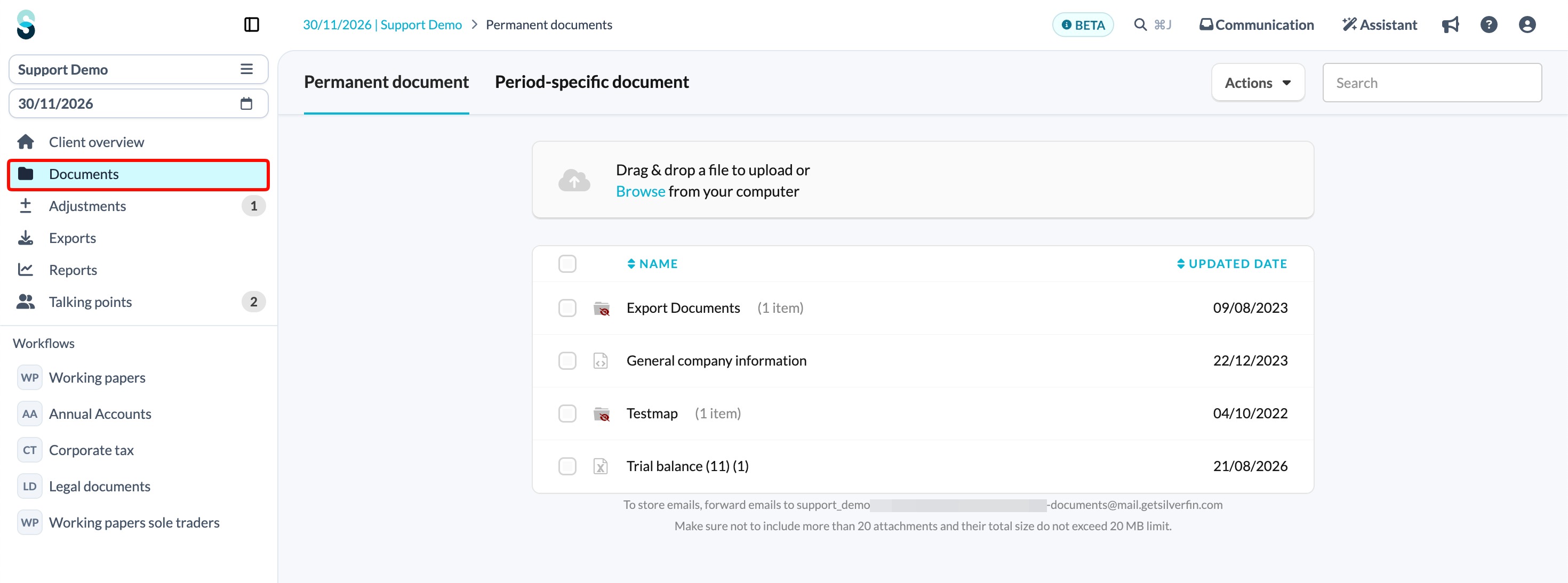
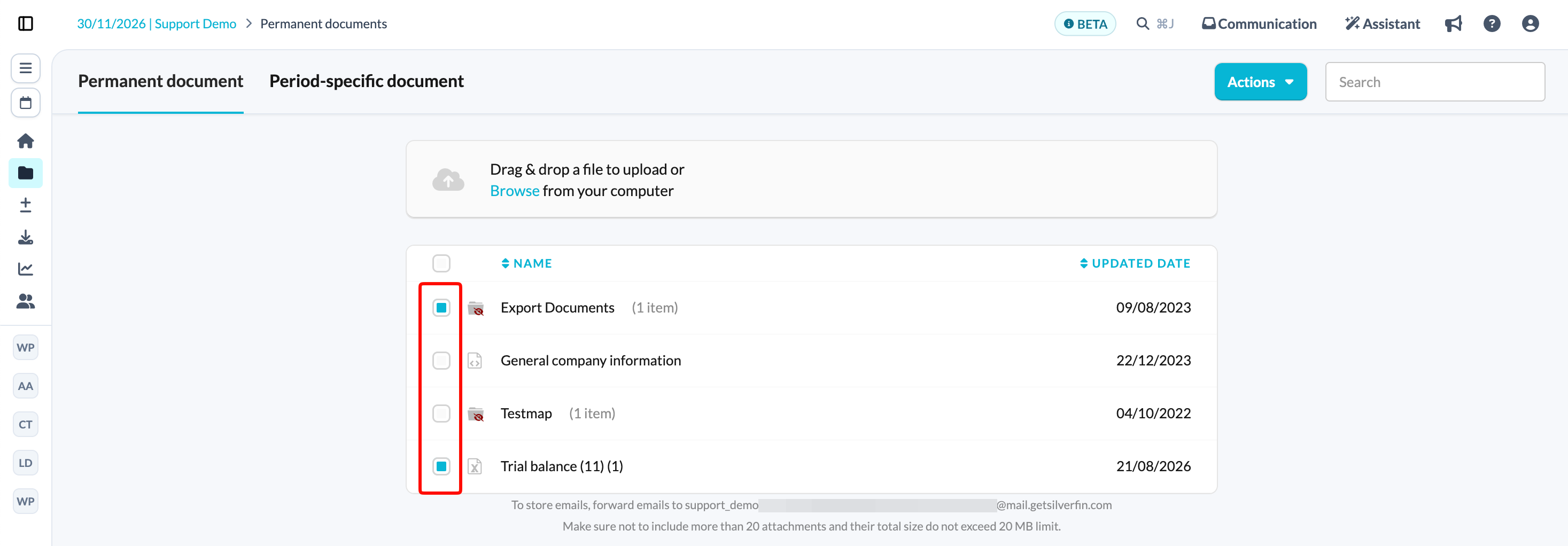
- Select the document you wish to download in the list.
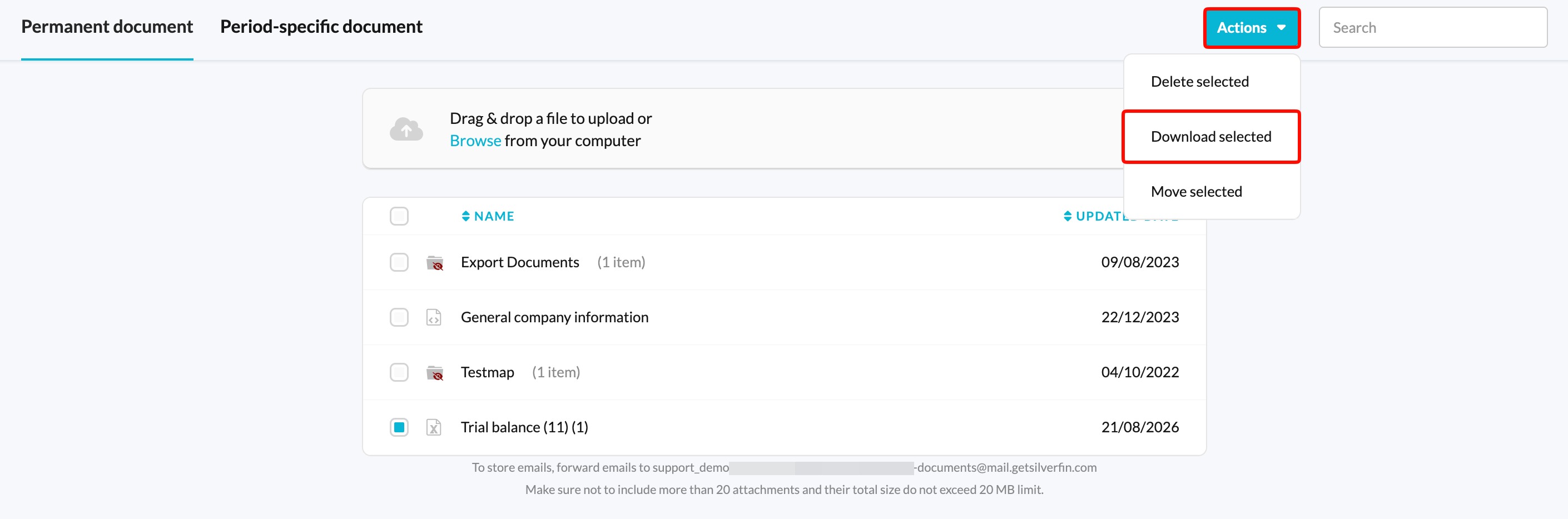
- Through the Actions button you can download the selected documents.
- Silverfin will compile your selected items into a single ZIP file, which will then download to your computer's default downloads folder.
Considerations for Bulk Downloads
For optimal performance and to avoid potential issues, we recommend downloading documents in smaller batches. If you are downloading many items, try selecting a maximum of five documents or folders at a time.
Attempting to download a very large number of documents or exceptionally large files at once can sometimes cause the download process to time out or fail. If you experience problems, try reducing the number of items you are downloading simultaneously.
Please note that only documents and folders can be downloaded. If you select these types of files as part of a bulk download, the Download selected button may become greyed out and unclickable.
Period-specific document
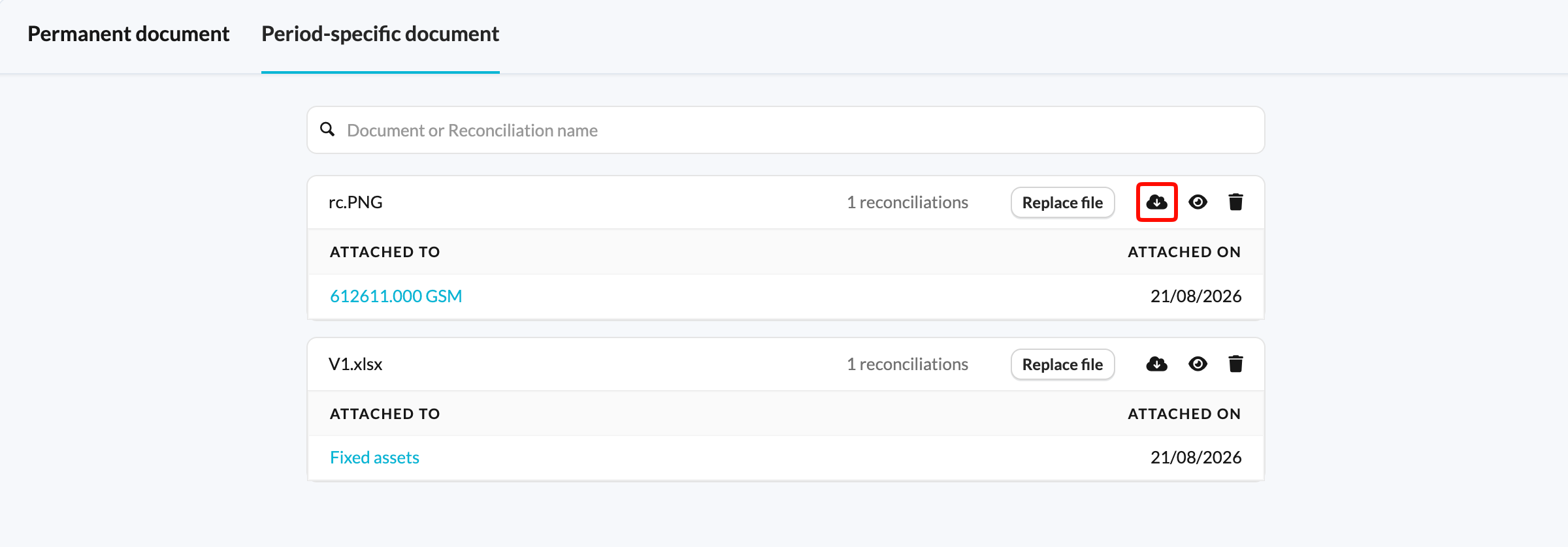
Documents that were uploaded in templates or accounts can be downloaded one by one through this overview. By clicking on the cloud with an error pointing downwards: