
| User Roles |  Admin |  Staff contributor | ✗External contributor | ✗Pulse user |
This article explains why account names don’t always change when you switch the language of a client file, and what you can do to get account names in the language you need.
Table of contents
- Why don’t account names change when I switch the language?
- Option 1: Change the name in your bookkeeping software
- Option 2: Change the name in your manual upload
- Option 3: Update the synchronisation settings
- Option 4: Accounts you created in Silverfin yourself
Why don’t account names change when I switch the language?
- The original account names in the Accounts tab in Silverfin are the names from your bookkeeping software, brought into Silverfin by the sync or by a manual upload. Silverfin never translates these.
- When you change the language of a client file (click the language abbreviation in the top right corner and choose a language) or use a different language in your export style, the templates, workflows, titles and subtitles are translated. The original account names are never translated. They are taken exactly as they appear in the Accounts tab. For example, if you switch to Dutch, templates such as Disallowed expenses and Fixed assets appear in Dutch, but the account names do not change, unless a Dutch version of the original account name is already available for the account.
- For accounts that come from your bookkeeping software (sync or manual upload), you can’t edit the original account name in Silverfin. The change has to happen in your bookkeeping software, or in the settings that control how the sync picks up the name.
The following options can help if the language of one or more accounts is not picked up correctly.
Option 1: Change the name in your bookkeeping software
- Change the account name in your bookkeeping software.
- Book an entry of €0.01 on that account in your bookkeeping software. Silverfin only picks up a changed name when there is a movement on the account.
- In Silverfin, click the two sync arrows next to the client name to start the sync.
The new name should now be visible in the Accounts tab. Silverfin shows a notification when account names have changed.
Option 2: Change the name in your manual upload
- Change the account name in your bookkeeping software.
- Download the trial balance from your bookkeeping software.
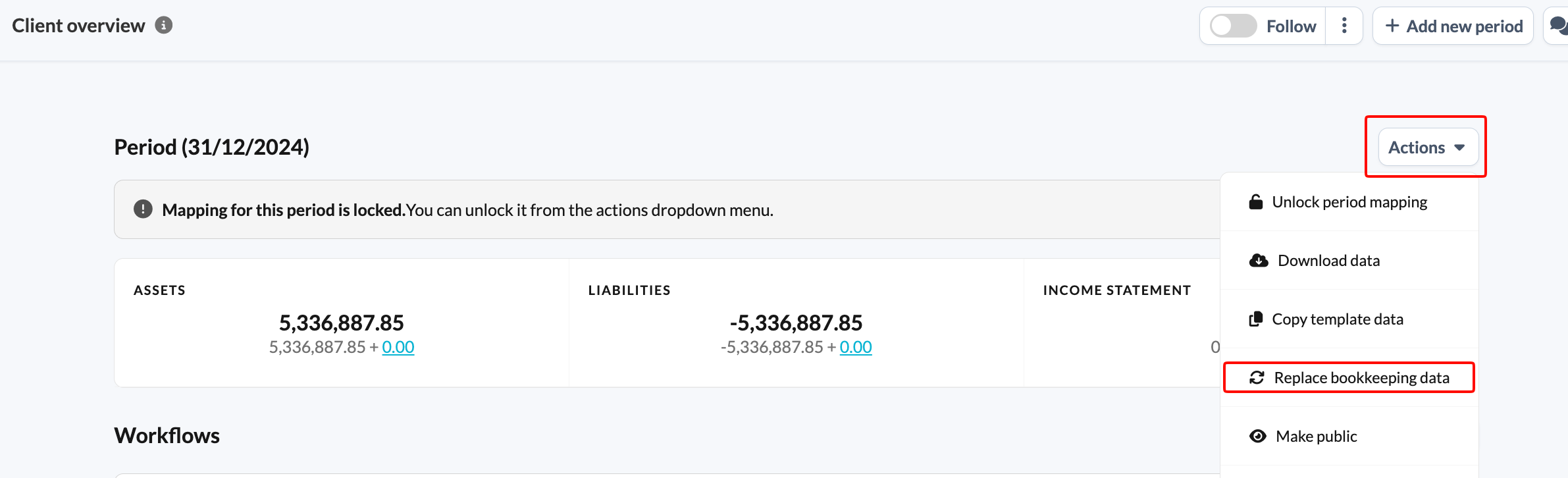
- Upload the trial balance on the period overview screen with the Actions button and the Replace bookkeeping data action. This overwrites or updates your values, including the original account name in Silverfin.
Option 3: Update the synchronisation settings
Some accounting packages, such as Winbooks and Venice, store an account name in more than one language, but the language has to be selected in the synchronisation. In that case, the name and language Silverfin picks up depend on the language setting of the synchronisation setup.
You can always check this under Switch sync, by navigating to the sync setup screen: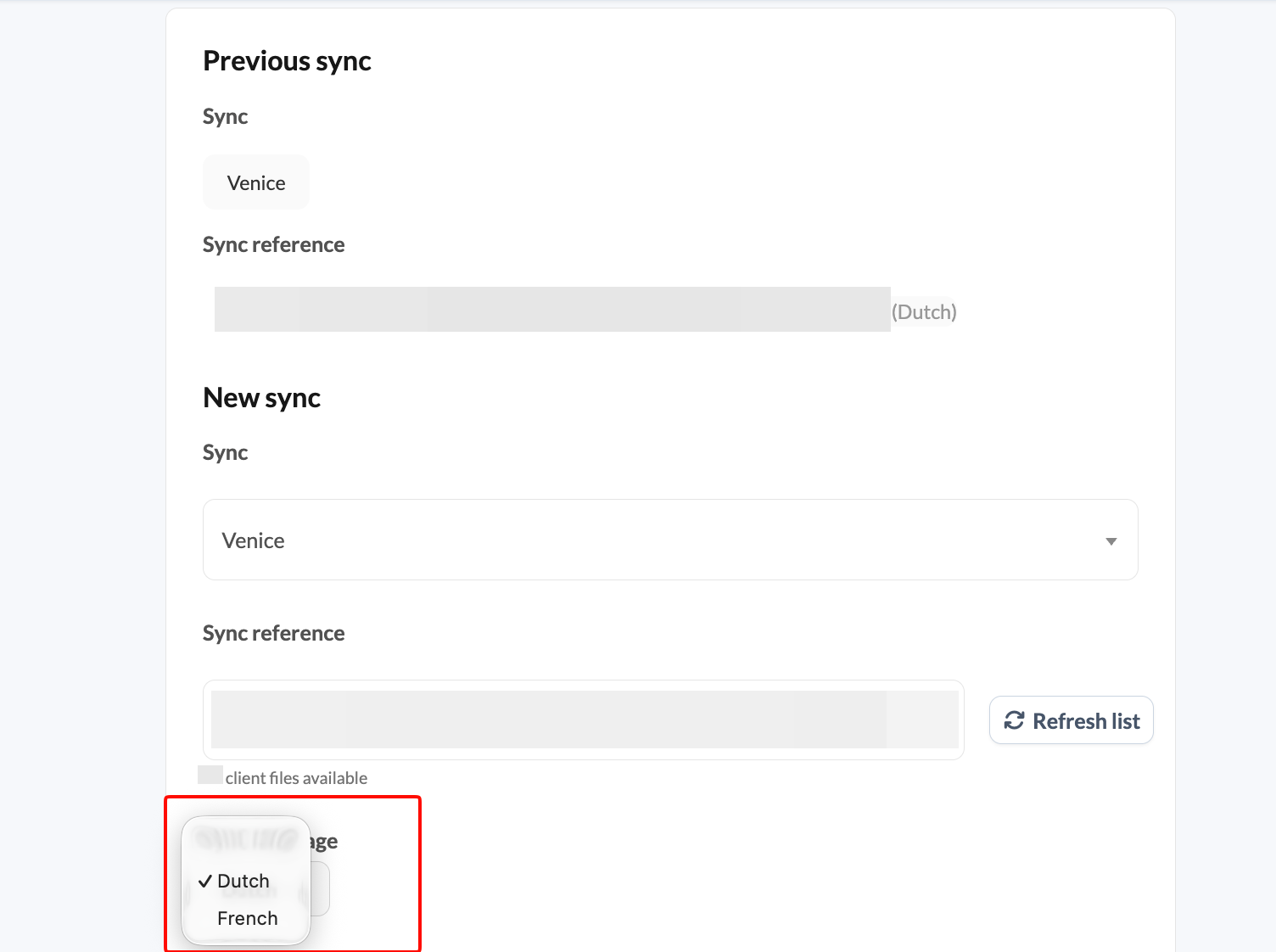
Option 4: Accounts you created in Silverfin yourself
Accounts that you create yourself in Silverfin, either through the New account button in the Accounts tab or through an adjustment, don’t come from a sync. For these accounts you can change the original account name in Silverfin by opening the account in the Accounts tab.
Changing the Silverfin account name to change the exported account name will not work if your firm is set to export original account names. In that case, the account name still has to be updated at its source, either in the synchronisation or by redoing the manual upload with the updated name.