| User roles | ✗Pulse user |
In this article, we guide you step by step through using the interest calculation model in Silverfin. This process includes setting up the current account, adding entries, and calculating debit and credit interest. Starting from the tax year 2026, the template has been completely rebuilt, resulting in improved user-friendliness, sharper calculations, and a logical flow. Follow these instructions to ensure your calculations are performed correctly and accurately.
Table of contents
- Step 1: Explaining individual current accounts
- Step 2: Adding the interest calculation explanation
- Avoiding an infinite loop
- Admin users only!
Step 1: Explaining individual current accounts
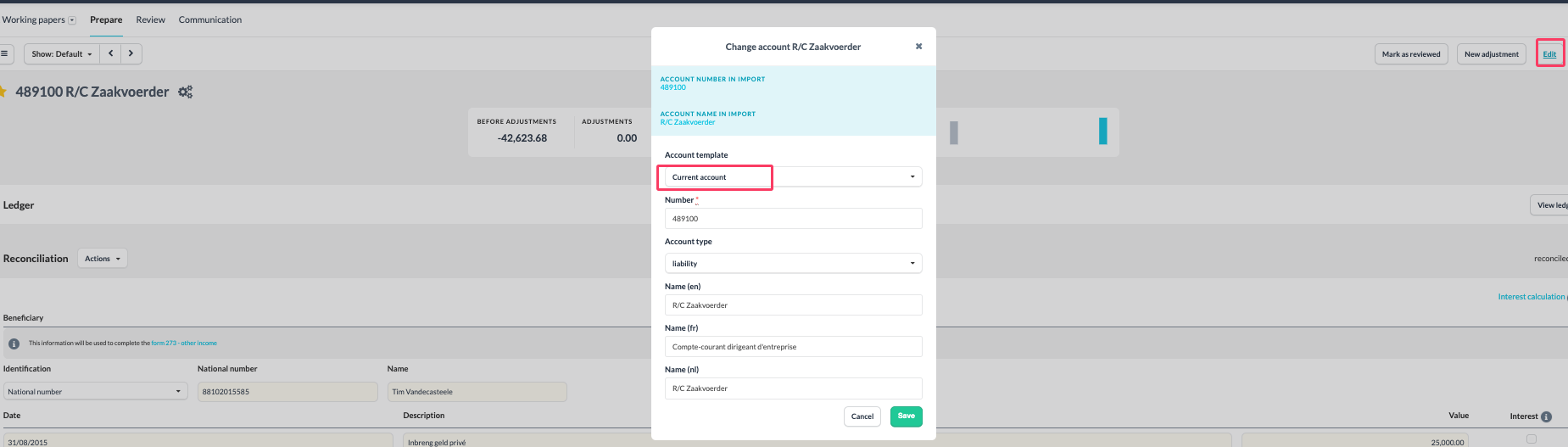
- Activate the correct account template.
- Go to the individual account you want to explain.
- Click on "Edit" and select the "Current Account" template.
- Set up the automatic explanation
- Use the data from your accounting package to automatically explain the individual account.
- Since the booking date is not always the correct date for the interest calculation, you can adjust the date in Silverfin.
- Navigate to the individual current account and use the automatic explanation to copy the ledger from your accounting package into the explanation. Click "Action' button >> 'Import reconciliation data'.
- Reference to date and description: Make sure to enter the date from your accounting package and provide the correct booking description (such as comments or references).
- Update the history
- After clicking "Save", the history will be imported into the template.
- If you want to modify, add, or remove a date or description, you can manually adjust the lines to build the correct history for the interest calculation.
- When referring to the interest calculation, it is important not to check the items you want to include in the calculation base to ensure the interest is calculated correctly. For the booked interest amount of the period, you should check the box.
- Automatic merging of entries
- If you explain automatically based on the date, all entries with the same date will be merged, and the description will not be displayed.
- If you explain automatically based on the description, all entries with the same description will be merged, and the date will not be displayed.
Step 2: Adding the interest calculation explanation
- Add individual accounts
- Once the individual accounts are explained, add them to the interest calculation by clicking the # icon.
- Once the individual accounts are explained, add them to the interest calculation by clicking the # icon.
- Select the calculation frequency
- You can choose to calculate debit and credit interests based on days, months, quarters, or years. Select the desired frequency from the dropdown menu.
- You can choose to calculate debit and credit interests based on days, months, quarters, or years. Select the desired frequency from the dropdown menu.
- Enter the interest rate
- At the top of the explanation, you can enter the debit and credit interest rate.
- At the top of the explanation, you can enter the debit and credit interest rate.
- Automatic interest calculation
- If the interest calculation changes during the year (for example, from debit to credit), you do not need to manually transfer the amounts between accounts. Silverfin will automatically apply the correct percentage based on the positive or negative amount.
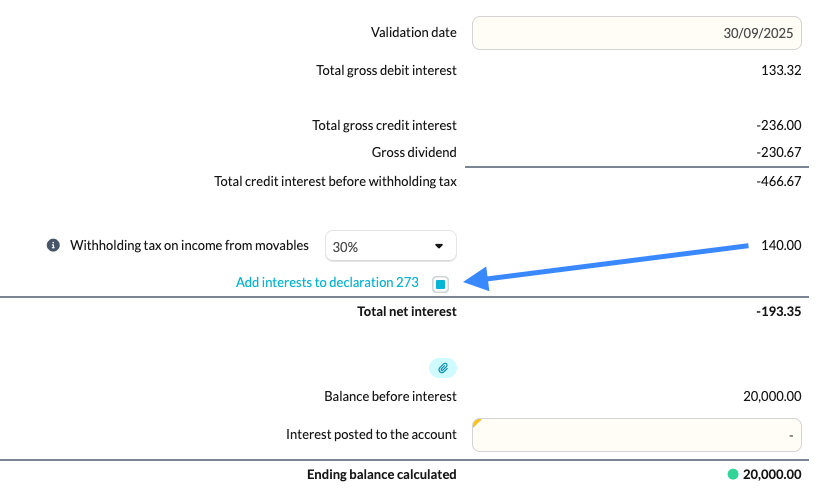
- A summary of the total debit and credit interests will be displayed at the bottom of the template.
- If the interest calculation changes during the year (for example, from debit to credit), you do not need to manually transfer the amounts between accounts. Silverfin will automatically apply the correct percentage based on the positive or negative amount.
- Calculating withholding tax
- Withholding tax is only applied to credit interests. Enter the payment date and the % withholding tax for the correct calculation.
- Withholding tax is only applied to credit interests. Enter the payment date and the % withholding tax for the correct calculation.
- Calculating interest by period
- The interest calculation is based on the booking date. Silverfin adds the lines per month if you calculate on a monthly basis. For yearly calculations, you can simply enter the opening and closing balances.
- The interest calculation is based on the booking date. Silverfin adds the lines per month if you calculate on a monthly basis. For yearly calculations, you can simply enter the opening and closing balances.
Avoiding an infinite loop
Once the interests are booked on the individual current account, you need to complete the account so that a green dot appears. This increases the final value in the overall interest calculation.
- Enter the booked amount under "Interest posted to the account" to avoid an infinite loop. Silverfin will then take this into account to complete the calculation correctly.
Check with the booked amount on account 65 or 75
Finally, through the # icon next to "Total gross interest", you can link the relevant account to check that the booked amount corresponds to the entries on accounts 65 or 75. This ensures the total gross interest is processed correctly.
Admin users only!
- If you want to assign a default account, this can easily be done by adding the following code in the configuration box at the office level:
{% assign default_check_dividends = "65" %}. - The account number between the quotation marks can be adjusted based on the account you wish to use.
The new ‘Interest Calculation’ template
The interest calculation template is used in almost every file. However, we often received feedback that it was difficult to read and sometimes unclear, and that it was not always optimized for detailed calculations. Based on this feedback, we have made the template more user-friendly and refined the calculations.
It will be available starting from the tax year 2026. To ensure that already prepared files are not affected, you can choose to use the old template by selecting the checkbox at the top. For the assessment years 2026 and 2027, the new layout will be shown by default, so you need to explicitly uncheck the box if you want to use the old template.

What's new?
- A clear overview
You now get a clear overview of all R/Cs with a handy drop-down menu for the counterparty.
Automation: invoices are automatically assigned via the Silverfin Mapping List (manual selection remains possible).
Smart Reclassification: based on the counterparty, the template automatically determines the tax treatment, whereby only the reclassification is calculated in the table when ‘natural person shareholder/company director’ is selected, and the excessive interest if ‘Related legal entity (loan before 17/06/2016)’ is selected. The other options will not trigger the reclassification.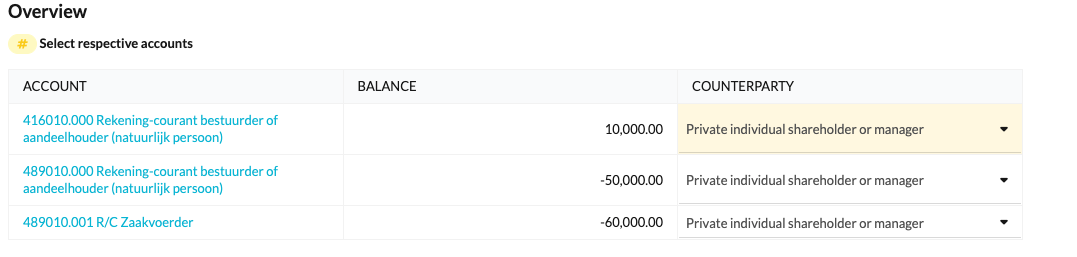
- Clear limits per calendar year
The limits for reclassification are now clearly structured side by side per calendar year. This allows you to see the context at a glance, whilst manual adjustments remain possible.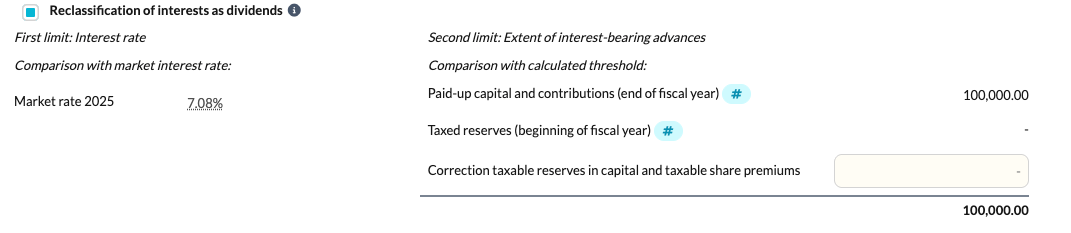
- An intuitive calculation table
The table has been completely revised for logical readability:
Unambiguous symbols: in the ‘Opening & closing balance’ and ‘Interest & dividend’ columns, debit amounts are now positive and credit amounts negative, regardless of whether the account is an asset or a liability account. Interest amounts and dividends also follow this logic but from the perspective of the balance sheet: positive for debit interest, negative for credit interest and dividends.
Split columns: there are now separate columns for ‘Average debit balance’ and ‘Average credit balance’ for the amount on which interest is calculated. Here, the amount is always shown as positive.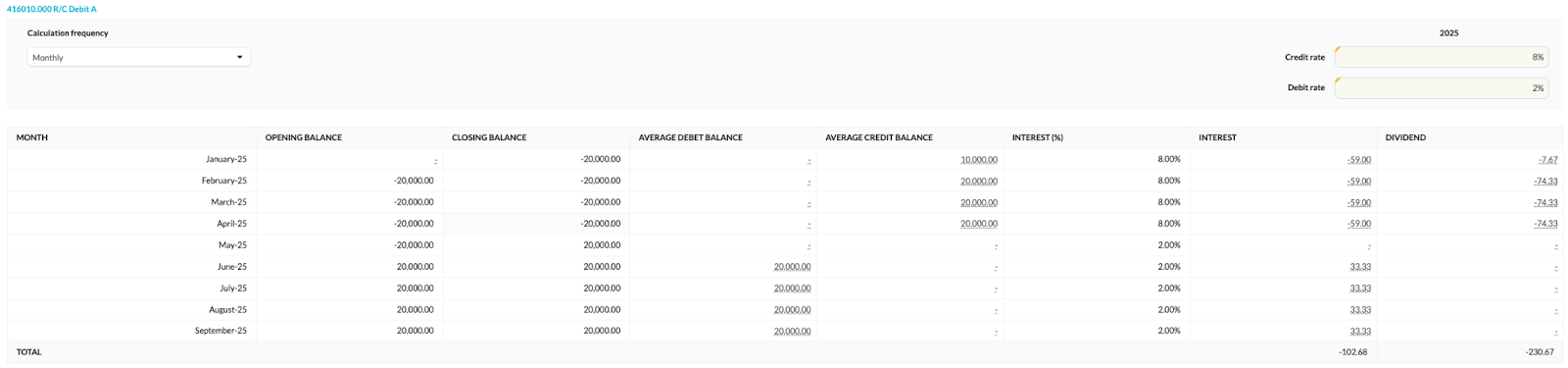
- Seamless link to the Withholding Tax Return
At the bottom of each account, you will now find a direct link to the withholding tax return workflow. The figures are automatically transferred to Form 273 when the checkbox is ticked, which again saves you time during finalisation.