
| User Roles |  Admin Admin |  Staff contributor Staff contributor | ✗External contributor | ✗Pulse user |
Converting your reports into Excel format allows for seamless data processing and efficient analysis. In this guide, we'll walk you through the simple steps to quickly download your reports as Excel files, making it easier to manage and work with your data.
Table of contents
Steps to download the report to Excel
- Navigate to your client file.
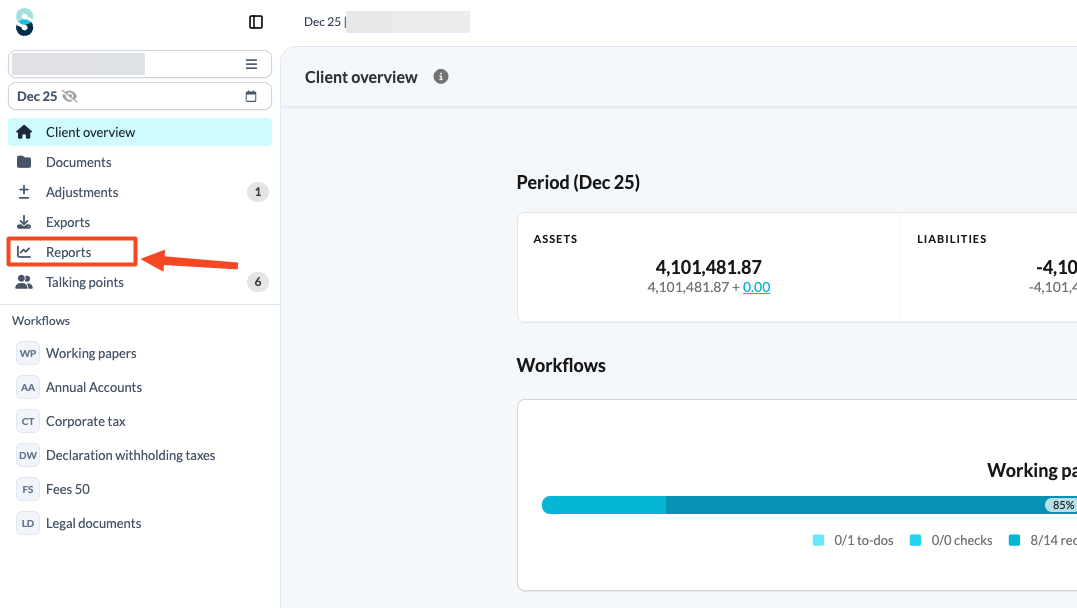
- Through the left navigation panel, click on Reports.
- Open the report you want to download as Excel.
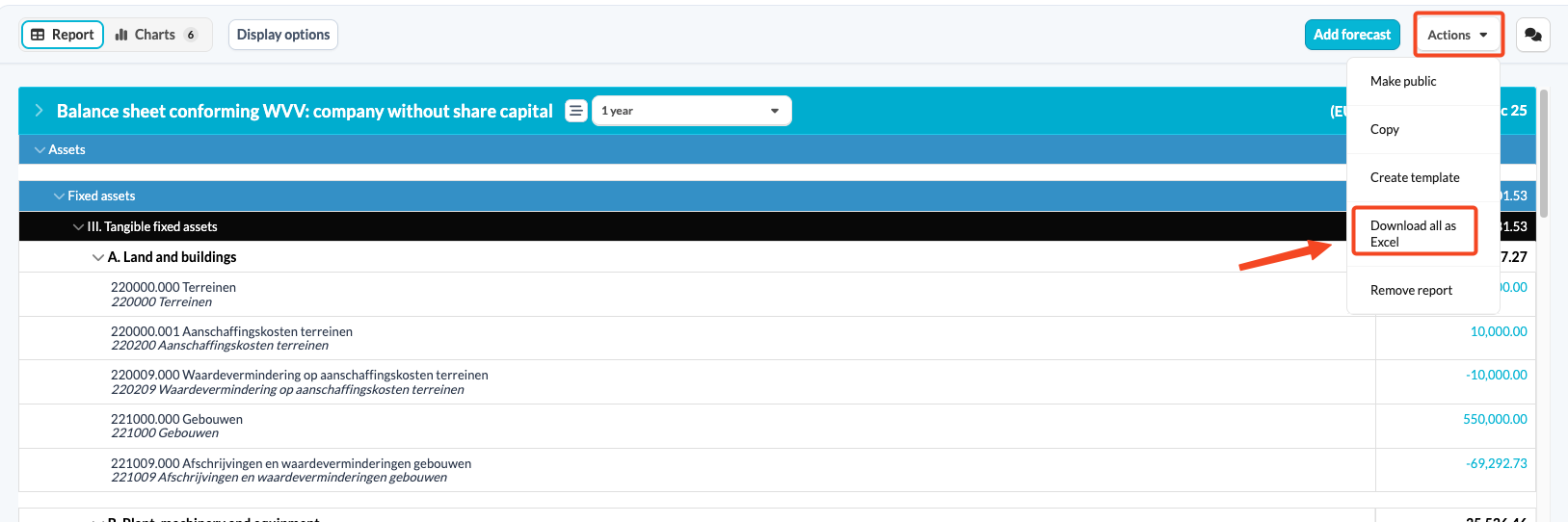
- Click on the 'Actions' button and select 'Download all as Excel'.
- In the 'Download as Excel' window, choose which rows to include in the export: 'Collapsed view' or 'Expanded view'.
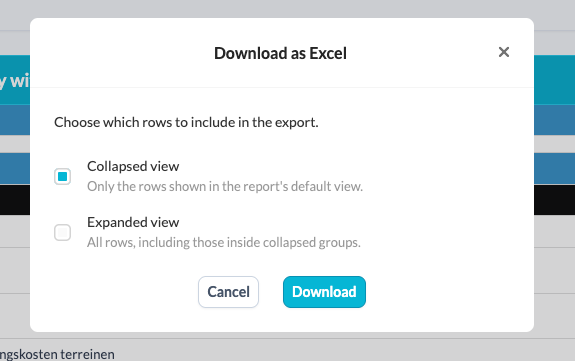
- Click 'Download'.
With these simple steps, you’ll have your report ready in Excel, making it easy for further analysis and use.
The report’s default view is set in the report template. If you need different groups collapsed or expanded by default, adjust the template settings first - see How to collapse and expand a report in a file?