| User Roles |  Admin Admin | ✗Staff contributor | ✗External contributor | ✗Pulse user |
This article gives you an overview of the firm level in Silverfin. It explains how to get there and what each item in the left panel does, so you can find your way around the platform more easily.
Table of contents
- How do I access the firm level?
- What can I do from the Firm overview section?
- What can I do from the Firm configuration section?
- What can I do from the Admin section?
How do I access the firm level?
Click the logo at the top of the left panel to go to the firm level from anywhere in Silverfin. This is your firm logo if one has been uploaded, and the Silverfin logo if not.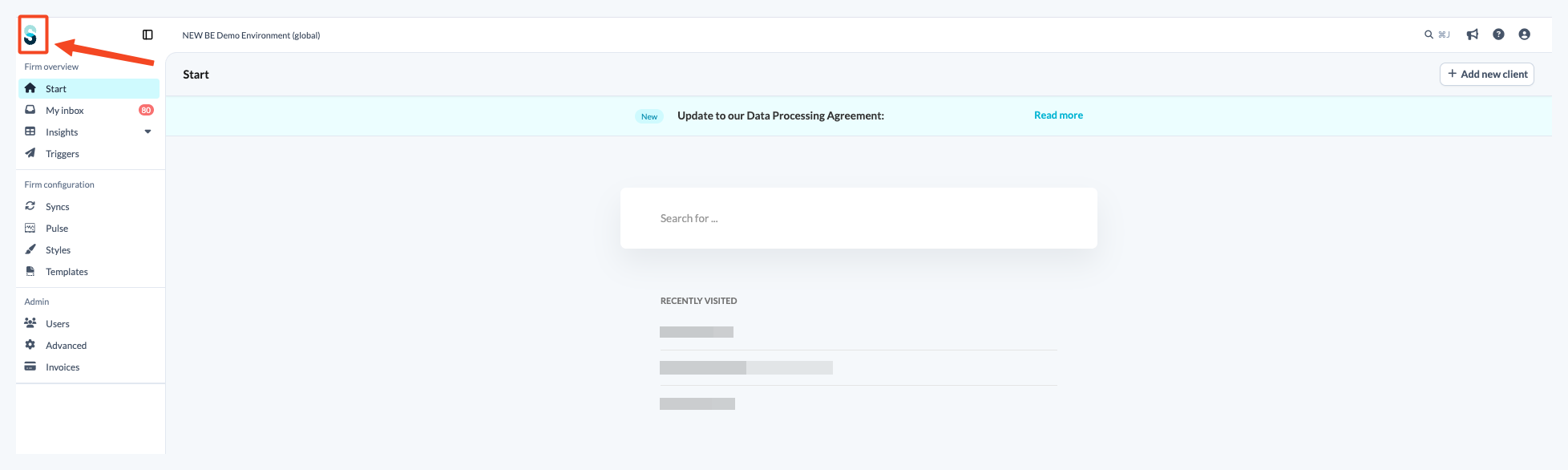
At firm level, the left panel groups everything into three sections: Firm overview, Firm configuration and Admin. For more on the redesigned navigation, see How does the new Silverfin navigation work?
What can I do from the Firm overview section?
Start
Use this item to search for client files you have access to within Silverfin. It also shows your recently visited client files and lets you add a new client. 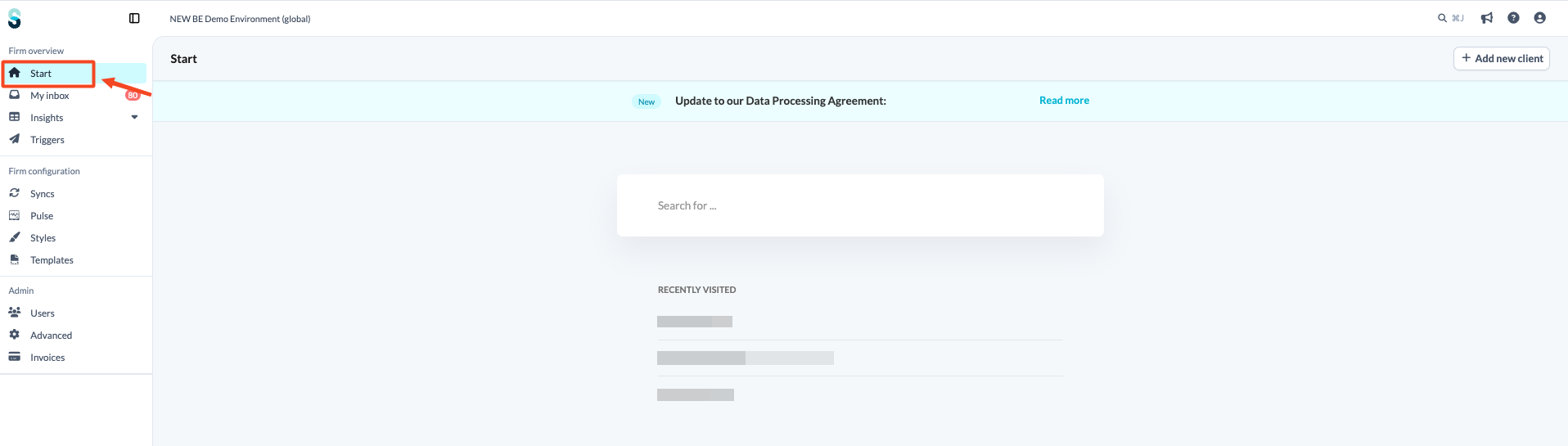
My inbox
This section holds all your personal communication. Messages you write, are mentioned in, or marked as unread appear here. 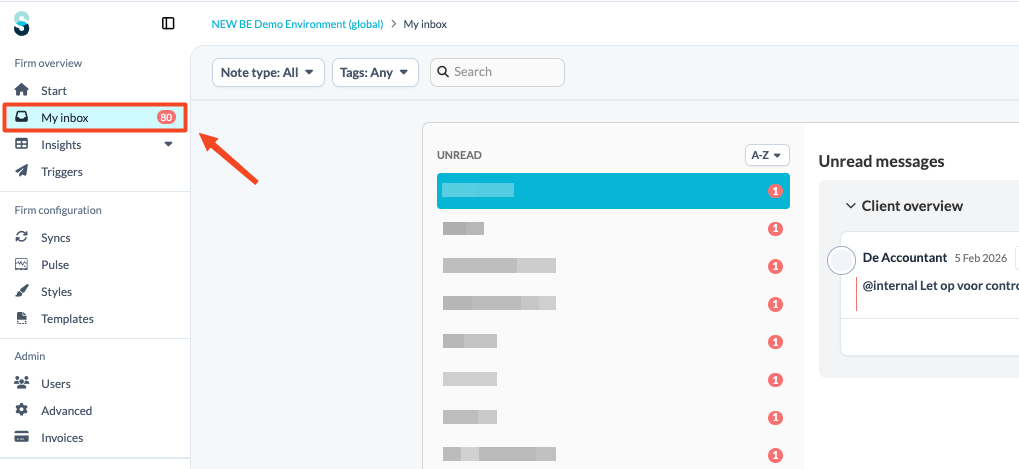
Insights
Use this item to see the data of all your client files in one overview and to search in a targeted way for client files that meet specific criteria.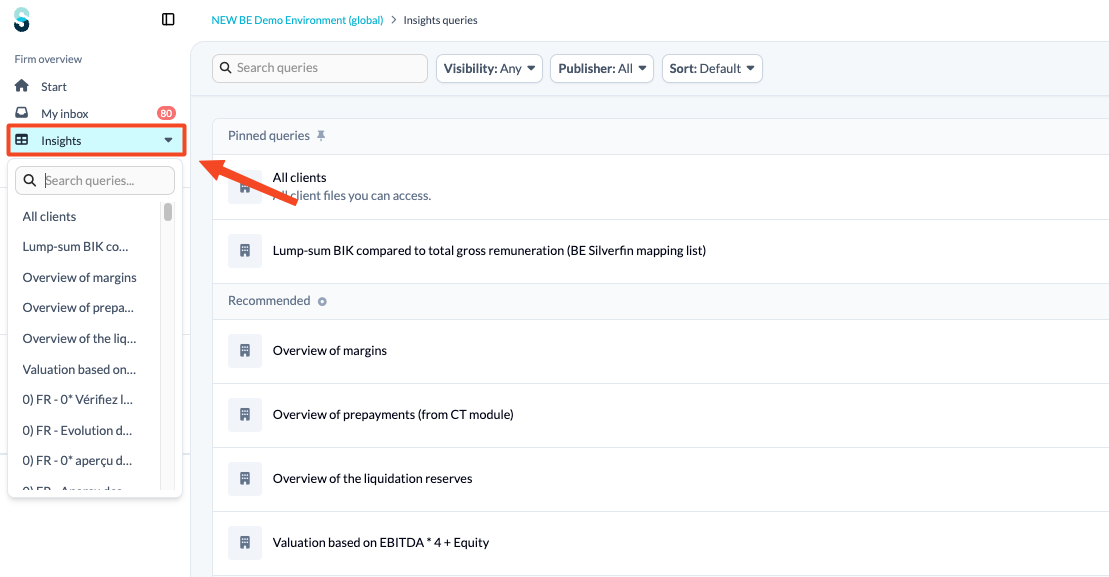
Triggers
Set up triggers on your Insights queries to receive notifications about certain situations. A trigger automatically sends notes or To-dos to the client files that meet the filter criteria of a query.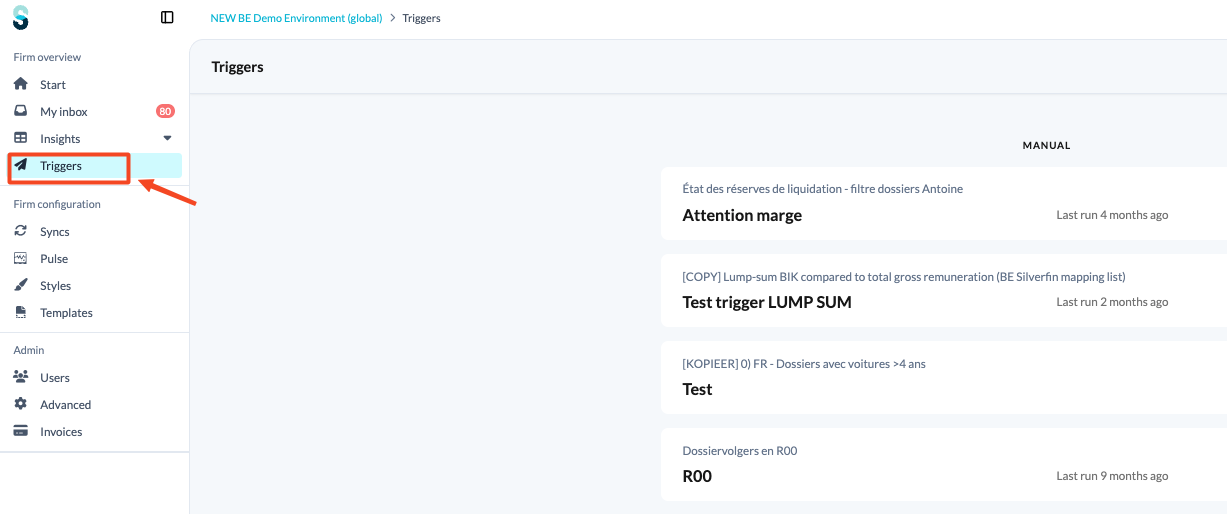
What can I do from the Firm configuration section?
Syncs
Here you find the synchronisations set up between your Silverfin environment and your accounting or administrative packages, split into Bookkeeping and Administration.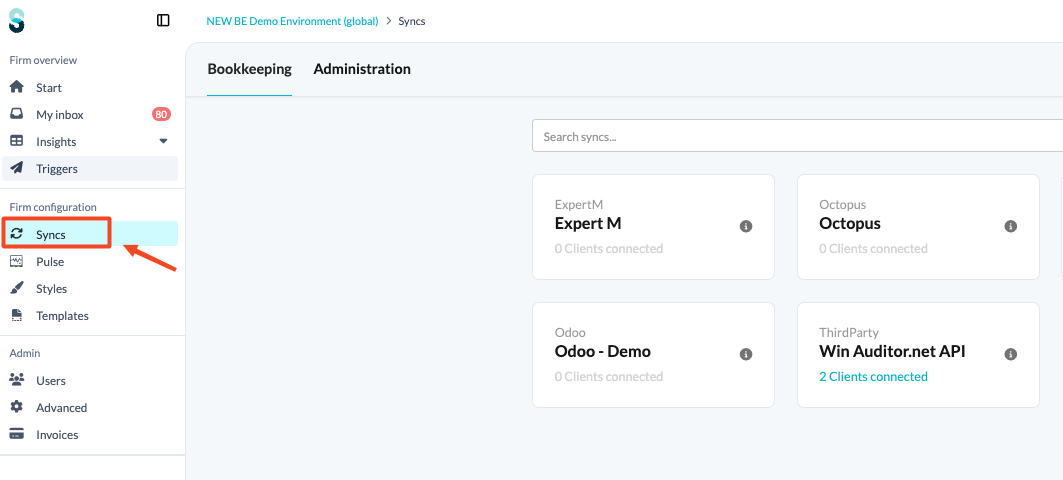
Pulse
This section lets you configure various Pulse settings, so you can decide what information you want to share with your clients through Pulse.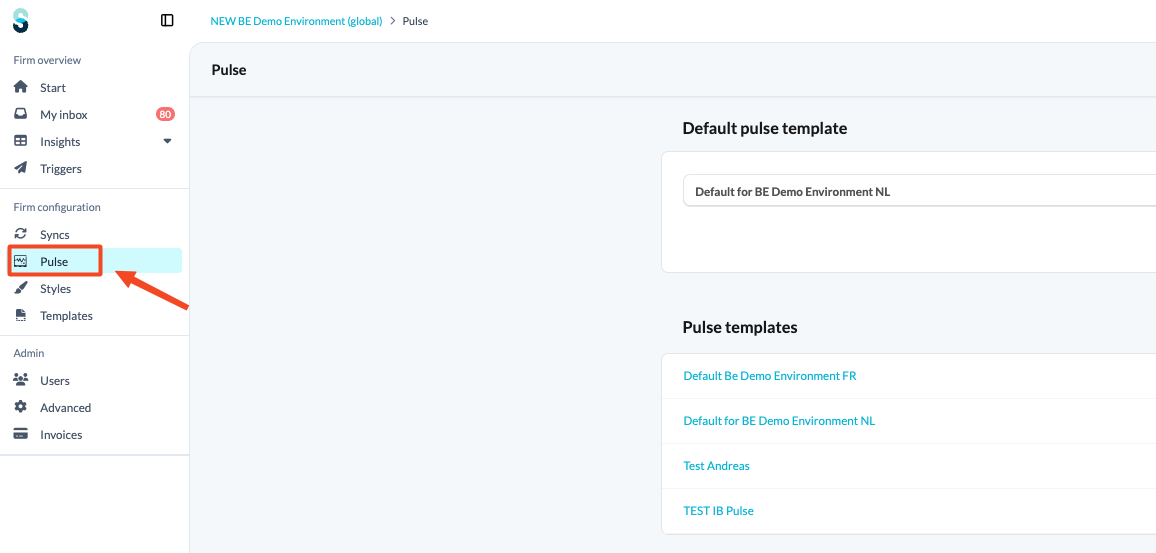
Styles
At firm level you decide how your export bundles will look to your end clients. 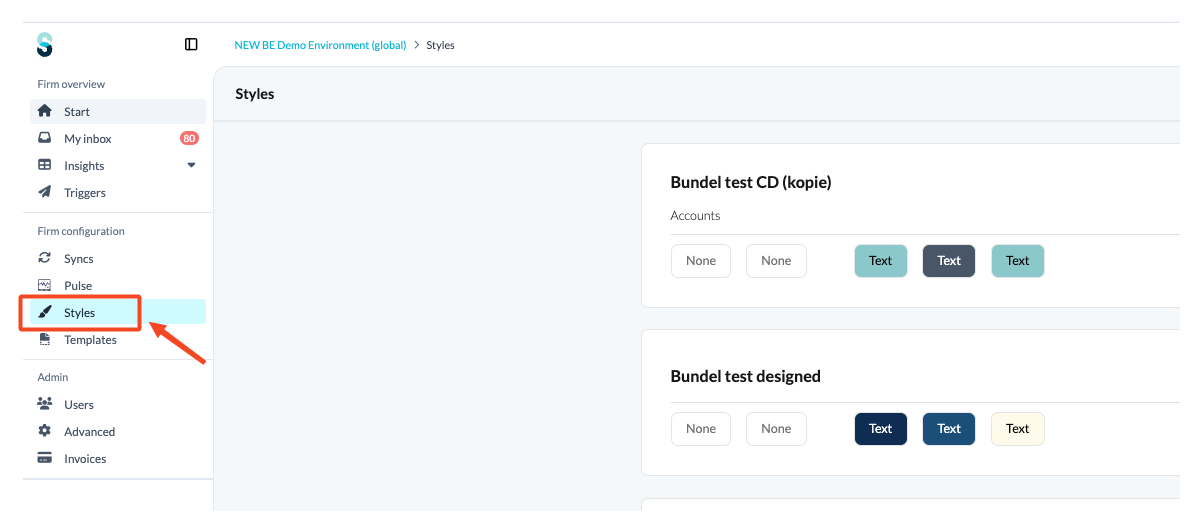
Templates
This section gives you an overview of all templates available for use within your firm: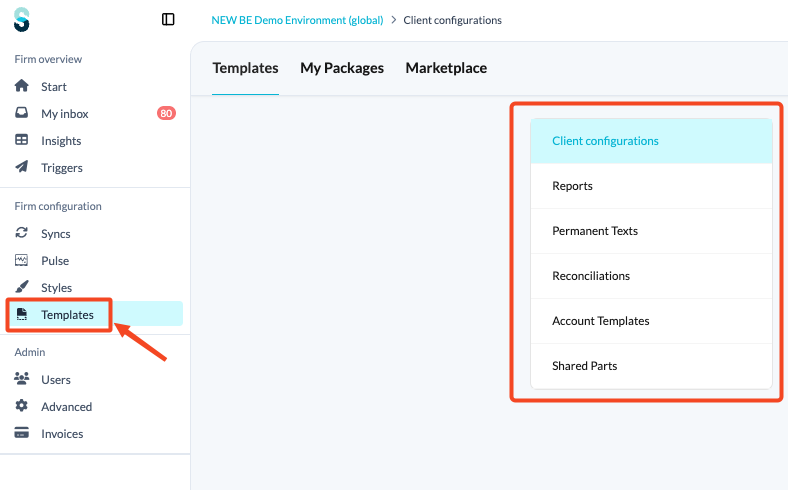
- My Packages: The packages activated for your firm.
- Marketplace: Where you add new packages, workflows and mapping lists to your firm.
- Client configurations: Includes client types, workflows, workflow working screens, checklists, and more.
- Reports: Here you can set up report templates to define the appearance of your reports. These can later be adjusted at client file level for unlocked reports.
- Permanent Texts: Access all active documents within your firm environment.
- Reconciliations: Contains all templates used to explain multiple accounts collectively, such as fixed assets, leasing & loans, VAT balances, and so on.
- Account Templates: These account details specify how each account should be explained.
- Shared Parts: Reusable pieces of template code that can be used across several templates.
What can I do from the Admin section?
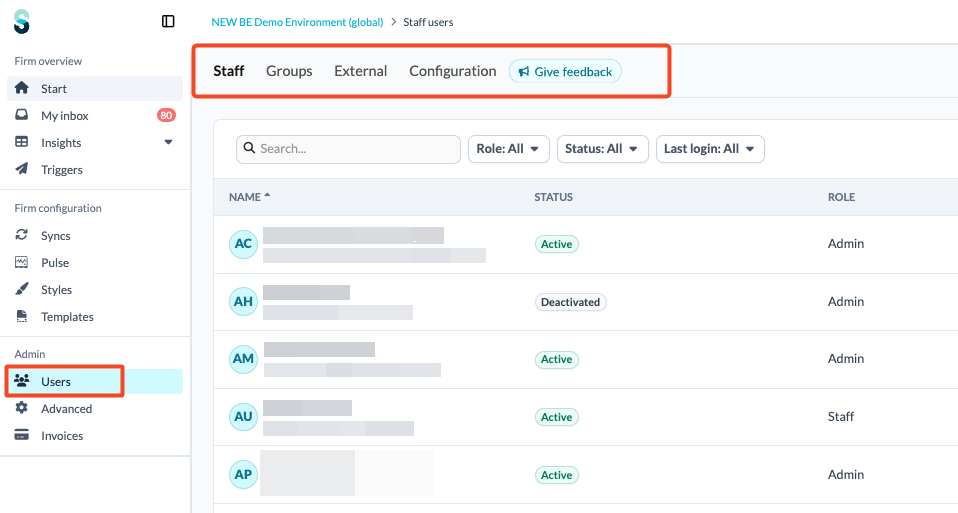
Users
Here you find an overview of all users within your Silverfin environment, split across the tabs Staff, Groups, External and Configuration. There are two types of external users:
- Pulse users
- External contributors
Advanced
You find various firm settings here, including the name of your Silverfin firm environment, the default language, default style, default account template, default client type, currency and period formats, and your firm logo.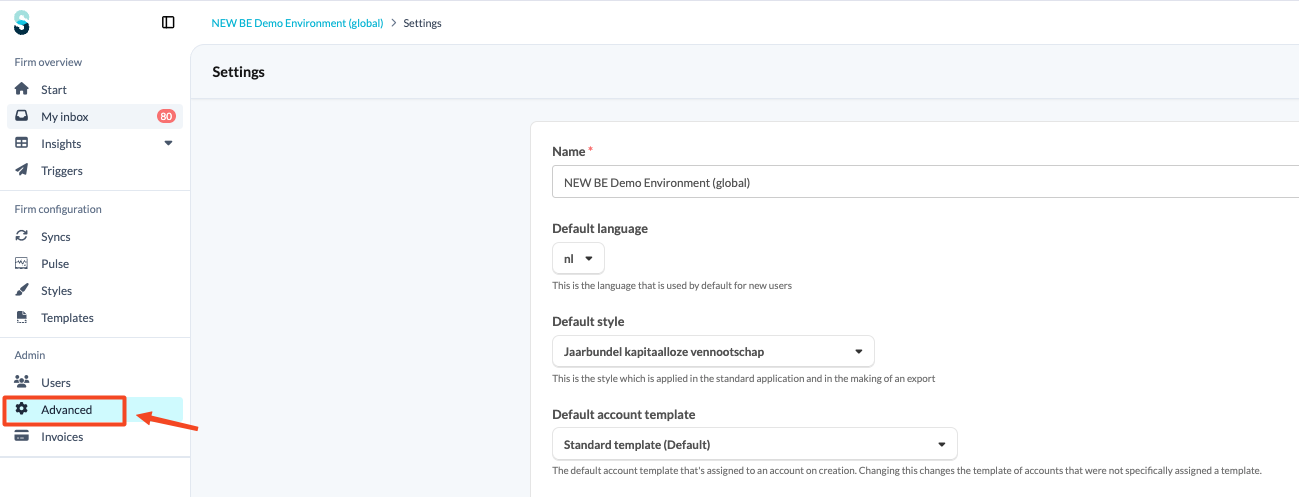
Invoices
In this section you can access and review the invoices related to your Silverfin licence. Only billing users see Invoices in the left panel, so it does not appear for every admin. For what the billing portal shows and how the amounts are calculated, see How to use the Billing Portal?