
| User Roles |  Admin Admin | ✗Staff contributor | ✗External contributor | ✗Pulse user |
Configuring Corporate tax is essential for accurate bookkeeping, and this guide helps you set up the correct configurations for tax year 2024 onwards. We start with the most important steps so you can get going straight away.
Table of contents
- How do I configure the Information concerning the declaration?
- How do I configure Corporate tax from tax year 2024 onwards?
- Where do I find the Corporate tax configuration screen?
- What do the Tax year and Mapping list fields do?
- Which fields can I configure per template?
- What happens if I use the BE Silverfin mapping list?
How do I configure the Information concerning the declaration?
To configure the Information concerning the declaration, follow the article below. It applies to all tax years.
How do I use and configure the Information concerning the declaration? (BE market) (NL) - (FR)
How do I configure Corporate tax from tax year 2024 onwards?
From the 2024 tax year onwards, template configurations in the Corporate tax package must be done through a dedicated configuration screen.
Where do I find the Corporate tax configuration screen?
You can reach this screen through the firm level menu:
- Go to Templates -> Workflow configurations and choose Corporate tax.

What do the Tax year and Mapping list fields do?
At the top of the form you will find two important selection fields:

- Tax year: determines the tax year the configuration applies to.
- Mapping list: indicates which mapping list is used.
Once the configuration is complete, the values for future tax years are carried forward automatically from the last modified tax year.
Which fields can I configure per template?
Below the selection fields you will find a list of configurable fields, organised by template as they appear in the package. These fields typically include an account selection, indicated by a ‘#’ symbol in the templates.
- Entering multiple accounts: separate accounts with a comma (no spaces).
- Entering ranges: use the shorthand notation with two underscores, for example 120__123 for all accounts starting with 120, 121, 122 and 123.
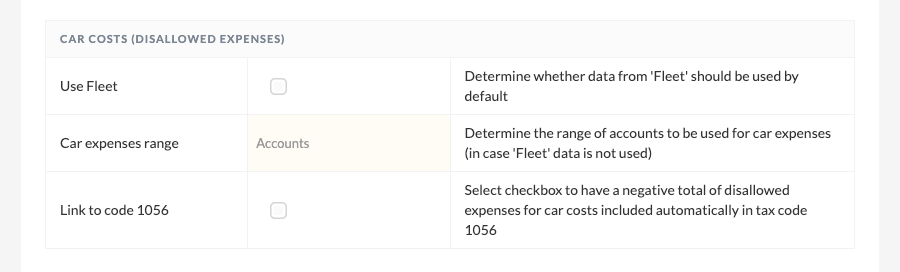
Other examples of configurable fields include the Use fleet option, which lets default data from the fleet be used, and the link to code 1056, which automatically includes a negative total of disallowed car expenses in tax code 1056.
What happens if I use the BE Silverfin mapping list?
If you use the BE Silverfin mapping list, you will notice that certain fields already have a default value. This is Silverfin’s auto-configuration.
- Overwriting values: you can overwrite the default values using the methods described above.
- Deactivating fields: enter a hyphen ('-') to deactivate a field.