
| User Roles |  Admin |  Staff contributor | ✗External contributor | ✗Pulse user |
This article explains the most common synchronisation errors between Silverfin and Twinfield, and how to resolve them.
Table of contents
Credentials-related errors
Error:
The credentials used by this sync no longer allow us access to the data in Twinfield. Please create a new Twinfield sync with valid credentials and then transfer this file there.
Explanation:
This error indicates that the user who established the connection with Silverfin has been blocked.
What can you do:
- Reconnect the synchronisation at firm level. Note: only users with admin rights can perform this action. For detailed steps, refer to: How to reconnect (re-authenticate) synchronisation with Twinfield?
Error:
The file cannot be accessed with the credentials used to set up this sync. Please ensure that the user has admin access to the file on Twinfield or create a new Twinfield sync with valid user credentials and then transfer this file to it.
Explanation:
The credentials used no longer have access to the relevant Twinfield files.
What can you do:
- Check that the user who set up the synchronisation has admin rights in Twinfield.
- Refresh the list of references in the synchronisation setup section of the client file.
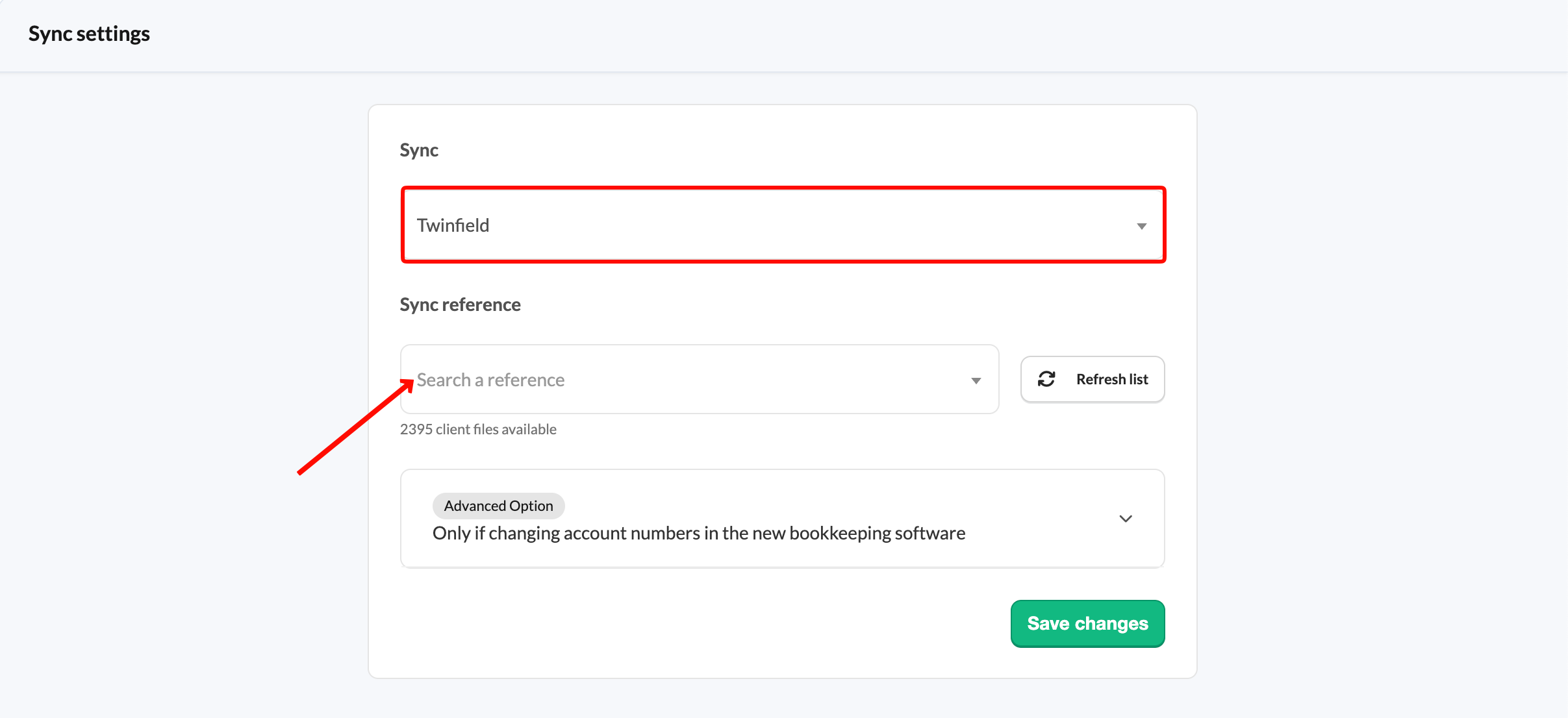
- Alternatively, as an admin user in Silverfin, set up a new synchronisation with Twinfield at firm level. For detailed steps, refer to: How to set up synchronisation with Twinfield at the firm level?
- If the synchronisation already exists at firm level, link it to the client file. For detailed steps, refer to: How to set up synchronisation with Twinfield in a file?