
| User Roles |  Admin Admin |  Staff contributor Staff contributor | ✗ External Contributor | ✗ Pulse user |
This article explains how reports are structured in Silverfin and what each component controls.
Table of contents
How a report is organised
Every report in Silverfin consists of three components: Report Settings, Period Sets, and The Body. Understanding what each component does makes editing much more straightforward.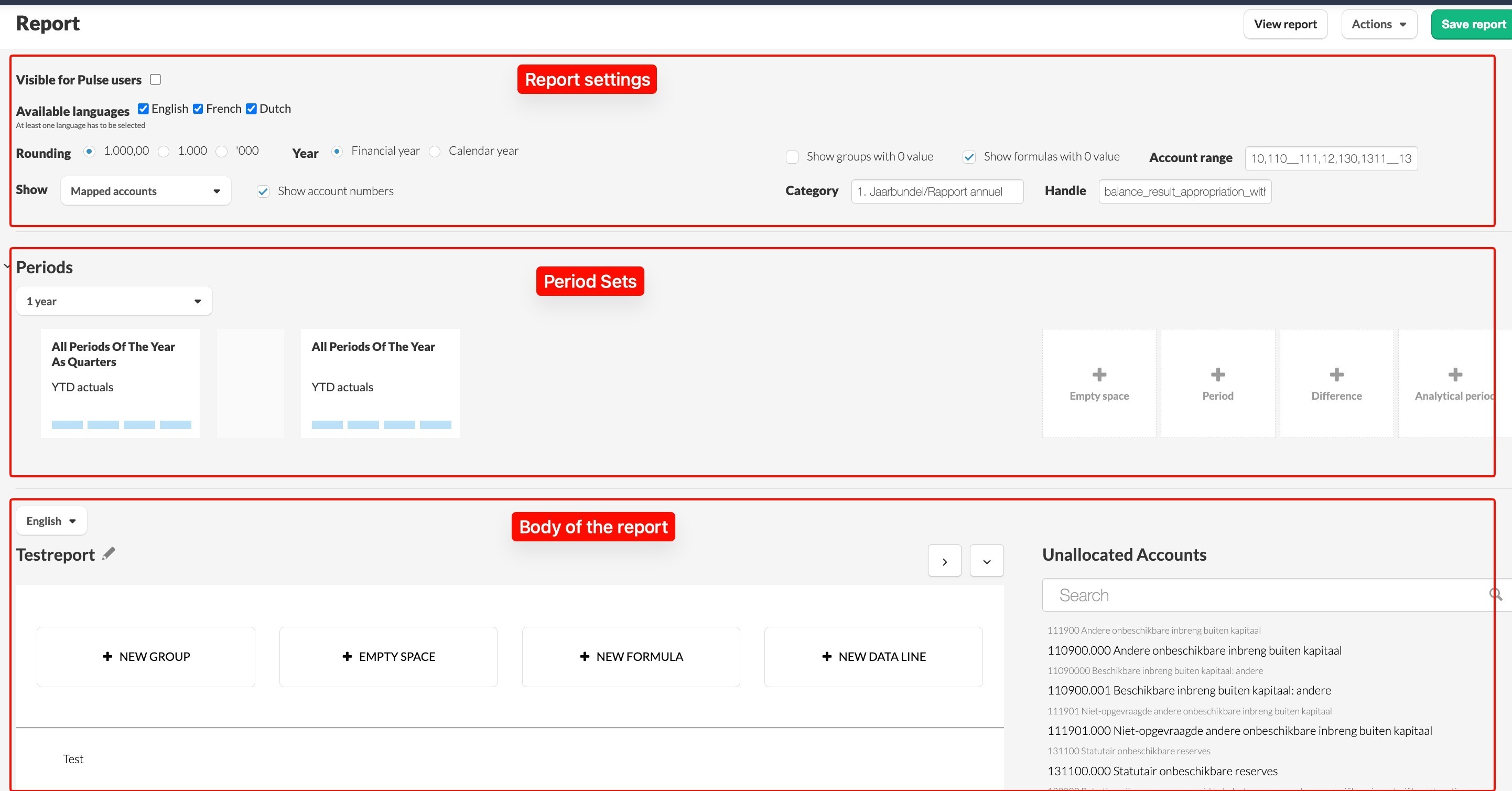
Report Settings
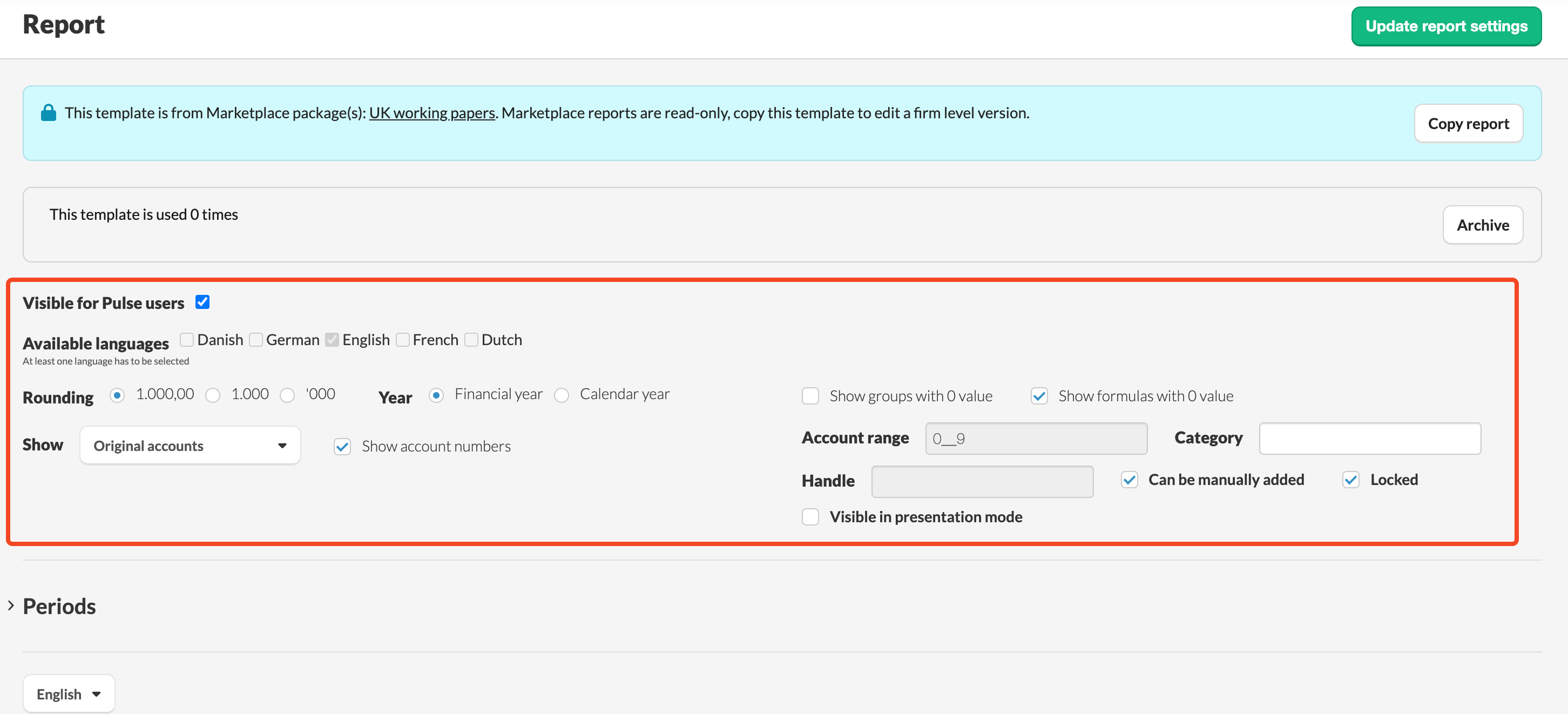
Report Settings control the high-level configuration of your report. Example available options are:
- Visible for Pulse user: decide whether report should be visible for Pulse users when added to a client file.
- Display type (Show): Sets the default display for account names and numbers. Options are: original, mapped, or both.
- Year: Select whether the report uses a financial or calendar year. This determines the basis for your period sets.
- Account Range: Defines which accounts are available for use in the report.
- Locked Status: Toggles whether the report structure can be modified when added to a client file.
- Category: Assigns the report to a category set. If left empty, the report appears under "Other Reports". Read more: How do I order reports in categories?
Period Sets
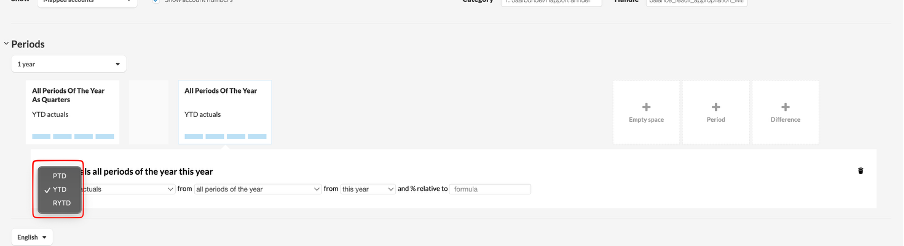
Period Sets define the timeframes shown as columns in your report. You can configure:
- Data selection: Choose from PTD (Period to Date), YTD (Year to Date), or RYTD (Relative Year to Date).
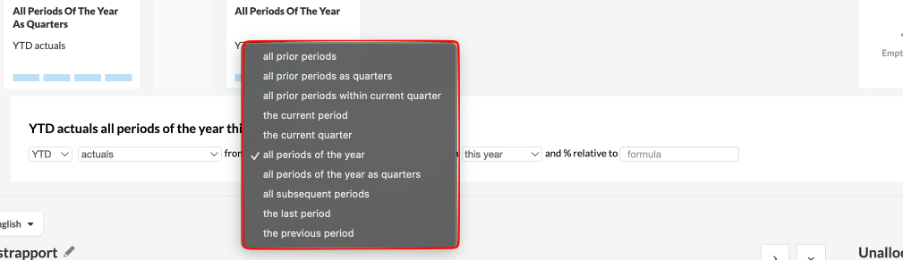
- Period selection: select which period or periods to display as columns.
- % Relative: this allows you to compare all the values in the period’s column to a certain value (most often a formula or tag) as a percentage.

For further detail, refer to our dedicated article on periods.
The Body
The Body determines the core data structure - the rows in your report. It contains three types of rows:
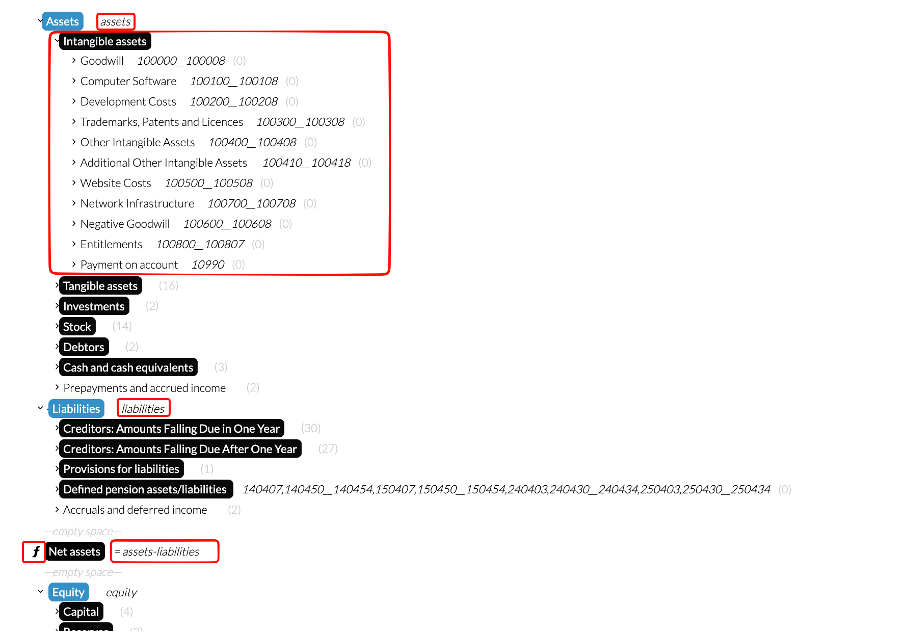
- Groups: Bundle related account ranges together (for example, "Assets").
- Accounts: Specific accounts or ranges (e.g., 100000__100008).
- Formulas: Calculated rows recognisable by the f sign in front (e.g., Net assets = assets - liabilities).
For further detail, refer to our dedicated article on data rows
Understanding these three components makes it easier to build and adjust your report.