
| User Roles |  Admin Admin |  Staff contributor Staff contributor |  External contributor External contributor |  Pulse user Pulse user |
After your firm has been migrated to Visma Connect, you can sign in to Silverfin using your existing Google or Microsoft work account instead of typing an email address and password. This article explains who can use this option, how it works, and what to do if it does not let you in. It is relevant for everyone at your firm who signs in to Silverfin.
Table of contents
- When can I sign in with Google or Microsoft?
- Does my Google or Microsoft email address have to match my Silverfin email address?
- How do I sign in with Google or Microsoft?
- Do I still need to set up two-factor authentication?
- Why am I seeing an "Account not found" error?
- FAQ
When can I sign in with Google or Microsoft?
You can use social login from the moment your firm is migrated to Visma Connect. There is no separate enrolment or linking step beforehand - as soon as the migration is complete, the Google and Microsoft buttons on the Visma Connect sign-in screen will work on your very first sign-in and every sign-in after that.
Social login sits alongside the standard sign-in option, so you can still choose:
- Email address + password - the default sign-in path. See how to sign in to Silverfin for the first time after migrating to Visma Connect for the full step-by-step guide.
Does my Google or Microsoft email address have to match my Silverfin email address?
Yes. Social login only works if the email address on your Google or Microsoft account is exactly the same as the email you use to sign in to Silverfin.
For example, if your Silverfin login is jane@firm.com but your personal Google account is jane@gmail.com, social login will not work. In that case, use the email address and password path instead.
How do I sign in with Google or Microsoft?
The steps below use Google as the example. The Microsoft flow is the same - you are simply redirected to Microsoft's sign-in page instead of Google's, complete whatever Microsoft asks for, and are then sent back to Silverfin.
- Choose Google or Microsoft. On the Silverfin (Visma Connect) sign-in screen, instead of typing your email address, click Google or Microsoft below the OR divider.
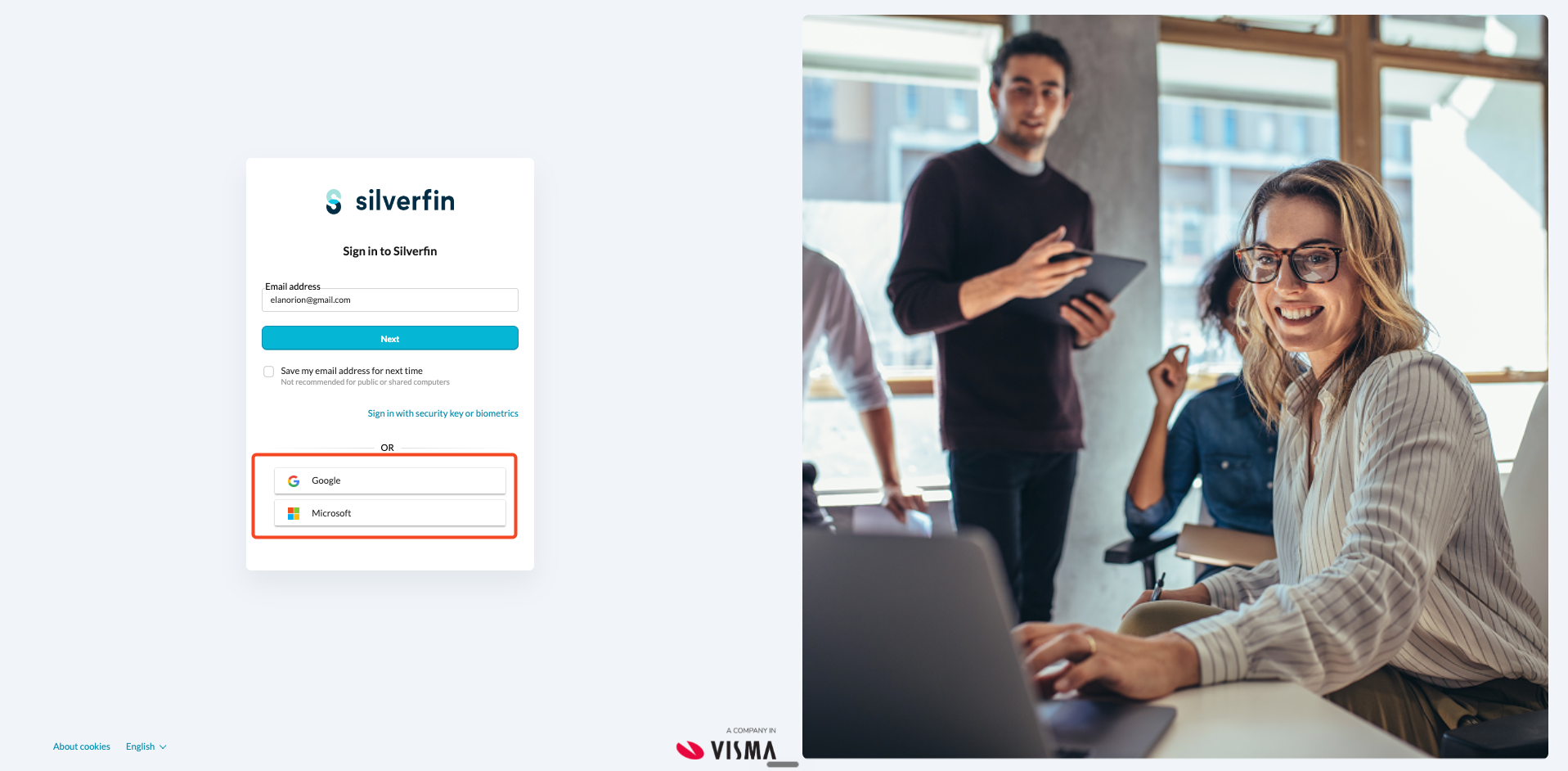
- Enter your Silverfin email. You are redirected to the provider's sign-in page (Google at accounts.google.com, or Microsoft at login.microsoftonline.com), shown as signing in to continue to visma.com. Enter the email address you use in Silverfin - it must match exactly.
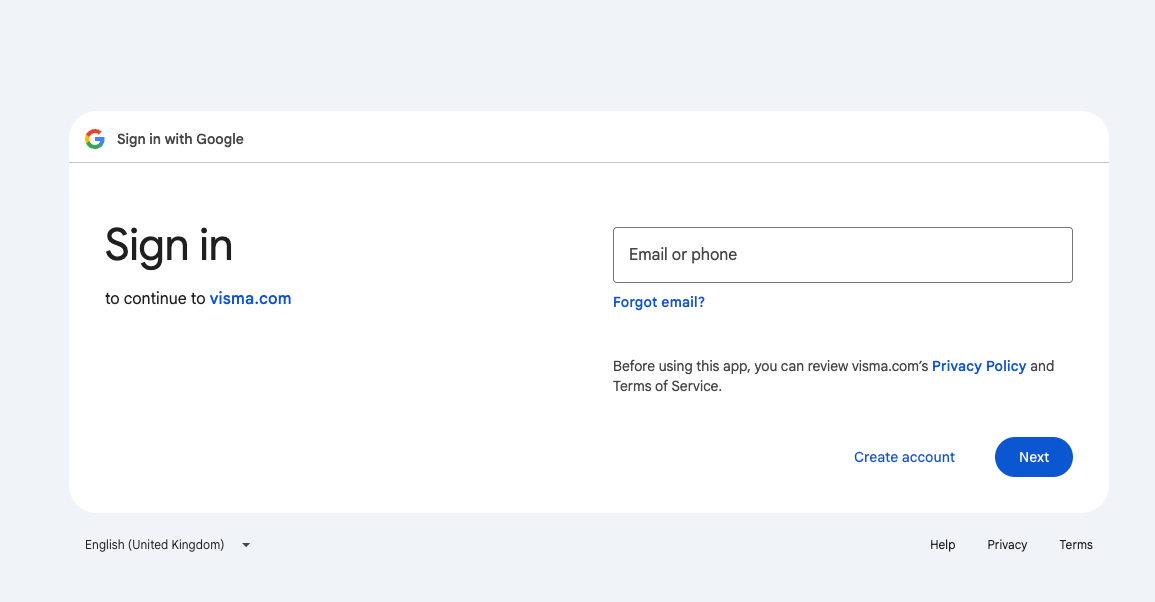
- Complete your provider's authentication. Google or Microsoft then asks for whatever security is set up on your account. This is controlled by the provider, not by Silverfin, and may be a password plus a verification code, an Authenticator push notification, or a passkey approved from your phone or laptop.
- Wait for the "Verifying it's you" screen. While you approve the prompt on your device, the browser shows a "Verifying it's you" message. Once your provider confirms it is you, you are redirected back to Silverfin and taken straight into the app.
Signing in this way drops you straight into Silverfin with no separate Visma Connect password change, emergency code, or 2FA setup step, because your Google or Microsoft account has already verified you.
Do I still need to set up two-factor authentication?
No. When you sign in with Google or Microsoft, your provider's own security protects the account - for example a Google passkey or Microsoft Authenticator on your work account. Visma Connect does not ask for a separate authenticator code on top of social login, because your provider has already verified you.
This means you skip the Visma Connect two-factor setup that applies to the email and password path.
Why am I seeing an "Account not found" error?
If you enter an email that does not match an existing Silverfin user, Visma Connect rejects the sign-in after your provider has authenticated you, and you see an "Account not found" or "You do not have access" message.
If this happens:
- Check that you signed in with the same email address you use for Silverfin.
- If the addresses are different, sign in using the email address and password path instead.
- If you are still locked out, contact your firm administrator.
FAQ
Do I need to set up anything before I can use Sign in with Google / Microsoft?
No. As long as your Silverfin email matches your Google or Microsoft account email, the buttons on the sign-in screen work from the moment your firm is migrated to Visma Connect.
Does my Google / Microsoft email have to match my Silverfin email exactly?
Yes. The match is on the full email address. If they differ even by a character (or by the domain), social login will fail.
Will I still need to set up Visma Authenticator if I sign in with Google or Microsoft?
No. The 2FA setup wizard (Visma Authenticator, SMS backup, emergency code) only applies to users who sign in with email + password. With social login, your Google or Microsoft account's own MFA is the second factor.
Can I switch between social login and email + password?
Yes - they are not mutually exclusive. You can click Google one day and type your email + password the next, as long as the email match condition holds.
What if I'm a migrated user but I don't want to use social login?
Just ignore the Google / Microsoft buttons and use the email + password path.
Does social login work for SSO firms?
No - SSO firms are migrated via a separate JIT-provisioning flow and have their own sign-in path. The Sign in with Google / Microsoft buttons documented here are for password users who happen to have a matching Google or Microsoft account.
What happens if my company changes my email address?
Until your Silverfin email is updated to match the new address, social login will stop working. Use email + password while the change is being made, or ask your firm admin to update your Silverfin email.