
| User Roles |  Admin Admin |  Staff contributor Staff contributor |  External contributor External contributor |  Pulse user Pulse user |
This article explains how to set up a passkey to sign in to Silverfin through Visma Connect, the account system behind your Silverfin login. Passkeys are a faster, more secure way to sign in without typing a password or a 2FA code. It is relevant for anyone whose firm has been migrated to Visma Connect.
Passkeys are only available once your firm has been migrated to Visma Connect. If you do not see the passkey options described here, your firm may not have been migrated yet.
Table of contents
- What is a passkey?
- Why should I use a passkey?
- When will Visma Connect ask me to set up a passkey?
- Do I still need my password and 2FA?
- Which devices and browsers support passkeys?
- Where is my passkey stored?
- Can I use the same passkey on more than one device?
- What happens if I lose the device with my passkey?
- Can my firm admin set up passkeys for me?
- Troubleshooting
What is a passkey?
A passkey is a modern replacement for a password. When you sign in to Silverfin through Visma Connect, instead of typing a long password and a 6-digit 2FA code, you prove who you are by unlocking your device – for example with Face ID, Touch ID, Windows Hello, or a device PIN.
The key itself stays on your device (or in your device's keychain, such as iCloud Keychain or Google Password Manager) and never travels over the network. Visma Connect only ever stores the matching public part of the key.
Why should I use a passkey?
- Faster sign-in – no password to type and no 6-digit code to copy from an authenticator app.
- Stronger security – passkeys are phishing-resistant and unique to silverfin.com, so they cannot be reused on a fake site.
- No separate 2FA step – unlocking your device (with a biometric or PIN) is itself the second factor, so Visma Connect does not ask for a separate code when you sign in with a passkey.
When will Visma Connect ask me to set up a passkey?
A passkey is an optional, additional sign-in method on Visma Connect.
There are two moments when you are offered the chance to set one up. The two flows do the same thing - the only difference is when the prompt appears. You can skip either prompt without losing access, and it will reappear on a future sign-in if you change your mind.
Once you select Set up passkey, the creation screen is handed over to your operating system, browser, or password manager (Apple Keychain, Google Password Manager, Windows Hello, 1Password, and so on). Each of these has its own dialog and unlock method, so the exact screens after that point look different on every device.
Setting up a passkey after you sign in
The first time you sign in successfully with your email and password, Visma Connect shows a Set up a passkey screen before letting you into Silverfin. You can either start setting up a passkey on the device you are using, or skip and carry on.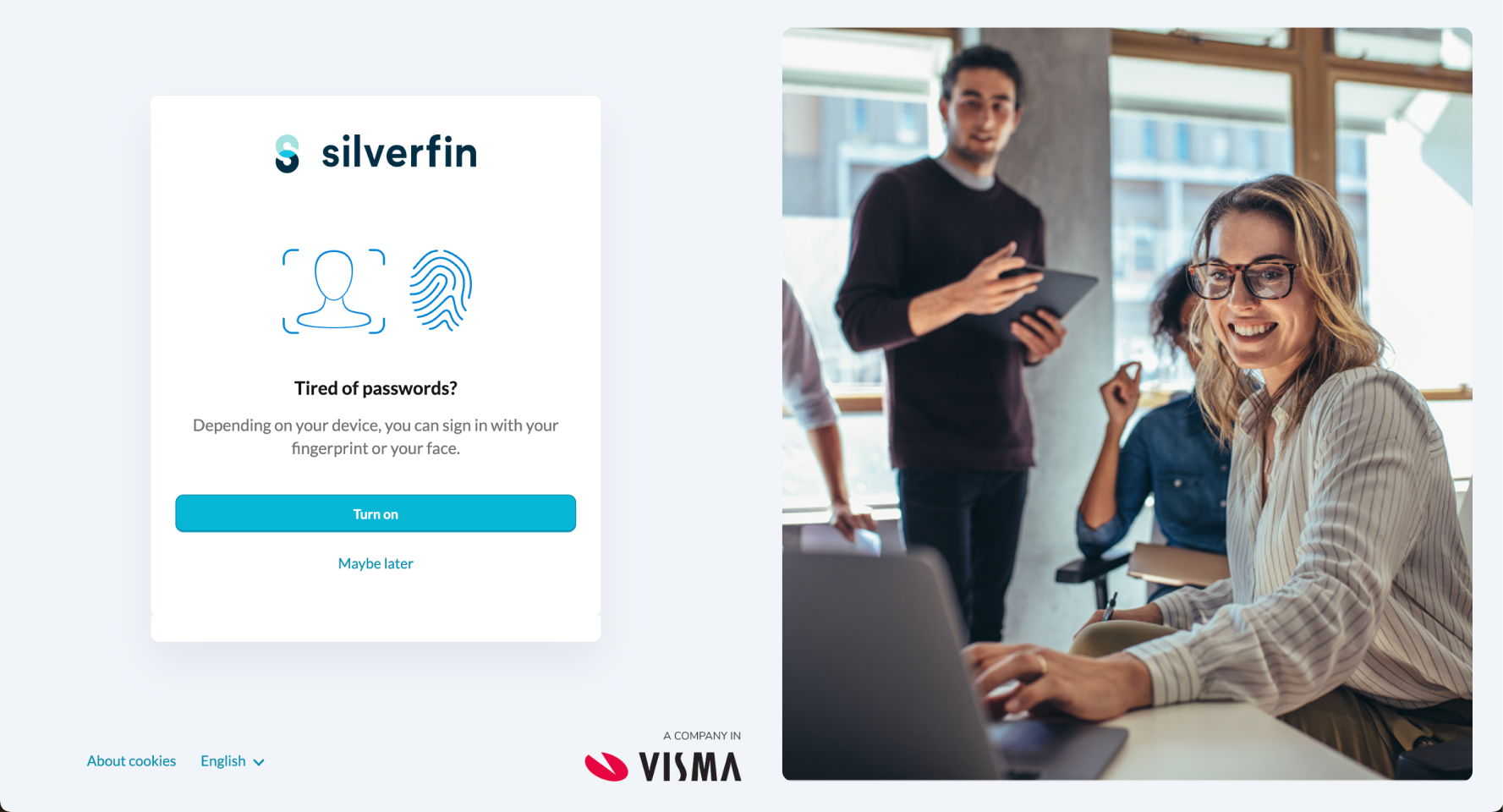
Setting up a passkey while creating a new password
If you are a new user, Visma Connect offers you a passkey during the password-creation flow. After you create a password that meets the policy, the Set up a passkey option appears on the same screen – so you can have both a password and a passkey from day one.
You can also add a passkey at any time from your Visma Connect account settings. See How do I manage my account with Visma Connect (email, passkeys & password)?
FAQ
Do I have to set up a passkey?
No. Passkeys are optional. You can skip the prompt and continue using email + password + 2FA — the prompt will reappear on a future sign-in if you change your mind.
Which devices and browsers support passkeys?
All modern browsers (Chrome, Edge, Safari, Firefox) on macOS, iOS, Windows 10/11, Android, and ChromeOS support passkeys. The device must have a screen-lock method available — biometric (Face ID, Touch ID, Windows Hello) or a device PIN.
Where is the passkey actually stored?
The private key stays on your device (or in your device's synced keychain — e.g. iCloud Keychain across your Apple devices, Google Password Manager across Chrome on Android/desktop). Silverfin / Visma Connect only stores the public key.
Can I use the same passkey on more then one device?
Only if you use a synced keychain like iCloud Keychain, Google Password Manager, or 1Password. Otherwise each device needs its own passkey — set one up the first time you sign in on a new device.
Does signing in with a passkey skip 2FA?
Yes. The device unlock (biometric or PIN) is the second factor, so Visma Connect does not ask for a separate 2FA code on top of a passkey sign-in.
Will I still need Visma Authenticator after setting up a passkey?
Yes — keep it as a fallback. You will only be asked for a Visma Authenticator code if you sign in with email + password (e.g. on a device that doesn't have a passkey, or if you remove the passkey).
What happens if I lose the device with my passkey?
Sign in on another device with email + password + 2FA. You will not be locked out — your password and 2FA still work.
Can my firm admin set up passkeys for me?
No. Each user must complete the passkey set-up on their own device, because the biometric / PIN is unique to them and to that device.