
| User Roles |  Admin Admin | ✗Staff contributor | ✗External contributor | ✗Pulse user |
You can add a colleague to Silverfin as a staff contributor, either at firm level through the 'Users' tab or directly within a client file. This article covers both methods, including the user details you need to enter, the confirmation email and the access options available.
Table of contents
- How do I add a staff contributor at firm level?
- How do I add a staff contributor at client file level?
- Good to know
How do I add a staff contributor at firm level?
At firm level, only users with admin rights can add a user. If you are an admin user, follow the steps below:
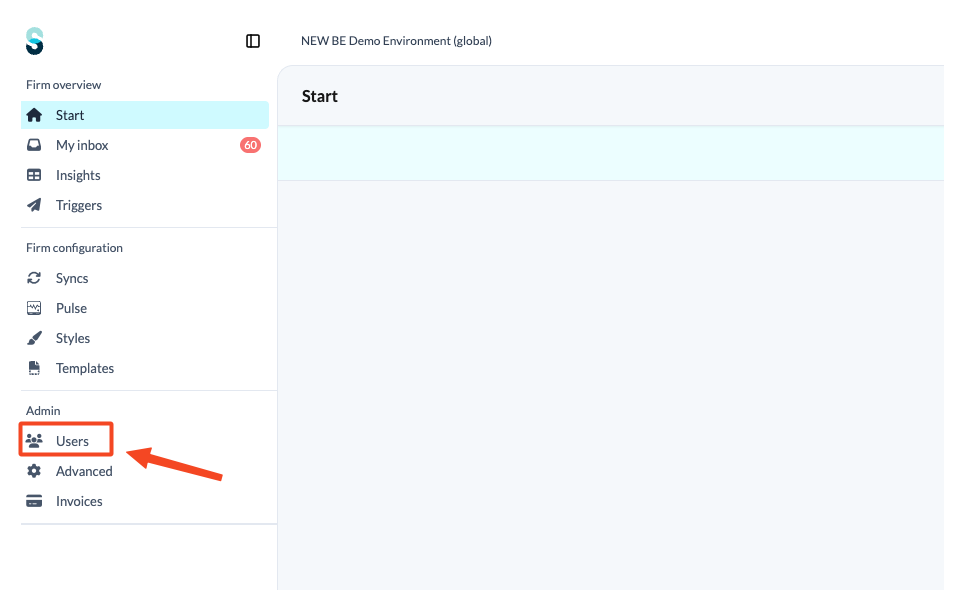
- Click the 'Users' tab on the firm landing page.
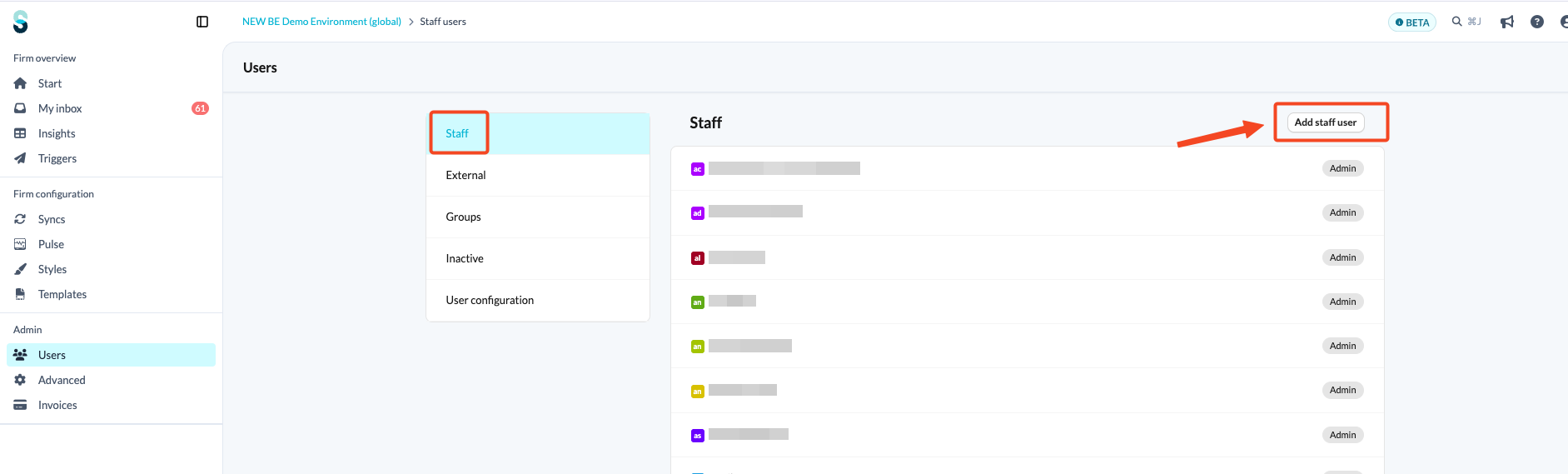
- Go to 'Staff' and click 'Add staff user'.
User details section
In the 'User details' section, fill in the following fields: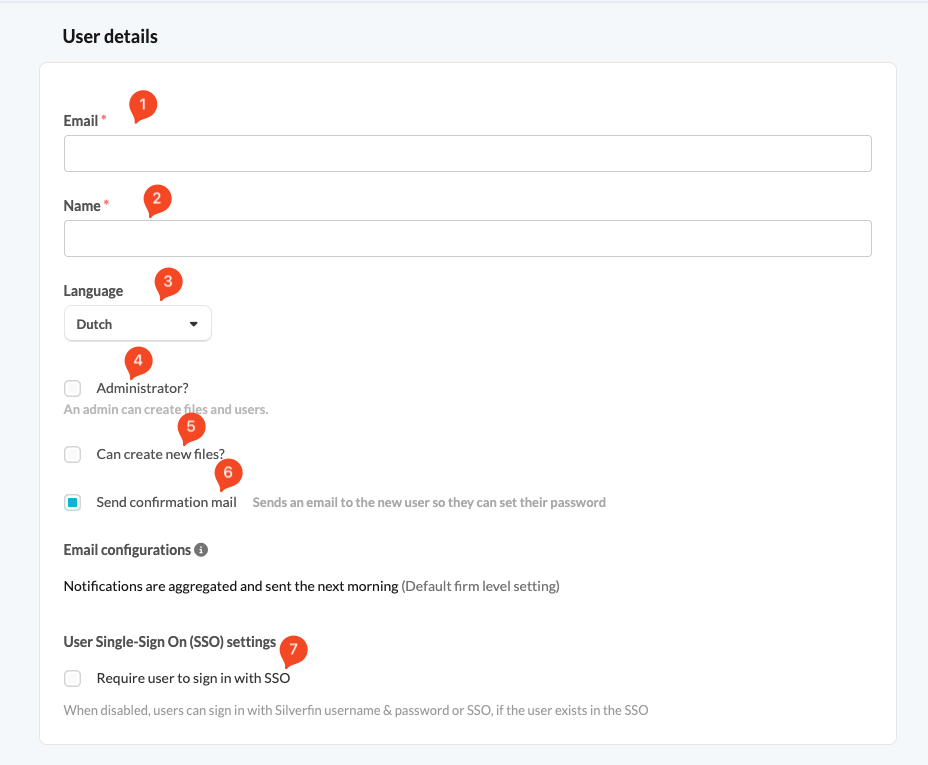
Email address: This field is mandatory. Each email address must be unique, which means you cannot have two accounts with the same email address within the same firm.
Name: This field does not have to be unique. Multiple accounts within the same firm can share the same name.
Language: The language you choose determines the default language of the firm landing page and of the files the user has access to.
Administrator: Specify whether the user should have admin rights.
Can create new files: If you tick this option, the user can create new files, even without admin rights.
Send confirmation email: If you tick this option, Silverfin sends the user an email so they can set their password. If you leave it unticked, you can send the confirmation email after the account has been created.
Require user to sign in with SSO: If you tick this option, the user must sign in with SSO. If you leave it unticked, the user signs in to Silverfin with a password, or with their SSO details if they belong to another SSO.
Internal access section
You can set a user up with access to:
- all files where multi-file access is enabled
- specific files only
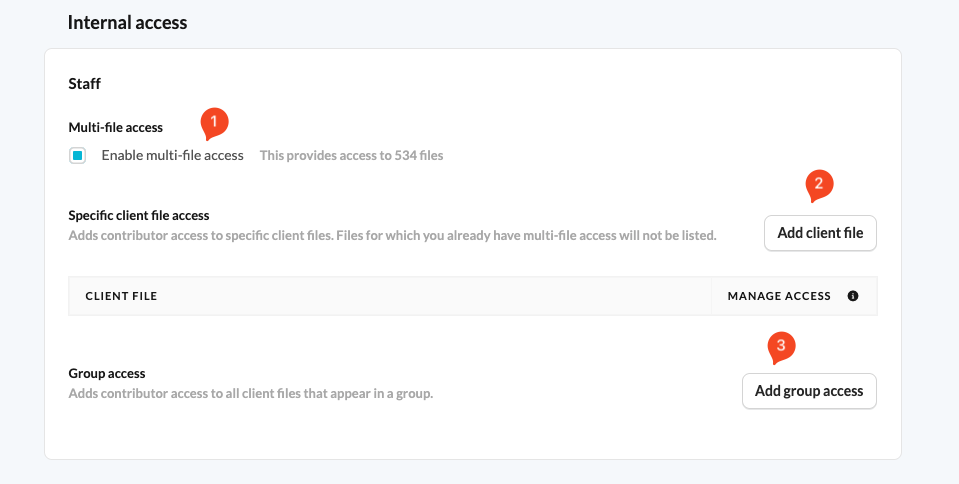
Multi-file access: gives the user access to every file that has multi-file access enabled.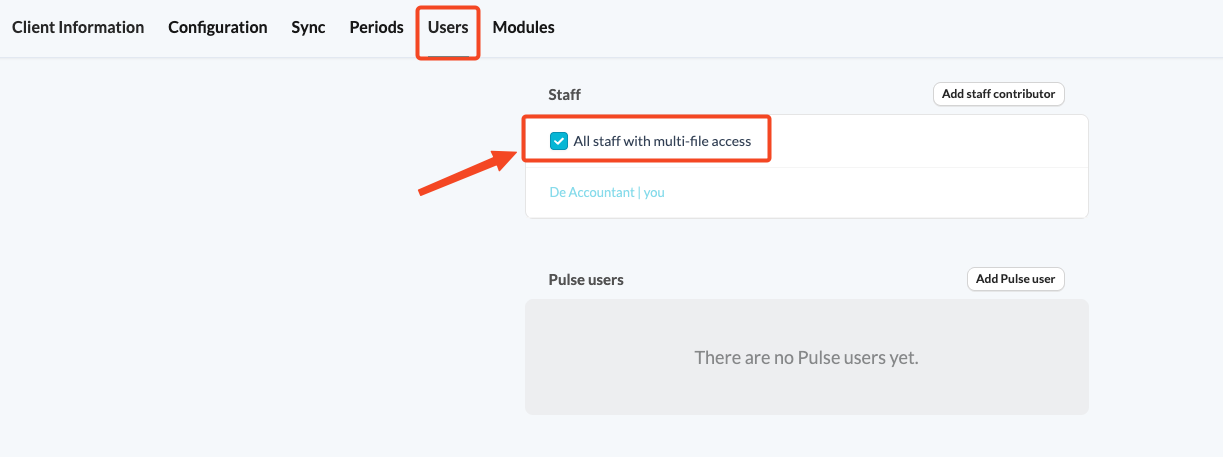
Specific client access: gives the user access to selected client files only.
Groups: gives the user access to a group set up in your firm. This adds the user to every client file in that group.
External access section
You can also add an internal user as a Pulse user for a specific client file.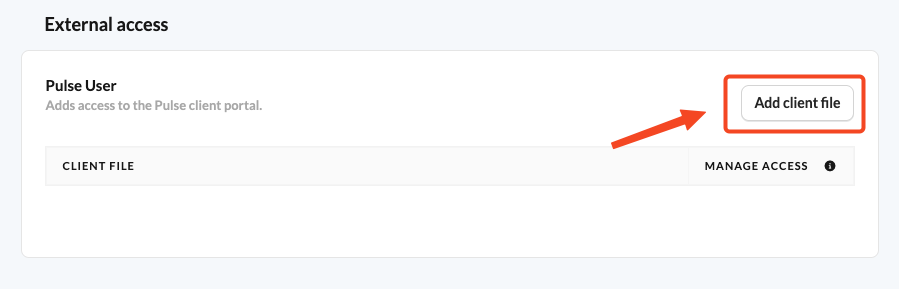
How do I add a staff contributor at client file level?
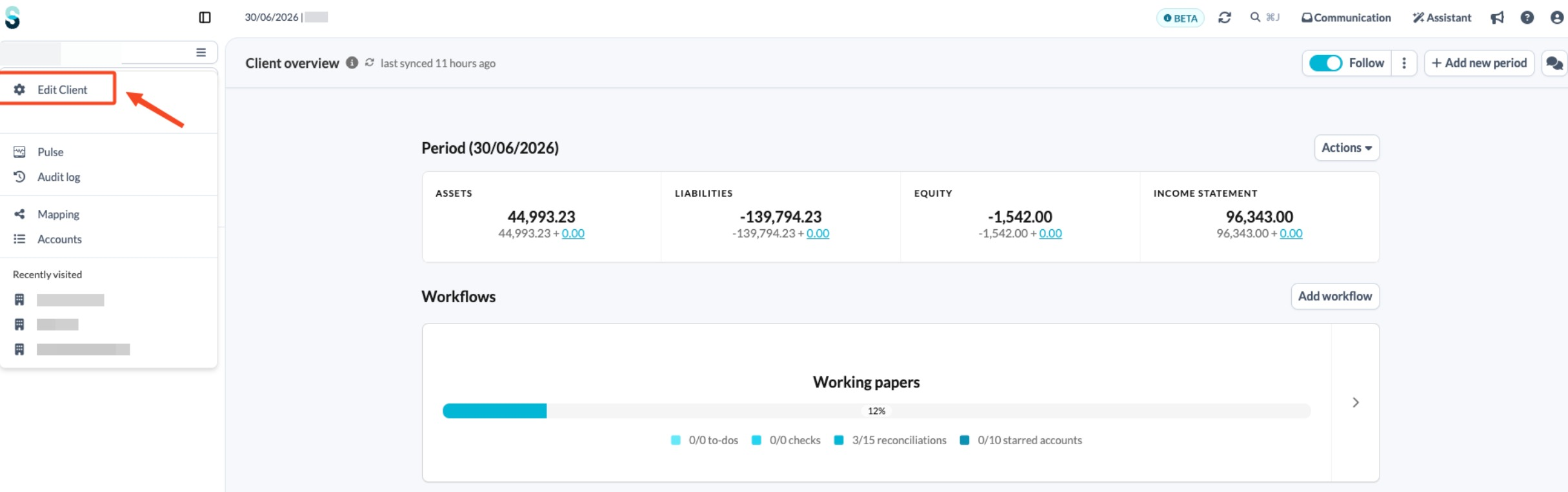
- On the client overview page, open the left-hand navigation panel and click 'Edit client'.
- Go to the 'Users' tab and click 'Add Staff contributor'.
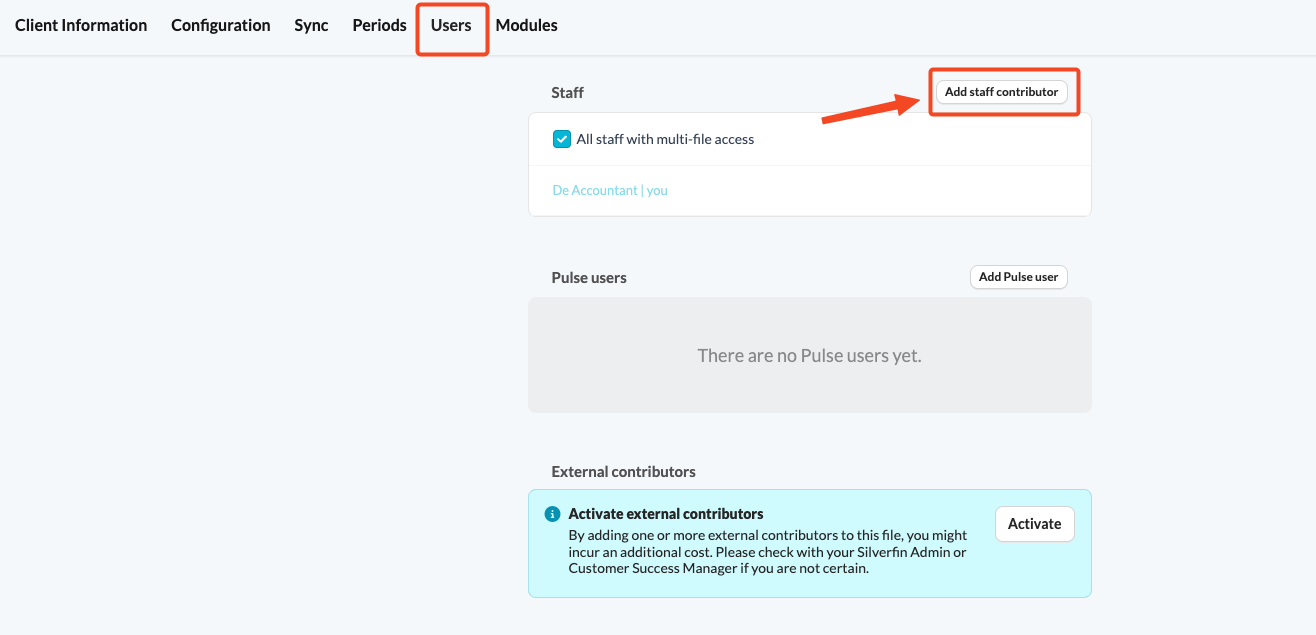
- Fill in the relevant details.
If the 'Manage Access' option is ticked, a staff contributor can add other users to a file. This feature is activated in the firm settings. Please contact your Customer Success Manager for more information.
Good to know
- Login deadline: the new user has seven days to log in using the link in the welcome email. If they miss this deadline, you can resend the welcome email by clicking 'Send Welcome Mail' on their profile.
- Admin rights needed: only admin users can add new users at firm level. If you do not have admin rights, ask an admin in your firm for help.