
| User Roles |  Admin Admin |  Staff contributor Staff contributor | ✗External contributor | ✗Pulse user |
This article explains how to remove or update the administration sync in a client file, helping you keep your data accurate and up to date.
Table of contents
- How do I remove an administration sync from a client file?
- How do I update an administration sync in a client file?
How do I remove an administration sync from a client file?
To remove an existing administration sync in a client file, please perform the following steps:
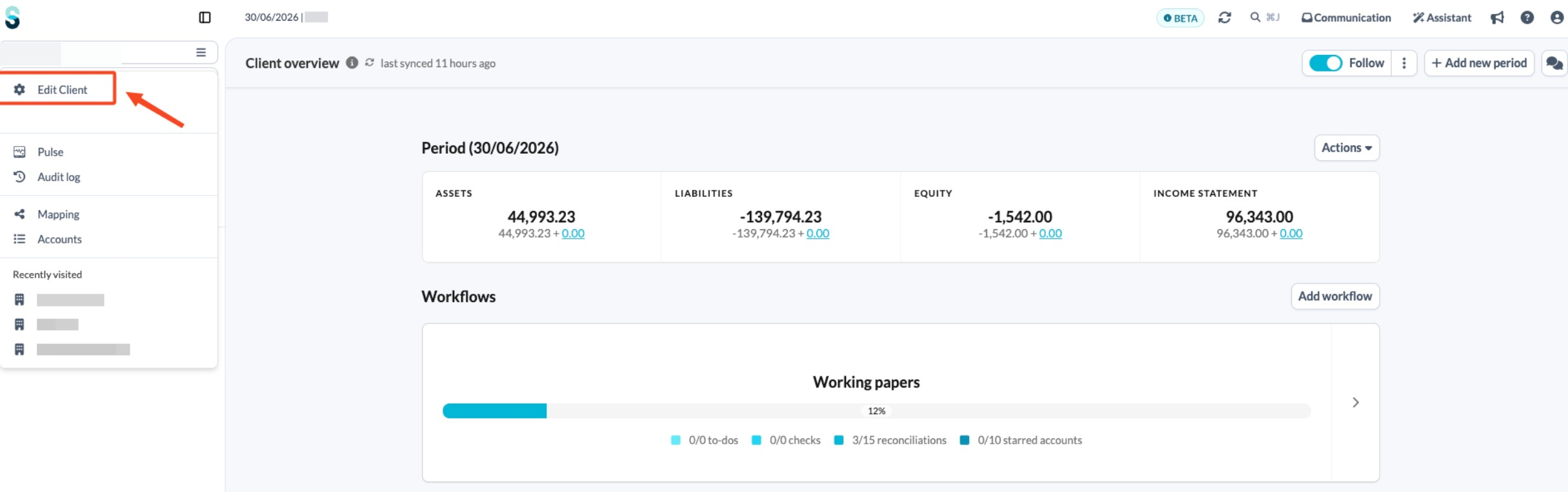
- On the client file overview screen, open the left-hand navigation panel and click Edit client.
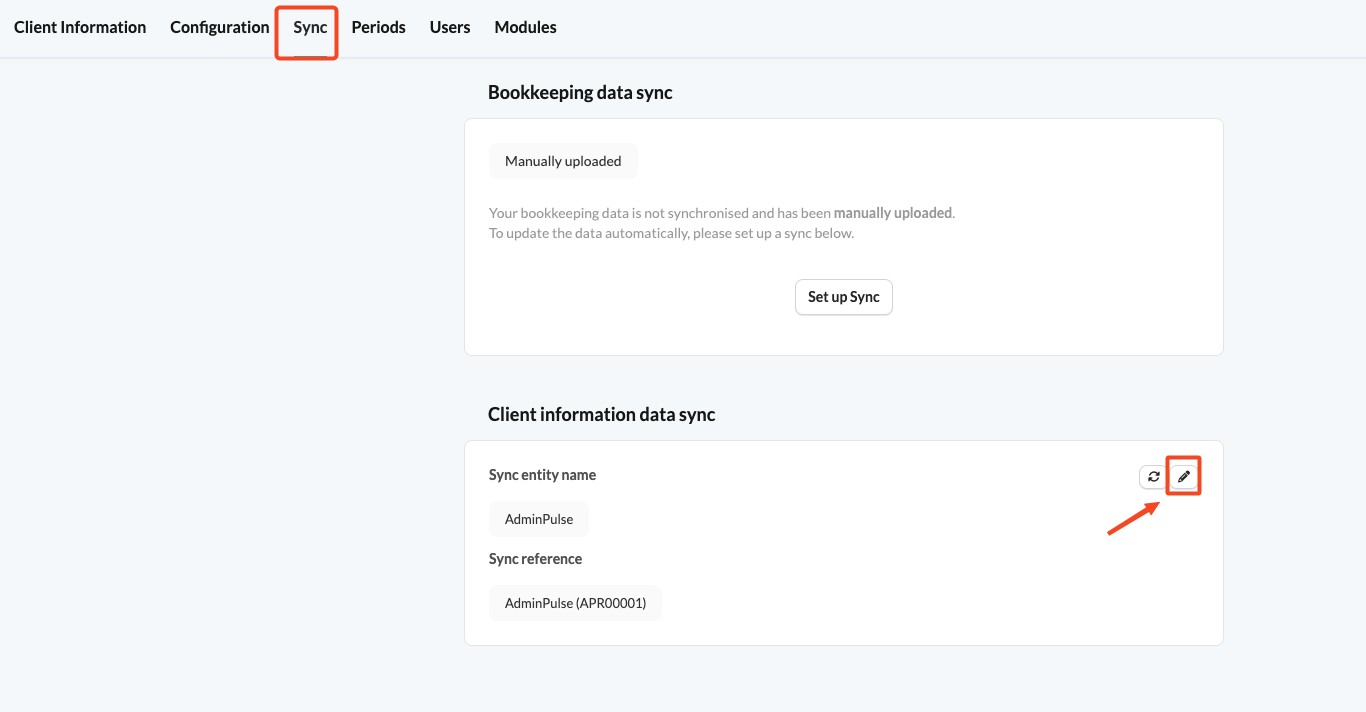
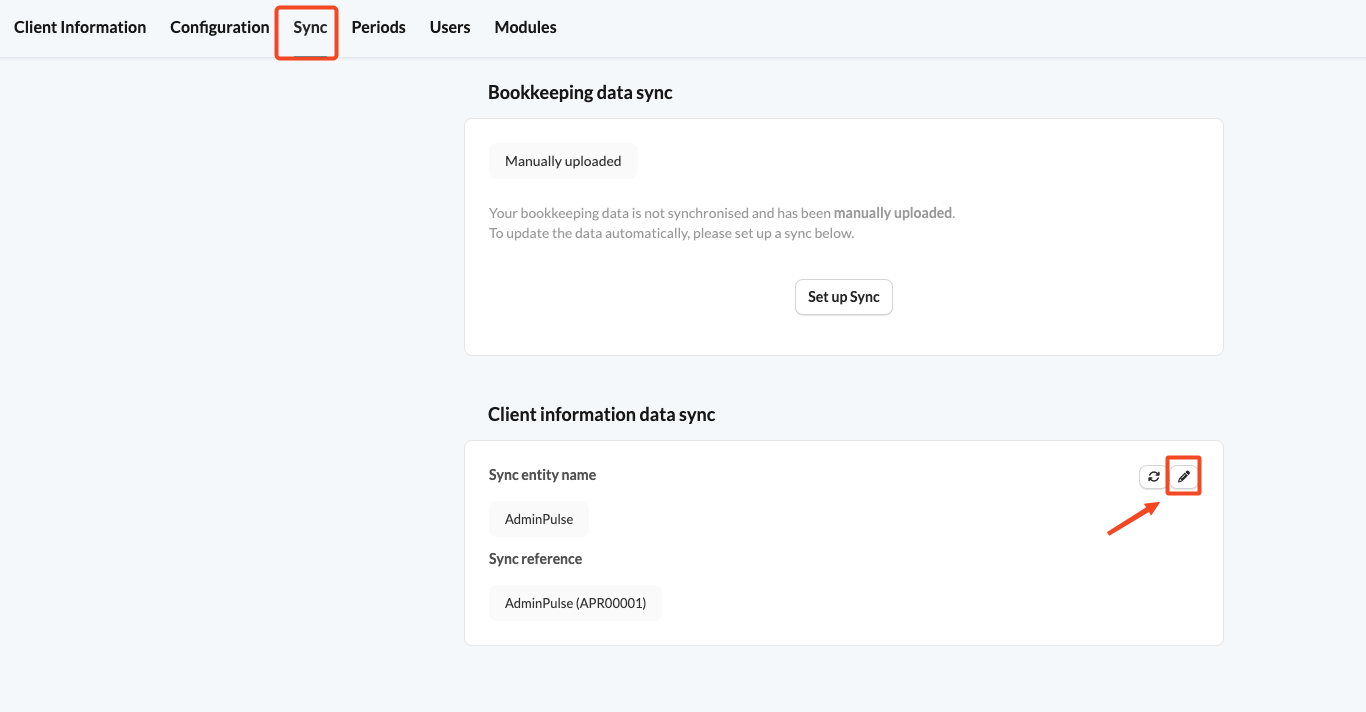
- Click on the Sync tab.
- In the Client information data sync section, click the pencil icon.
- From the drop-down menu, select Remove the administration synchronisation.
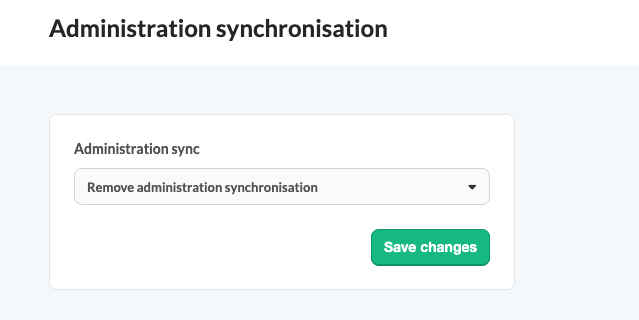
- Click Save changes.
Removing the administration sync and linking it again is also the way to clear a value that has been emptied in your administration package, because Silverfin keeps the previously synced value until something replaces it. For more on how synced data behaves, see How do I manage administration sync updates in Silverfin?
How do I update an administration sync in a client file?
To update an administration sync in a client file, please perform the following steps:
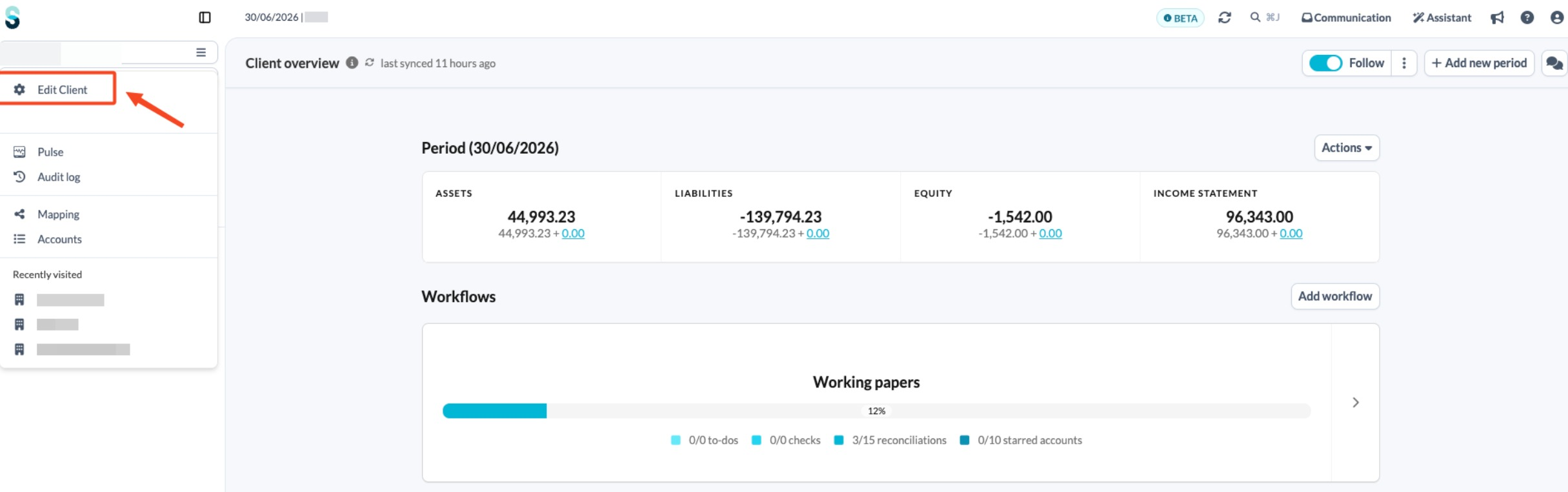
- On the client file overview screen, open the left-hand navigation panel and click Edit client.
- Click on the Sync tab.
- In the Client information data sync section, click the pencil icon.
- Select the correct sync entity from the list of available administration syncs.
- Assign the correct company reference (usually the name of the client file).
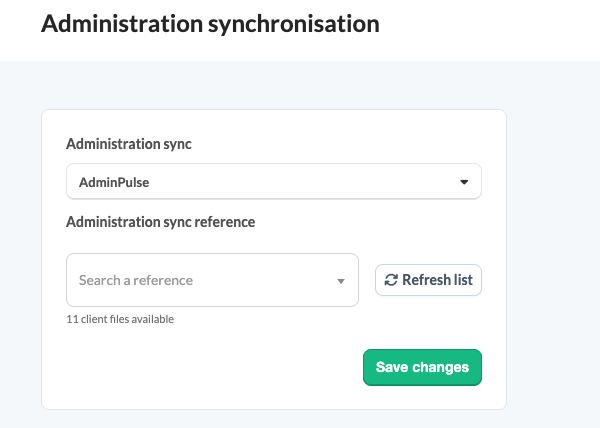
- Click Save changes.
If no administration sync has been linked to the client file yet, see How to set up a synchronisation with a cloud sync? for the set-up steps at firm and file level.