
| User Roles |  Admin Admin |  Staff contributor Staff contributor | ✗ External contributor | ✗ Pulse user |
This article explains how to download several periods at once from a client file, using the Reports tab and period sets. There is no native bulk-export feature, but this workaround lets you generate and download multiple trial balances in a single action. It is relevant if you need to organise and analyse financial data across several years.
Table of contents
What do I need to set up first?
To export multiple trial balances from a client file, you first need to add the report structure you need through the Reports tab. Before you start, read How to configure period sets in Silverfin reports?
You can add a new period set at the firm level or at the file level. For more information on each level, see:
How do I download multiple trial balances?
Once you have set up your period sets in the report you need, downloading that report is straightforward.
- Go to your client file.
- In the left navigation panel, click Reports.
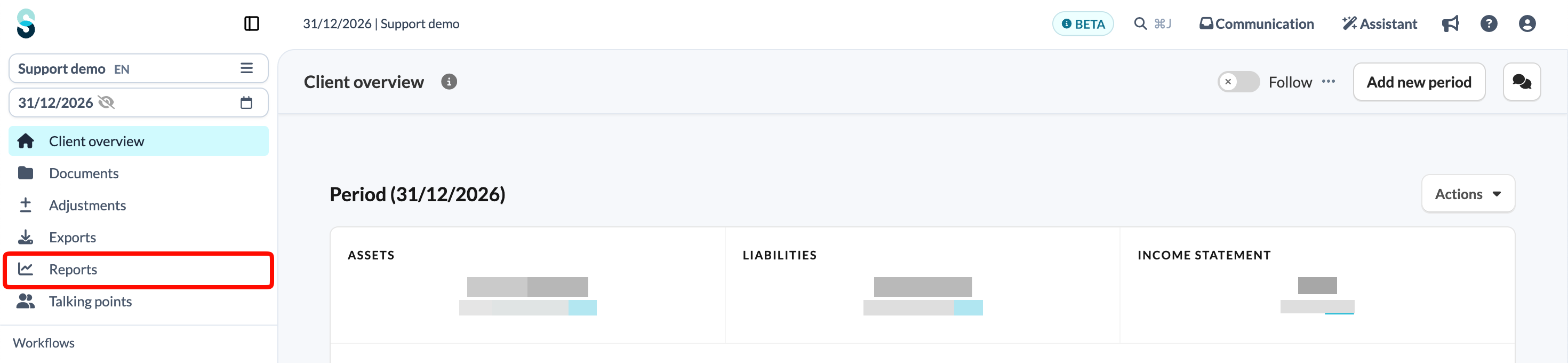
- Click the name of the report you need.
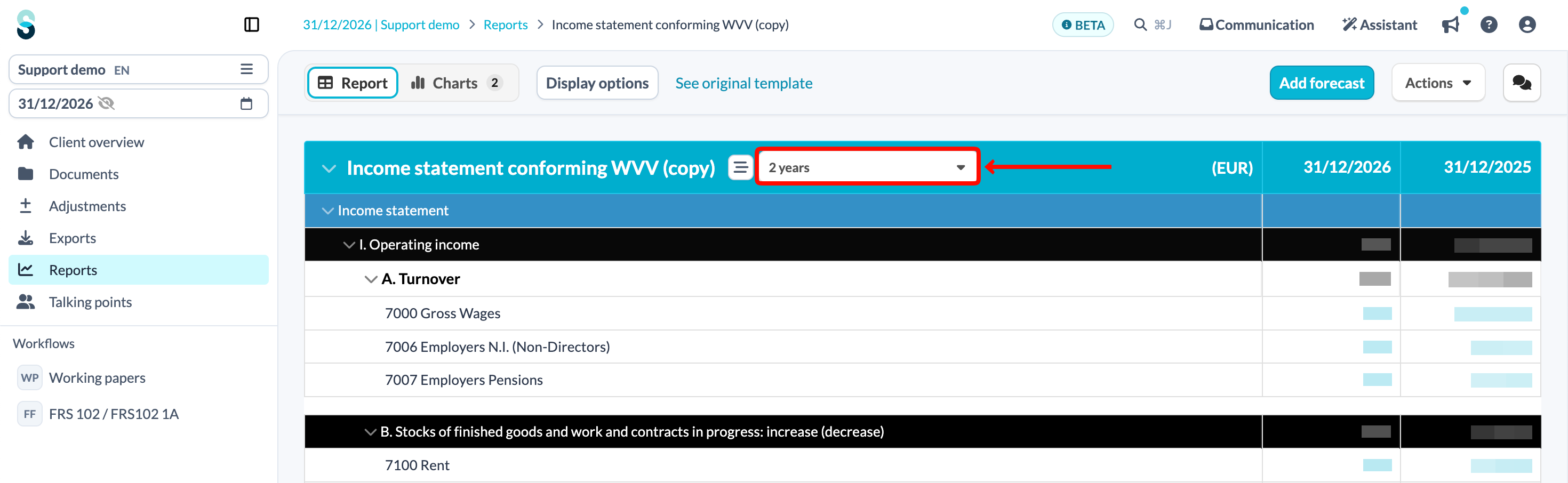
- Check that the correct period set is selected.
- Click the Actions button and select Download all as Excel.
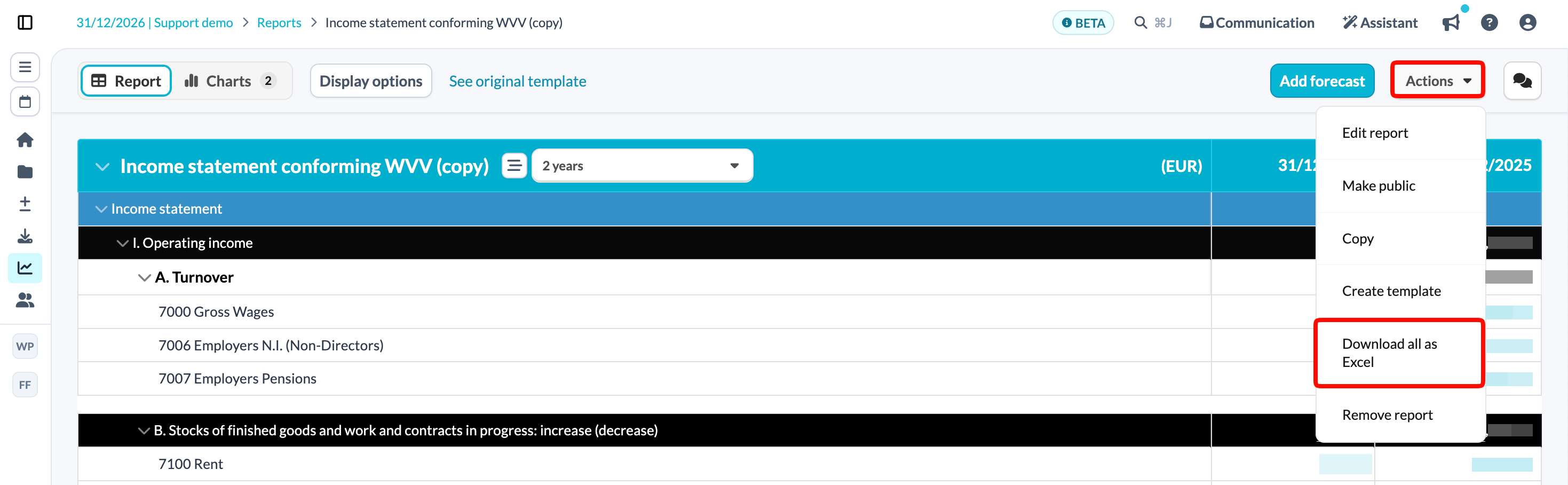
- Silverfin generates an Excel file with the expected values.
If you only need a single period, you do not need a period set – see How to download report to Excel? for the basic steps.