
| User Roles |  Admin Admin |  Staff contributor Staff contributor |  External contributor External contributor |  Pulse user Pulse user |
This article explains how to set up two-factor authentication (2FA) for Silverfin through Visma Connect, the account system behind your Silverfin login, if you do not have a smartphone or would rather not use your personal phone. It sets out three phone-free options and points you to the full steps for each one. It is relevant for anyone whose firm has been migrated to Visma Connect.
Table of contents
- Why do I need to set up 2FA?
- What are my options if I do not have a smartphone?
- Option 1 — Sign in with Microsoft or Google
- Option 2 — Set up a passkey on your computer
- Option 3 — Use a password manager
- Need help?
Why do I need to set up 2FA?
Two-factor authentication (2FA) is the minimum needed to keep your clients' data safe. A username and password alone are not enough - anyone who guesses or steals them would be straight into Silverfin. A second factor makes sure that only you can sign in, even if your password is compromised.
Using a second factor like this has been the industry standard for over a decade, and it is a requirement for protecting client data.
What are my options if I do not have a smartphone?
A phone is not the only way to set up your second factor authenticator. There are three phone-free options.
| Option | Best for | What you need |
| Microsoft or Google sign-in | Teams whose work email runs on Microsoft 365 or Google Workspace | Your work email account (not a personal Gmail or Outlook address) |
| Passkey | Anyone with a work computer | A Windows PC (Windows Hello), a Mac (Touch ID) or a physical security key |
| Password manager (for example, 1Password) | Anyone already using a password manager | A password manager that generates 2FA codes |
Pick whichever fits how you already work. Each one is explained below.
Option 1 — Sign in with Microsoft or Google
If your work email runs on Microsoft 365 or Google Workspace, you can sign in with that account instead of setting up a separate second factor. This only works for work accounts - not for personal Gmail or Outlook addresses.
Important: the Microsoft or Google account you sign in with must be the exact same email address as your Silverfin account. If the two are different, the sign-in will not work.
For the full steps, see How do I sign in to Silverfin with Google or Microsoft? (Visma Connect).
Option 2 — Set up a passkey on your computer
A passkey lets you sign in using your computer itself - Windows Hello on a PC, Touch ID on a Mac, or a physical security key. No phone is required. Once it is set up, your computer is your second factor.
Visma has a dedicated page for managing your authentication settings. This is where you can view and manage your sign-in methods, including registering a passkey.
The helpful part is that this page can be opened with just your email and password — no second factor needed — so you can register a passkey there first, and then use it to complete your Silverfin sign-in. The steps below walk you through that flow.
One-time setup
- Go to connect.getsilverfin.com and sign in with your email and password, until you reach the screen asking for smartphone validation.
- In a separate browser tab, open accountsettings.connect.visma.com and sign in with the same email and password.
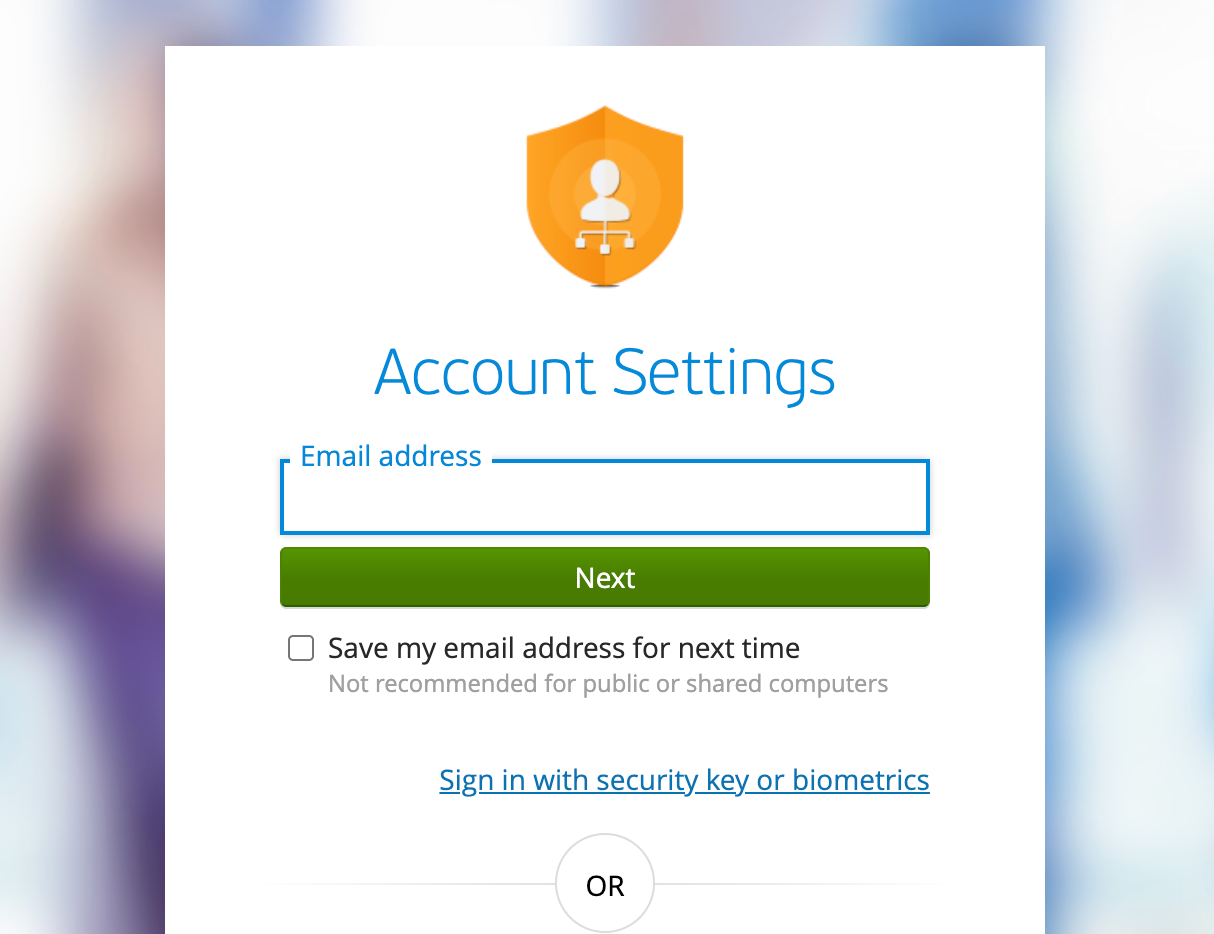
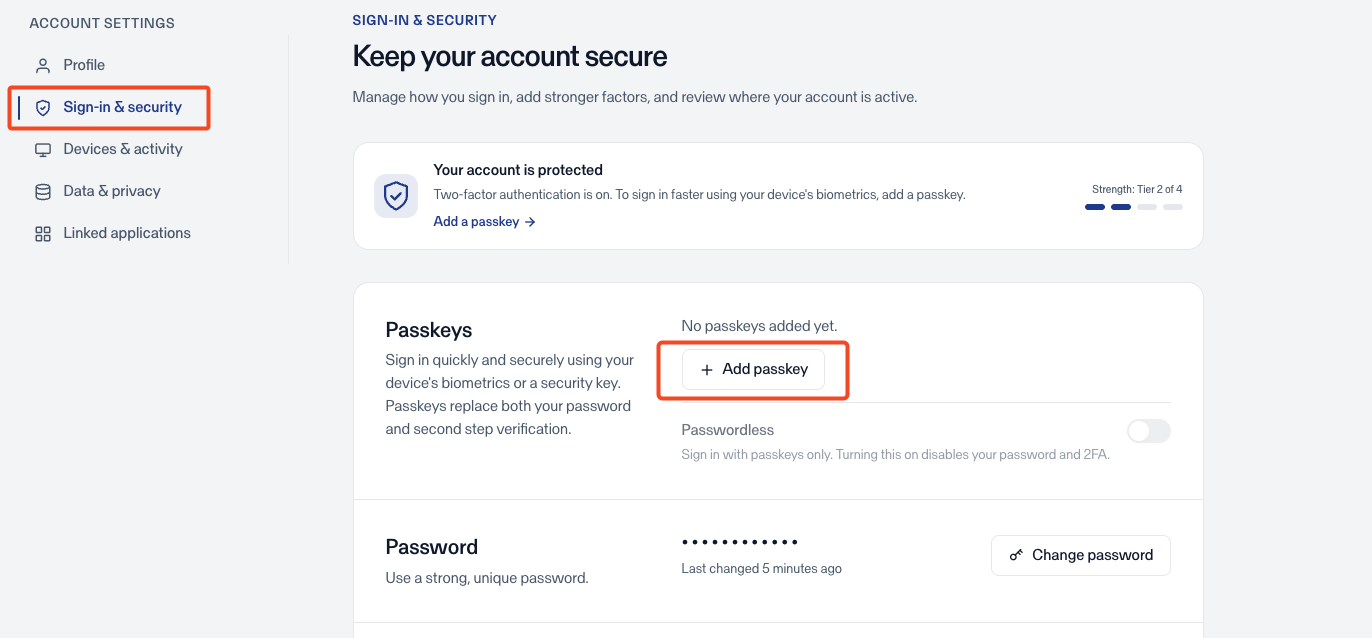
- In the Sign-in & security section, click Add passkey, then follow the prompts to register your computer's passkey (Windows Hello, Touch ID or device PIN).
- Go back to the connect.getsilverfin.com tab. If it asks for your password again, click Back to return to the previous step, which shows the passkey option.
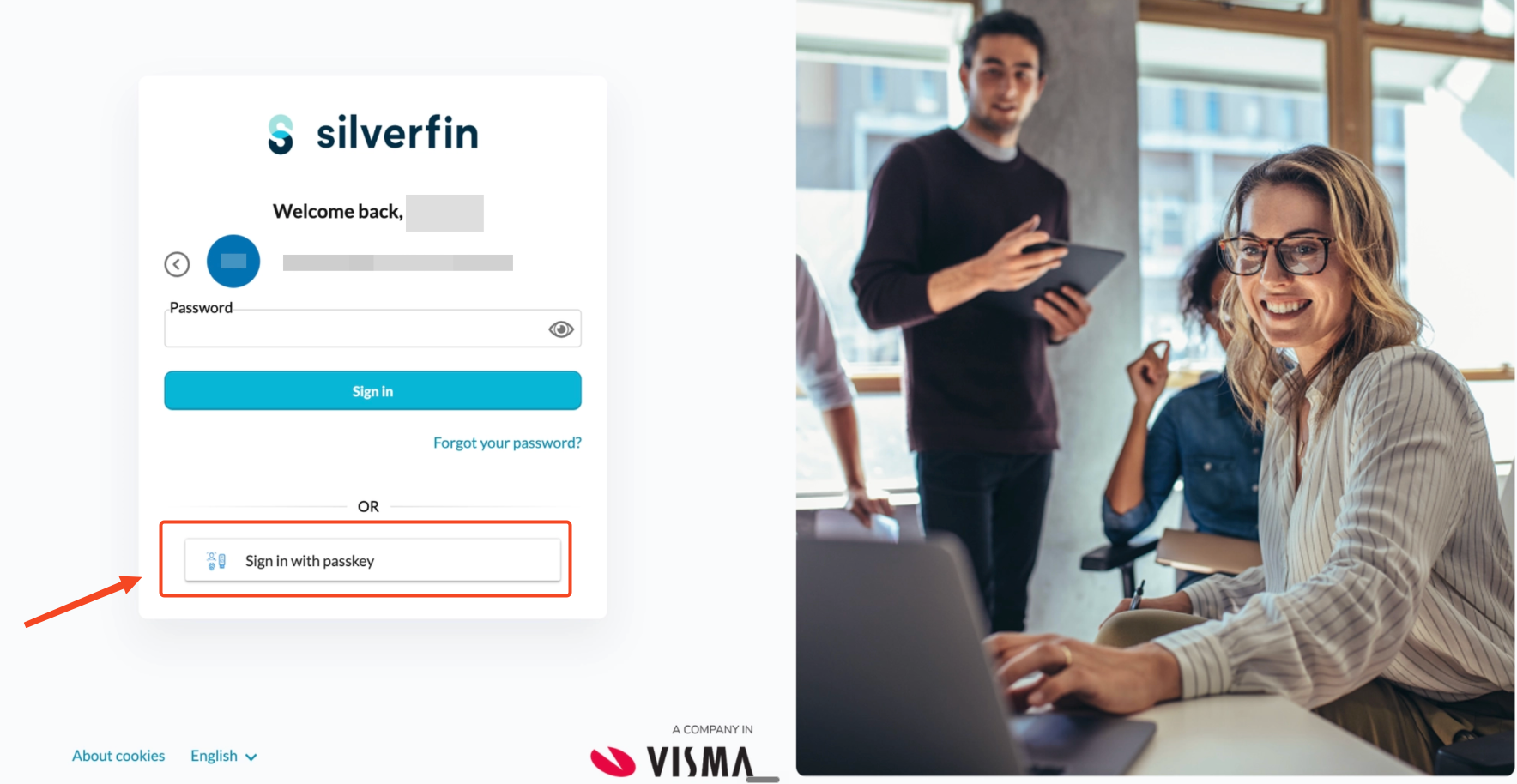
- Click Sign in with passkey and use the passkey you have just registered.
After this one-time setup, you can sign in with the passkey alone — no smartphone needed.
For more on passkeys, see How do I set up a passkey to sign in to Silverfin? (Visma Connect) and How do I manage my account with Visma Connect (email, passkeys & password)?.
Option 3 — Use a password manager
A password manager such as 1Password can generate your 2FA codes for you, so again no phone is needed. If you already use one, this is the quickest option.
Make sure your password manager account is itself well protected (a strong master password and its own 2FA), because it now holds your second factor.
For how the code is entered at sign-in, see How do I sign in to Silverfin once two-factor authentication (2FA) is set up? (Visma Connect).
Need help?
If none of these options work for you, reach out to your usual Silverfin support contact and we will help you find the best way to sign in.