
| User Roles |  Admin Admin |  Staff contributor Staff contributor | ✗External contributor | ✗Pulse user |
Before you can prepare legal reports in Silverfin, the BE Legal documents (NEW) package has to be activated once at firm level, and the workflow then has to be added to your files. This article explains both steps, and the difference between adding the workflow to all files at once or to a single file.
Table of contents
- How do I activate the Legal documents package?
- How do I add the workflow to all my files?
- How do I add the workflow to one file?
- What happens next?
How do I activate the Legal documents package?
The package is available in the Marketplace, which only users with admin rights can open.
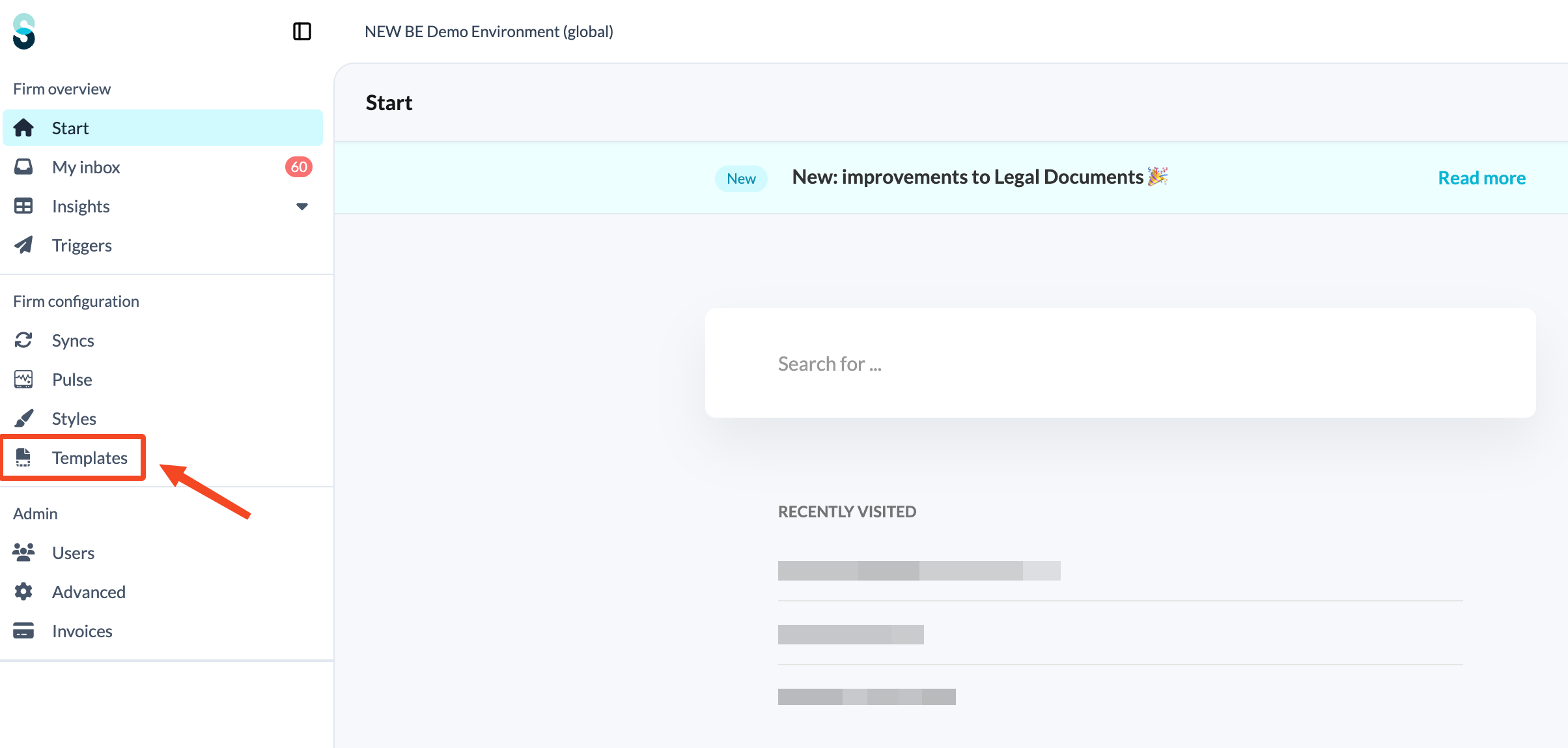
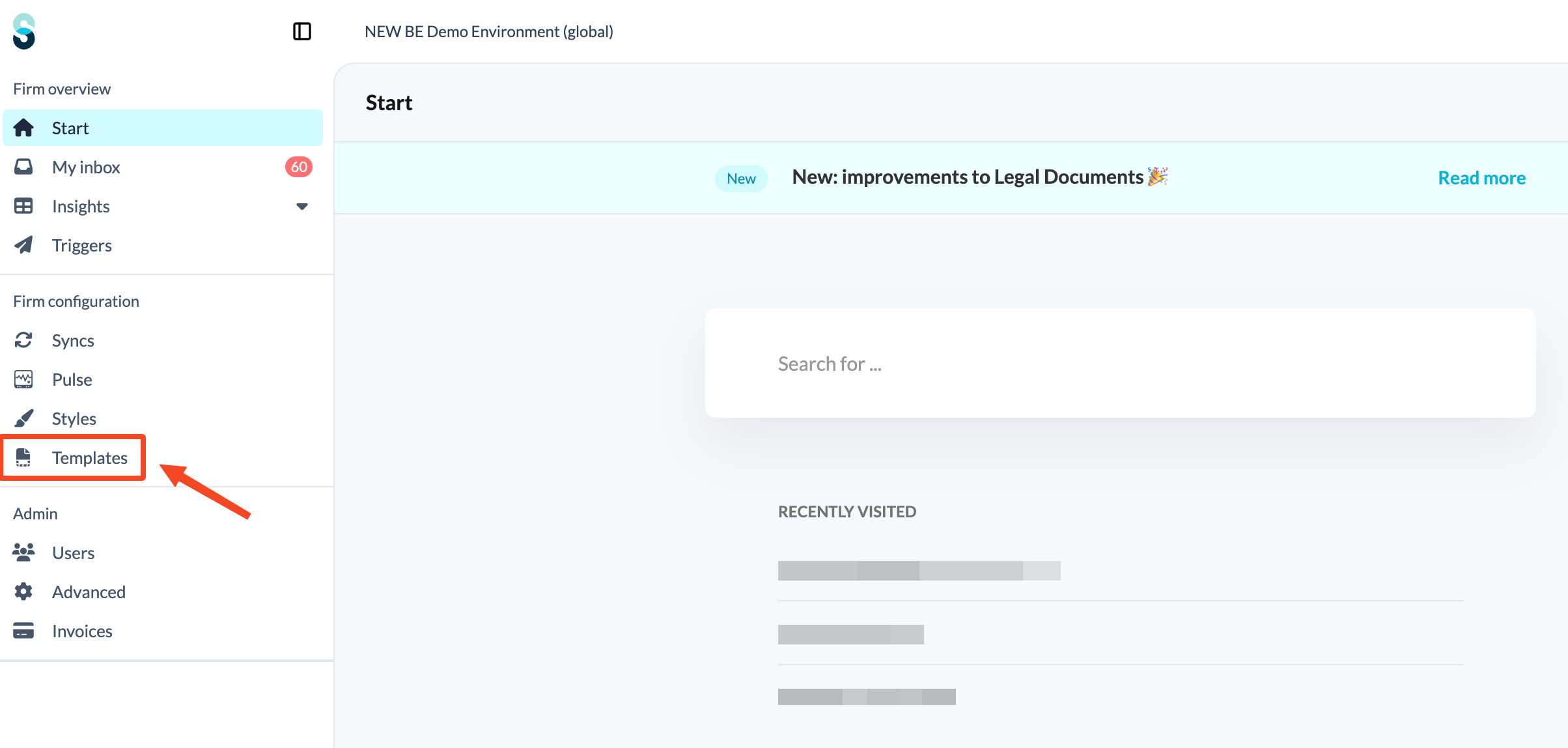
- At firm level, go to Templates.
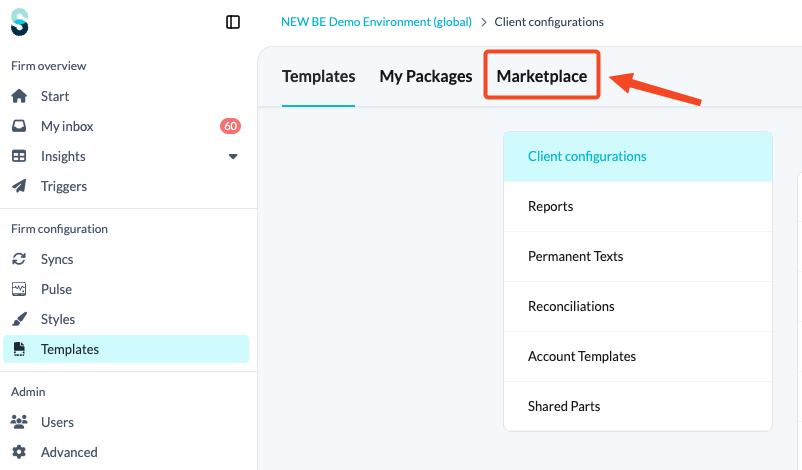
- Select Marketplace.
- Find BE Legal documents (NEW), either by browsing the packages or by pressing Ctrl + F and typing Legal documents.
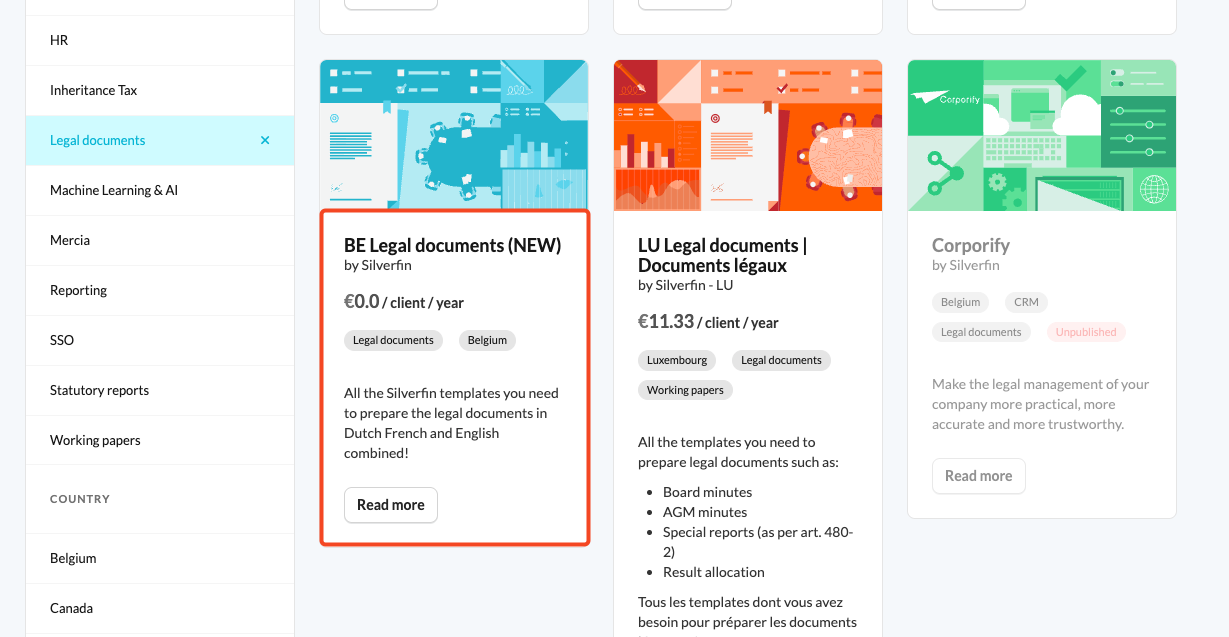
- Click Read more on the package.
- Click Activate.
Note: If the package is already active, you will see a Deactivate option instead.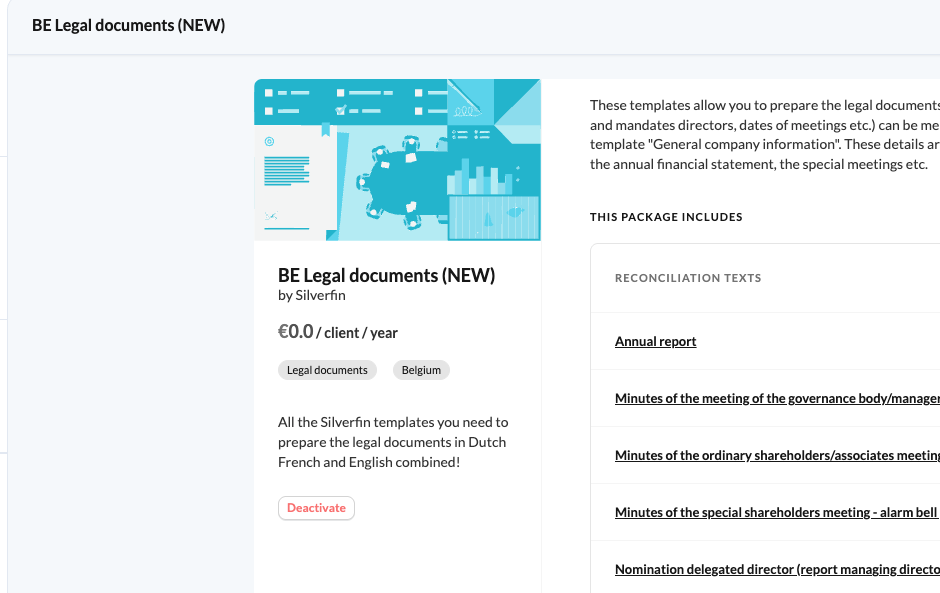
For more information about the Marketplace, see How do I use the Marketplace?
How do I add the workflow to all my files?
As an admin user, you can add the workflow to the standard client template or to a client template of your choice. Every file linked to that template will then have the workflow.
- Go to the Templates tab.
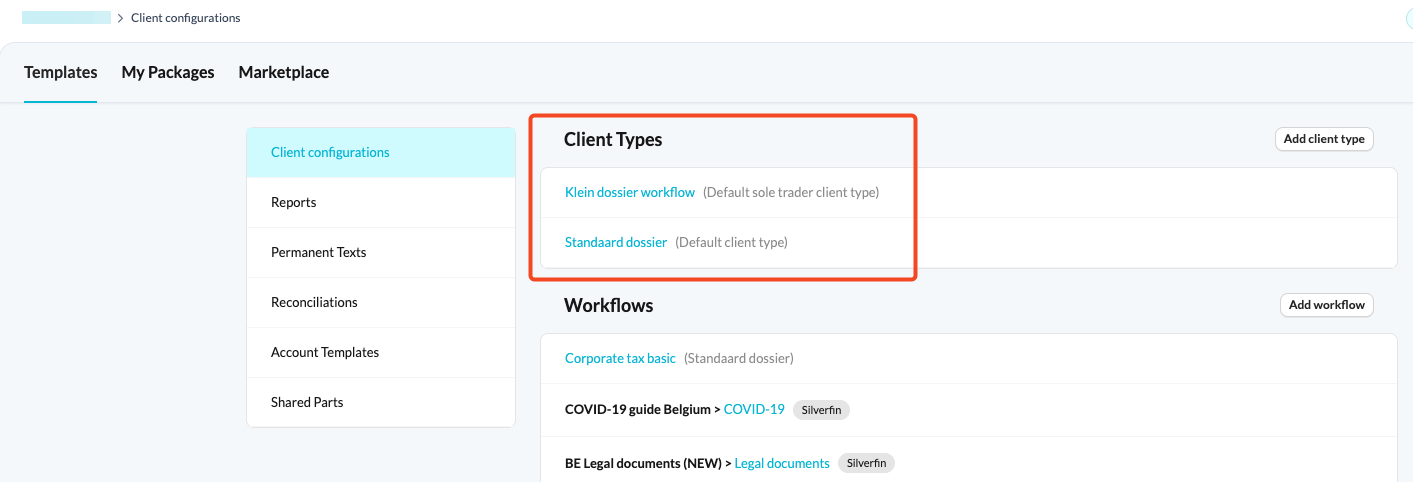
- Select the client template you want to add the workflow to.
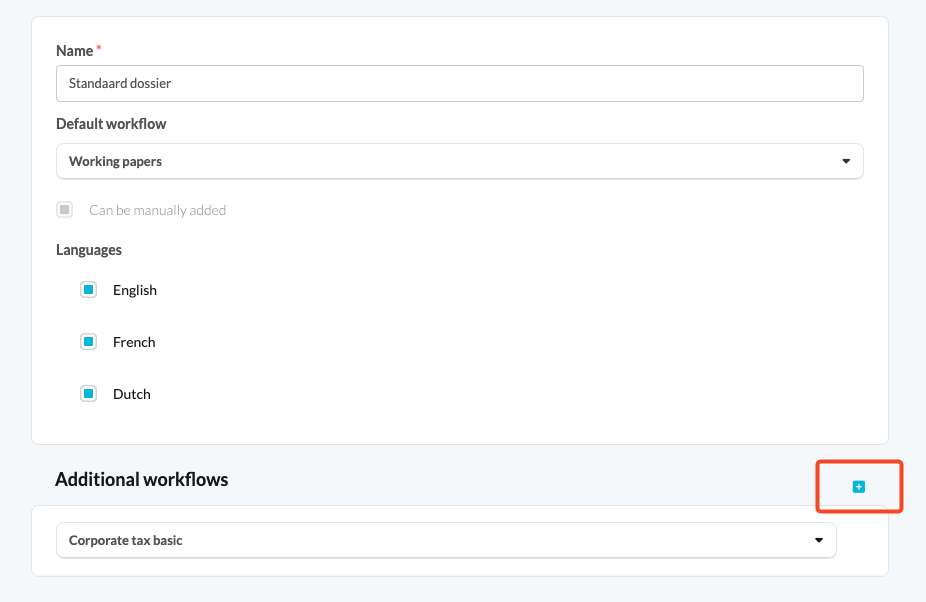
- Scroll down to the section additional workflows and click on 'plus' button.
- Choose BE Legal documents (NEW)>Legal documents and save your changes.
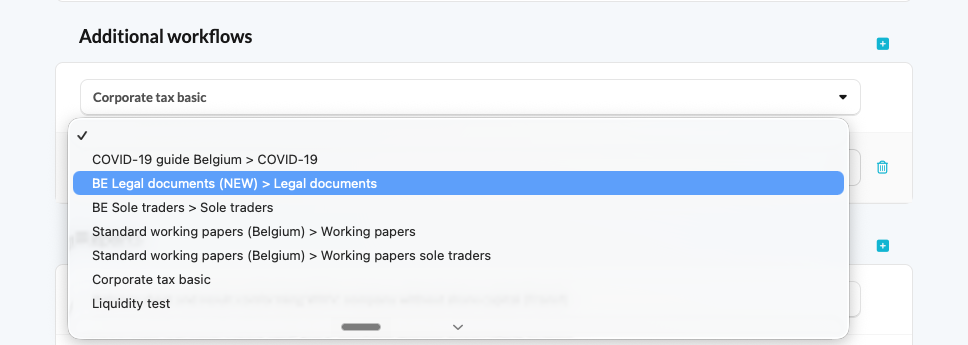
Once you have saved, the workflow is added to all existing files linked to this client template, and to any new files created with it.
How do I add the workflow to one file?
Admin users and staff contributors can add the workflow to an individual file.
- Open the file and start from its home page.
- Click Add a workflow.
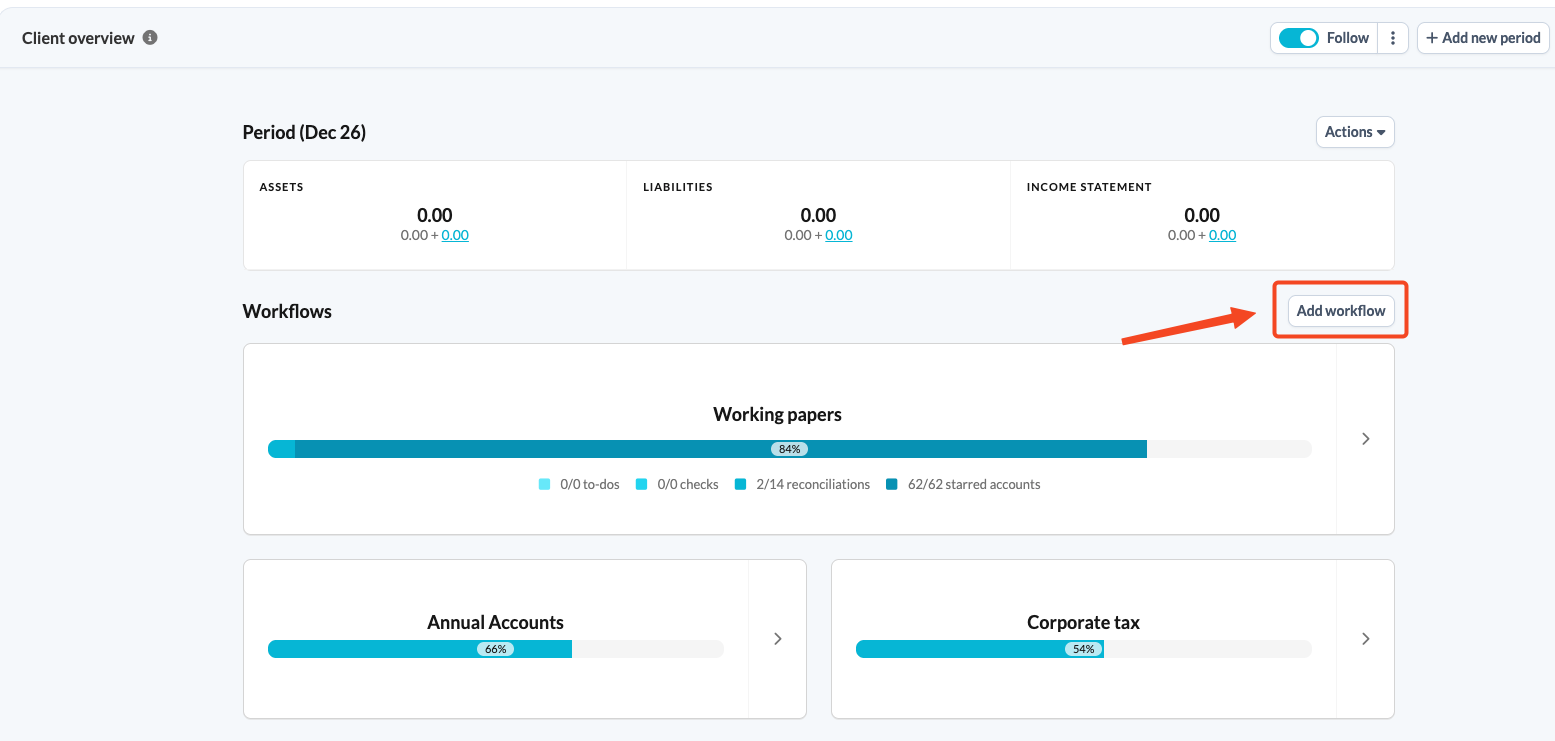
- Select the Legal documents workflow.
What happens next?
Once the workflow has been added, you can start completing it. The workflow is period-specific and contains all the templates you need to prepare the legal reports, including the settings, the register of persons, the minutes and the annual report.
For a full walkthrough of the templates and the recommended order of completion, see How do I use Legal Documents in Silverfin? (BE market).
Good to know: the package is free of charge and contains the Dutch, French and English templates combined, so you do not need to activate a separate package per language.